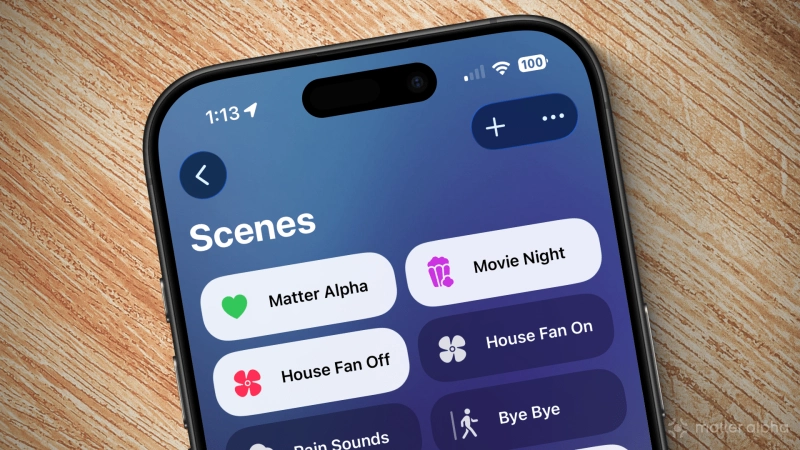
If you've added multiple Matter devices to the Apple Home app, you'll quickly learn that controlling them one by one can be tedious and time-consuming—even if they are in the same room. The good news is that Apple's Home app offers several solutions for this problem in the form of automation and device groups, as well as the topic of today's guide: scenes.
In this guide, we'll dive into all that Apple Home scenes have to offer, what you'll need to create them, and how to set one up for your Matter smart home.
What are Apple Home scenes?
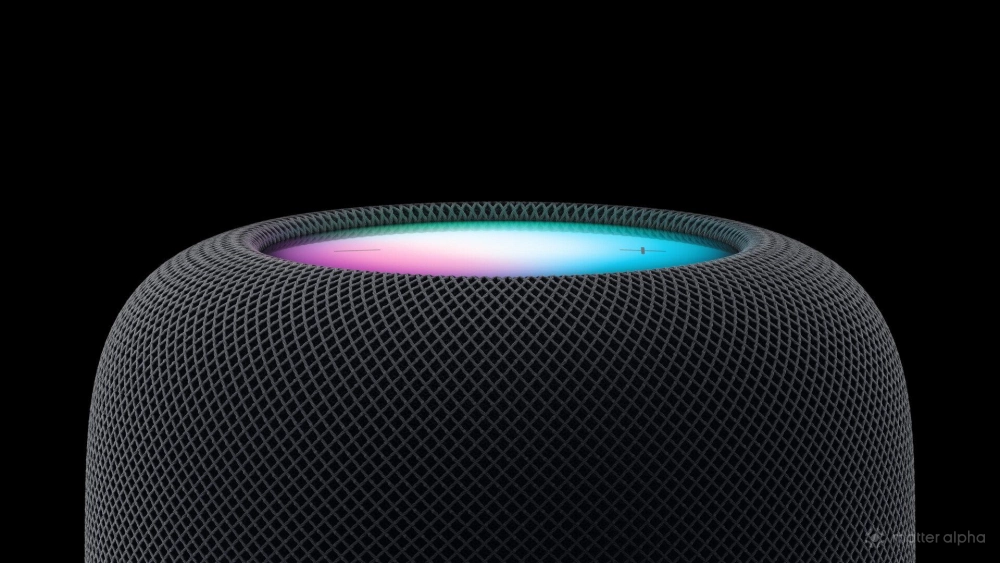
Apple HomePod (2nd Gen)
As previously mentioned, Apple Home scenes are a convenient way to control the state of multiple smart home devices at once. Compared to Apple Home groups—which limit you to a single device type, such as lighting—scenes allow you to mix and match devices of all types, regardless of vendor.
Say that you want to kick off a family movie night in a living room with multiple Matter-compatible light bulbs, window coverings, and a smart TV. Without a scene, you'll need to manually dim each light, close every window blind, power on the TV, and set it to the correct input.
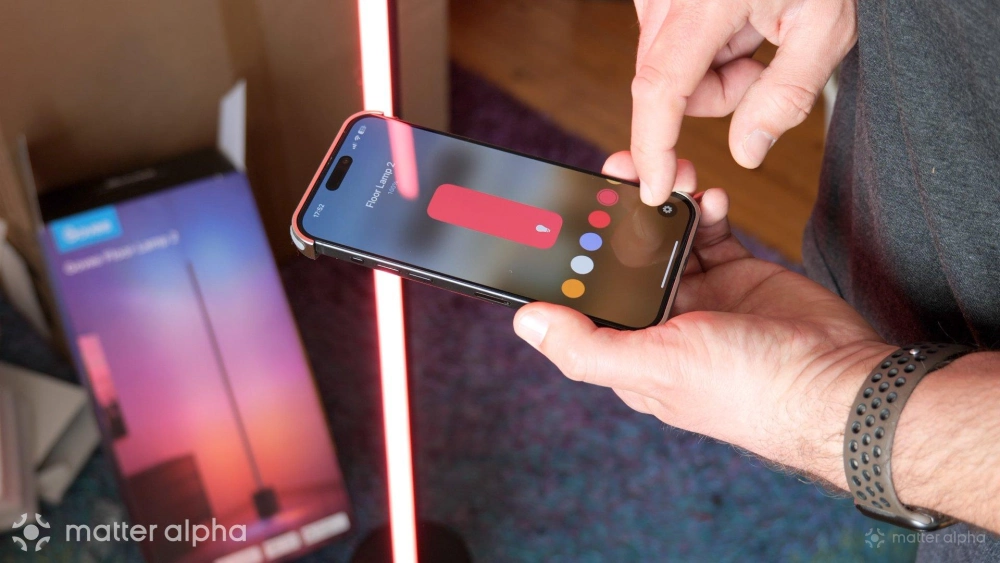
A scene simplifies this process by saving all of your preferences into one virtual button that sets everything into motion with just a tap in the Home app. Even better, scenes can also be summoned on demand via Apple's virtual assistant, Siri, at any time, and they'll appear right on your wrist if you own an Apple Watch.
Scenes live as their own "tile" within Apple Home, and can be customized to fit almost any application. The Home app provides tons of color and iconography options to choose from, and it supports personalized text input so you can name it and the devices it controls in a manner that is more natural to how your family utilizes your space.
What you'll need to create Apple Home scenes
As you might expect, you'll need a few things already set up in your home before you can create an Apple Home scene. Although you create scenes on iPhones, iPads, and Macs, they are not stored locally on these devices; rather, they reside on an Apple Home Hub/Matter Controller.
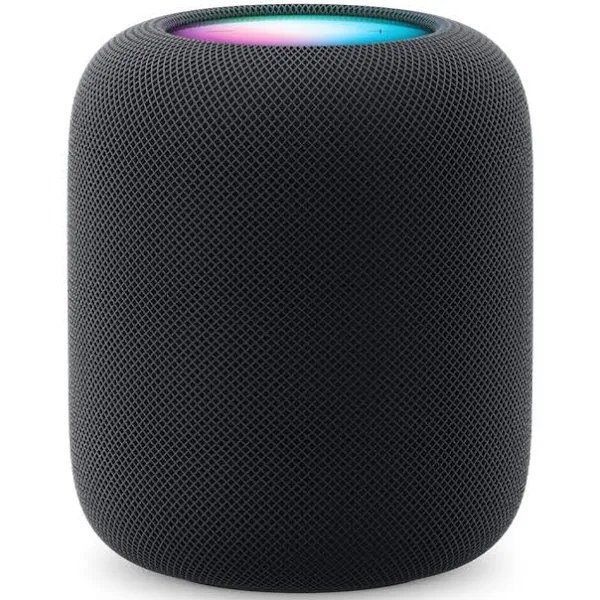
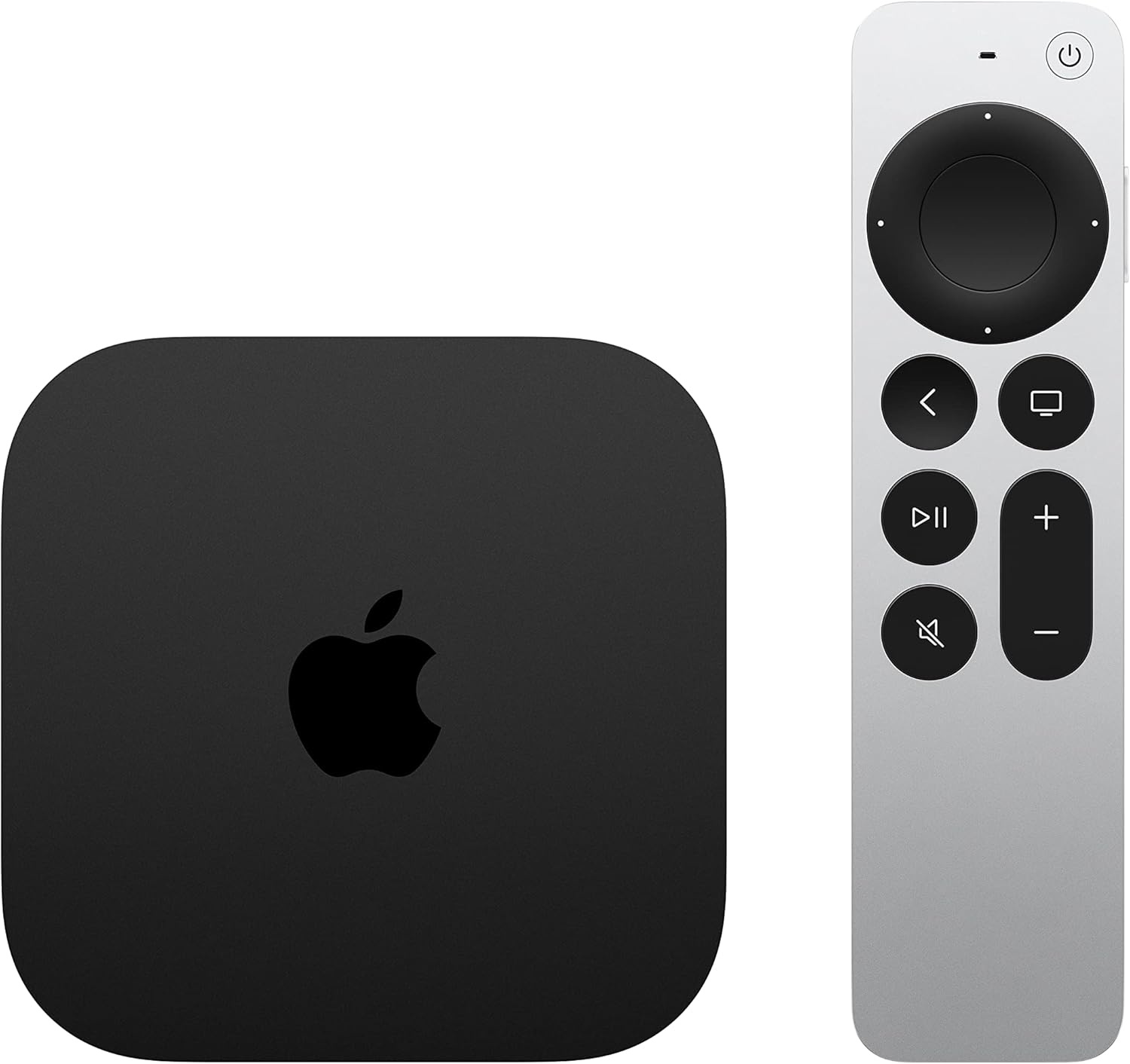
Any Apple Home hub will do so long as it is up-to-date and running the latest software. Compatible hubs include both models of Apple's smart speakers, the HomePod and HomePod mini, and the company's media streaming set-top box, Apple TV 4K.
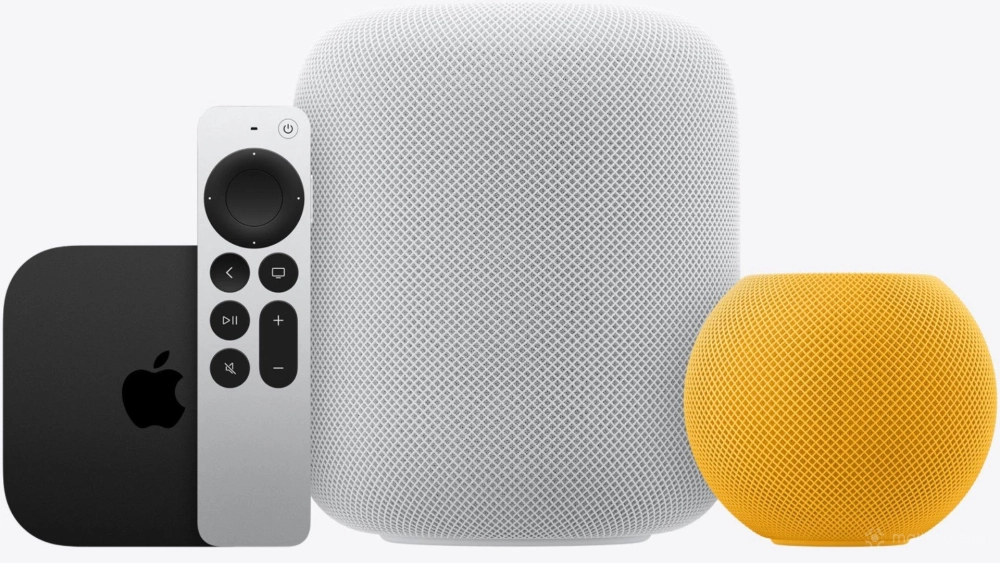
Apple Home Hubs perform all the home automation magic behind the scenes, sending commands to every device included in your scene the moment it is activated. Scenes can be activated on demand, through time-based automation, or once certain conditions are met—all orchestrated by your Apple Home hub.
Of course, speaking of devices, you'll need more than one actionable Matter accessory in your Apple Home environment. Scenes can include smart plugs, lights, smart blinds, door locks, and more, but they do not work with passive devices like temperature or humidity sensors, or with buttons/remotes.
How to create a scene in Apple Home
With the ability to control multiple Matter devices at once, creating an Apple Home scene may sound rather complicated. In reality, however, the process is quite easy, requiring only a few taps and completing a few customization steps. When you are ready, we'll walk you through the steps below.
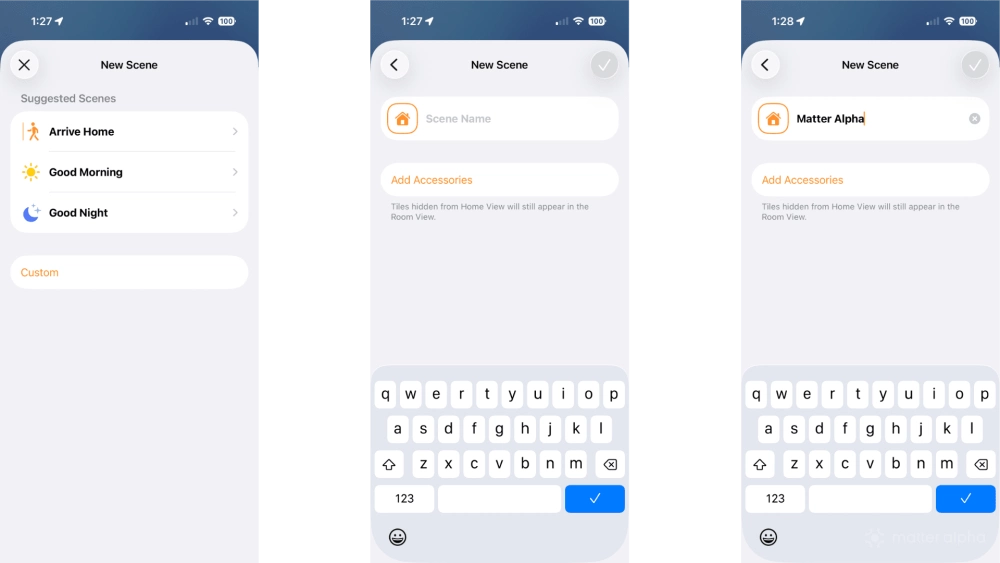
- Launch the Apple Home app.
- Tap the Add button (looks like a plus sign).
- Tap Add Scene.
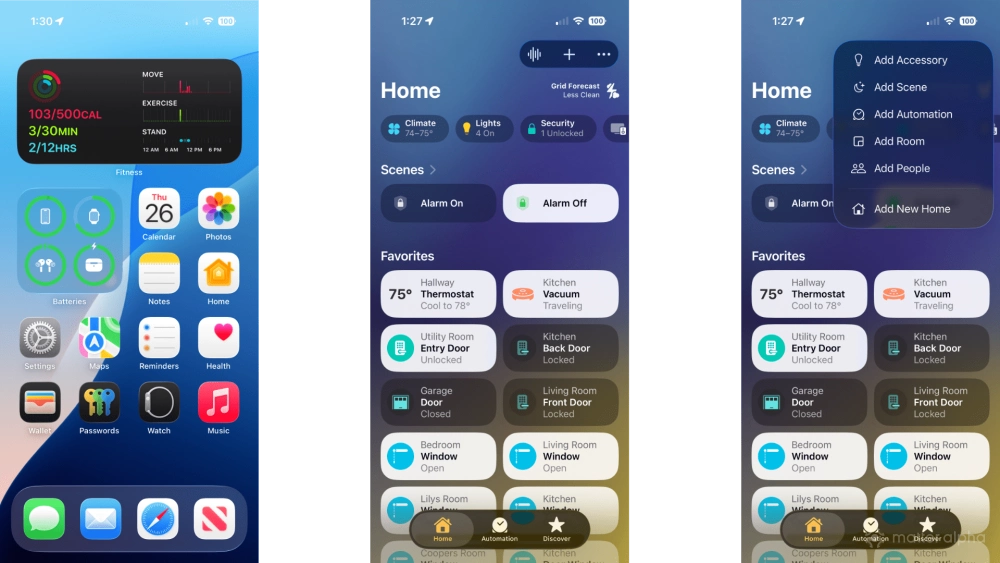
- Tap Custom.
- Type a name for you scene.
- Tap the Done button (looks like a checkmark).
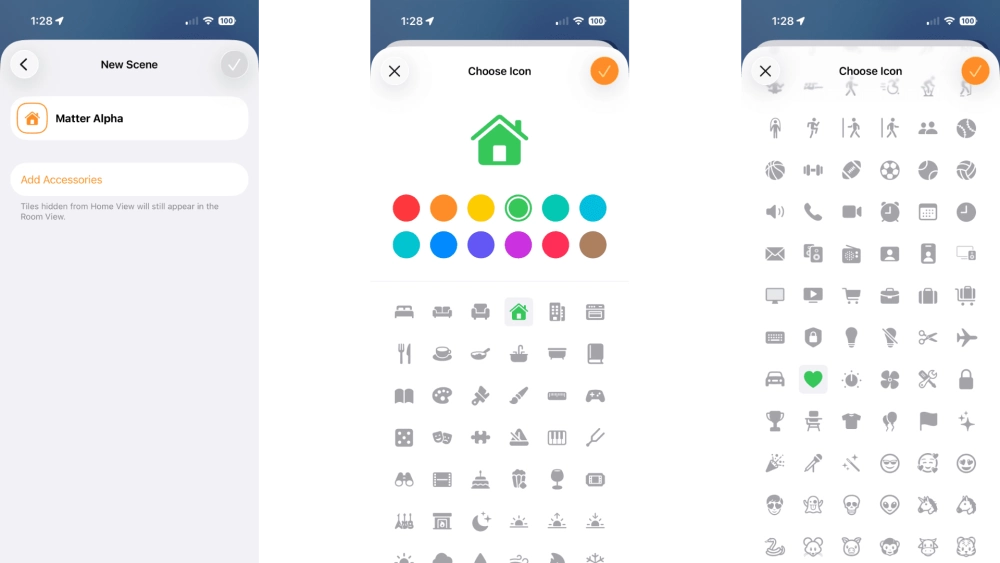
- Tap the House icon.
- Tap a color.
- Tap an icon, then tap the Done button.
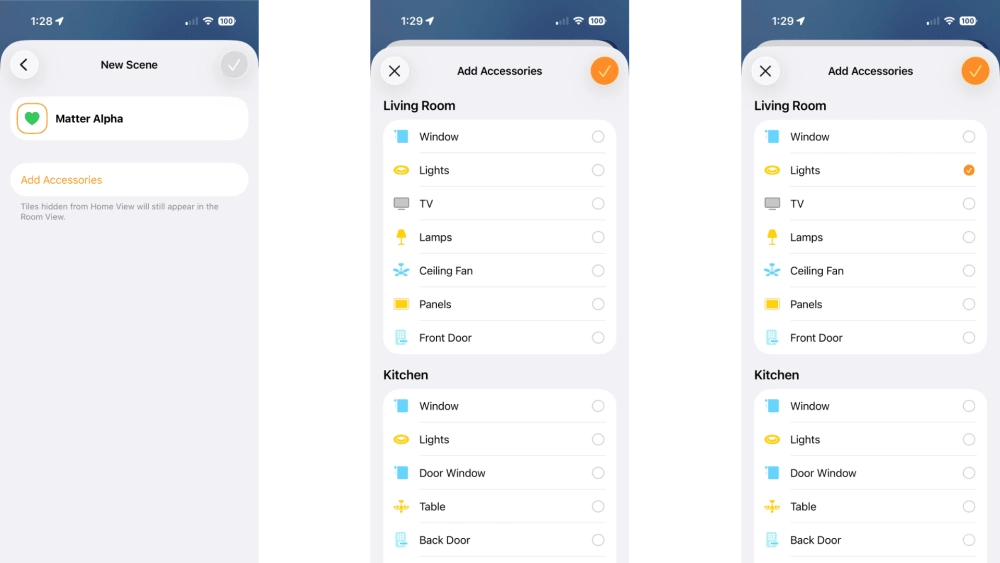
- Tap Add Accessories.
- Tap the desired accessories.
- Tap the Done button.
- Tap each accessory to change its state.
- Tap Add to Home View if desired.
- Tap the Done button to save your scene.
of
That's all there is to it. If you checked the Add to Home View option during setup, you'll find your newly created scene right on the app's default view. If you didn't, you'll need to navigate to the room of an accessory included in the scene.
How to use Apple Home scenes
Now that you have a scene for your accessories, it's time to put it into action. You can tap the scene in the Home app to start bringing your home to life, or you may refer to it via its given name when using voice commands.
When a scene is set, its tile within the Home app will change to a highlighted state. Tapping the scene again will result in inverse actions taking effect—a little-known, yet handy feature of the Home app.
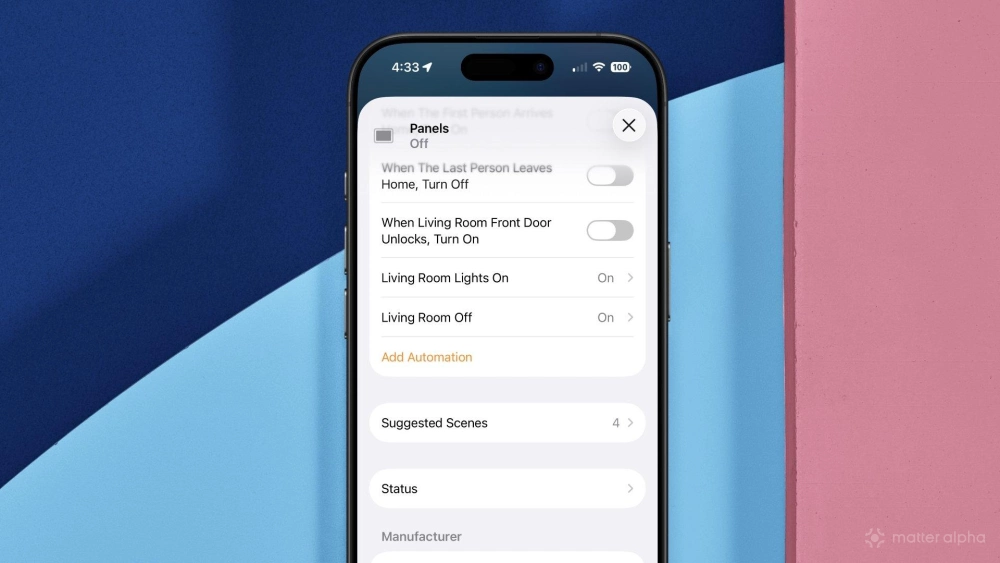
For instance, if your scene involves turning on a light, tapping the scene a second time will turn it, along with other devices, off. This feature effectively gives you two quick toggles for devices within the scene.
Scenes also work with conditional and location-based automation, opening the door to even more possibilities. If you need some inspiration, the Apple Home app offers scene suggestions during the first step of the creation process, and on the settings page for many Matter device types.
Put it all into motion with an Apple Home scene
Apple Home scenes are an incredibly powerful—and convenient—way to control multiple Matter accessories at once. With a scene, you'll no longer need to hunt and peck each device in the living room when it's time for binge-watching your favorite show; just give it a tap or shout to set the mood.
Looking for more ways to master the Apple Home app experience? Then check out our guides on how to set your preferred Apple Home hub and how to use Apple Home Adaptive Lighting for more.