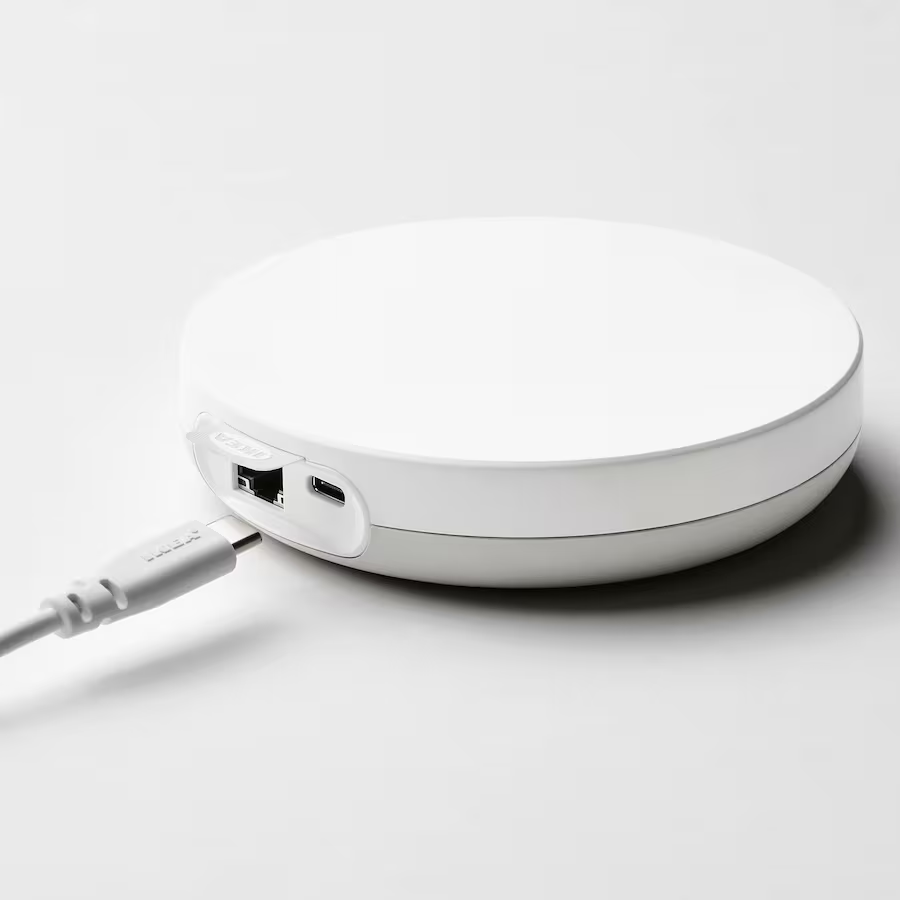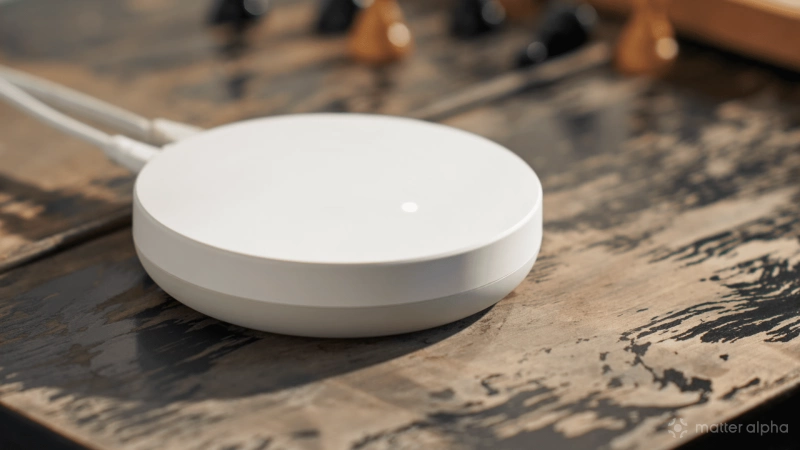
Probably the easiest piece of kit you need to begin adopting the Matter smart home platform, the IKEA DIRIGERA is also extremely affordable. You can walk into a branch of IKEA, buy this smart home hub, a couple of bulbs, and a smart plug, and still have change from $100.
Since its initial release, the IKEA DIRIGERA has been given a series of firmware updates that have enhanced its capabilities considerably. The device started out as a Zigbee-based smart home hub upon its release in 2023, but is now capable of running as a Matter controller with Thread Border Router functionality.
Not only does this make it comparable with other, more expensive hubs, it also supports IKEA’s line of affordable smart home gear. Assuming, that is, that your IKEA DIRIGERA has updated.
Automatic firmware updates should arrive overnight, but this doesn’t always happen. So, how do you make sure your IKEA DIRIGERA has updated?
What not to do: Press the button

Power cycling the IKEA DIRIGERA (see below) is a good way to force it to check for updates, but there is a specific method for doing this.
What you should not do is press the button on the underside of the DIRIGERA. Why? Well, that’s not actually what it’s for. You’re not resetting anything with that button; rather, it is there to assist with pairing with the IKEA Home smart app. It has also been used to pair with other smart home systems in its Zigbee-only days, such as Samsung SmartThings, Google Home, etc.
(While you may also be prompted to press the button by the IKEA Home smart app following a firmware update, be sure to check the app first for such an instruction. Pressing it indiscriminately will do nothing.)
What you should do to update the IKEA DIRIGERA
Updating the IKEA DIRIGERA should happen automatically, without any (or minimal) input from you. But just in case you’re still struggling, here’s what you should do to kickstart an update.
Check the app and hub versions

In the IKEA Home smart app, you can check the version of both the app and the hub’s firmware.
To check this, open the app, and tap the settings button (that’s the one that looks like a person).
Tap Our home, then scroll down to Hub and app version. Both the Firmware version for the hub, and the App version, are listed here. At the time of writing (June 2026) these should be:
-
Firmware: 2.934.5
-
App: 1.67.0
If these match (or yours are later versions) then all the Matter controller and Thread Border Router connectivity should work. Otherwise, check your mobile app store for an update for the app (which when completed, should prompt the firmware update).
Uninstall and reinstall the app
If the app isn’t displaying the right version of the hub and the app, the best option is to uninstall it.
Once uninstalled, restart your phone, then reinstall the IKEA Home smart app. Whether you use Android/Samsung or iPhone, reinstalling the app should work, prompting the app to keep the hub updated.
There is a caveat to this, however – you may need to repeat the pairing of the DIRIGERA with your phone via the app. Once that is done, everything should run as expected. You may even be prompted to press the button on the DIRIGERA to confirm a firmware update!
Rule out network conflicts (including IPv6 issues)
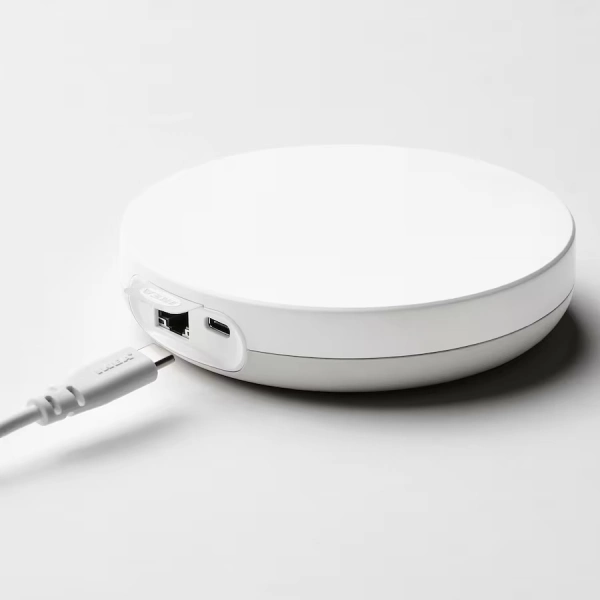
DIRIGERA
Network issues can also cause DIRIGERA updating issues (and general problems with communication between the hub and other smart home devices on your network).
The best solution to this is to try a different router if you have one available. Creating a guest network on your router may work too, but that has other consequences affecting device security and is not a long-term solution.
You may also consider checking the settings of your router and disable multicasting. It is also important to confirm that IPv6 is enabled on your router – the DIRIGERA cannot correctly function without this.
(The app should inform you if IPv6 has been disabled on your network.)
Power cycle the IKEA DIRIGERA
As noted in the introduction, you can power cycle the IKEA DIRIGERA to push it into checking for updates. This is not done using the button, however. Instead, you simply need to disconnect the power cable, wait 30 seconds, then reconnect.
Once restarted, the DIRIGERA should reconnect to the internet and check for updates.
Wait… yes, just wait
One final option is open to you, and that is to simply wait.
Connecting smart products like bulbs, or sensors, or blinds should prompt the DIRIGERA to update. This should have the effect of a full firmware update, bringing your device fully up to date, with all the modern features that the DIRIGERA is currently capable of.
It may help to ensure these devices are paired with the DIRIGERA relatively close-by. Once enrolled and visible in the IKEA Home smart app, they can be positioned as intended, but if the DIRIGERA has been slow to update, keep everything within a few feet until that much-needed update has completed.
Factory reset the IKEA DIRIGERA

There is the option to perform a factory reset, using a pin, or a SIM card removal tool, and the hidden reset button. However, while this is an option, it should be your last resort. All the work you have put into pairing items with the DIRIGERA will need to be repeated. If you’re in the situation where the DIRIGERA hasn’t updated and you haven’t paired anything to it, then that’s a much better position than having a house full of smart home gear connected to it.
You will find the reset button on the underside of the DIRIGERA.
A working and up-to-date DIRIGERA
Your DIRIGERA should update in the background. If it does not, these solutions should all work for you.
In my experience, the Ethernet cable is the one to watch – swapping the bundled cable for a longer one in order to reach the router can have unseen consequences!
Overall, however, if the DIRIGERA has a reliable connection to the internet, it should update automatically, delivering Matter controller and Thread Border Router functionality to a sub $70 device.