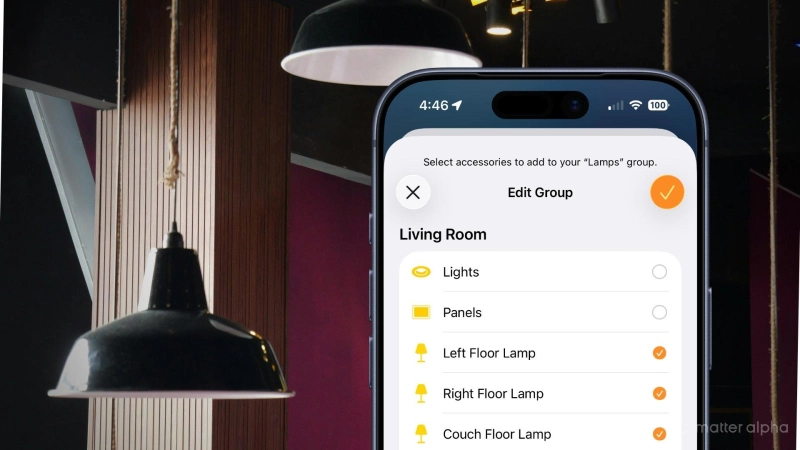
Tired of controlling all the Matter light bulbs and lamps in your living room one by one through Apple Home? Then it may be time to simplify your Matter smart home with device groups.
Matter groups allow you to bundle devices together, giving you one-tap controls in the Home app and simplified Siri voice commands. In this guide, we'll walk you through the steps of creating and managing device groups so you can spend less time toggling and more time enjoying your smart home.
Apple Home groups and scenes: What's the difference?
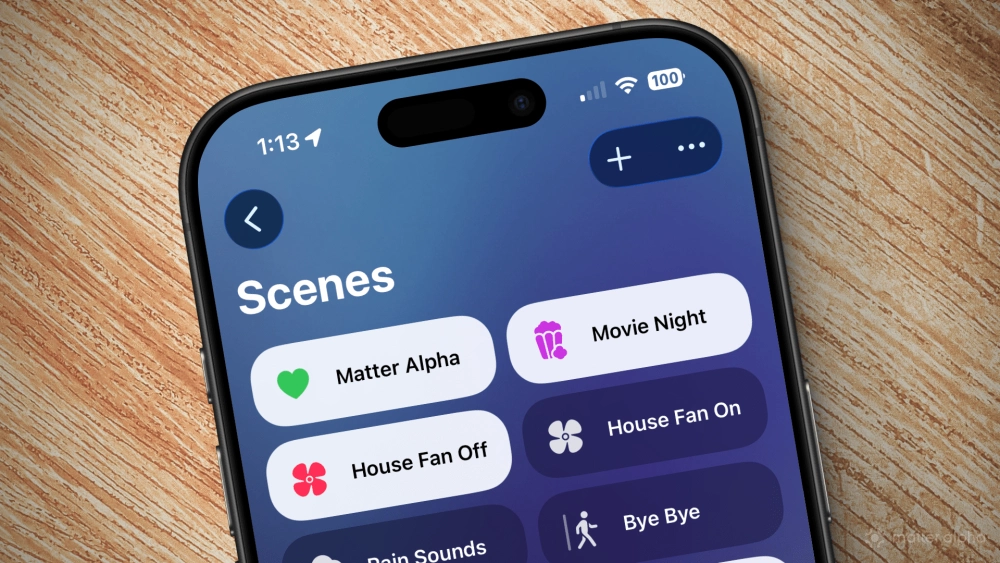
If you've read our guide on how to create and use Apple Home scenes, then you may be wondering how they differ from device groups. While it's true that both groups and scenes offer the ability to control multiple Matter devices at once, they do so in distinctly different ways—each with its own set of strengths and weaknesses.
Apple Home scenes are primarily designed for setting multiple devices into motion at once to accomplish specific tasks—such as lowering window blinds and dimming the lights for a movie night. Apple Home groups, however, are meant for devices of the same type, like lighting, consolidating multiple sources into a single entity that appears as one device within the app.
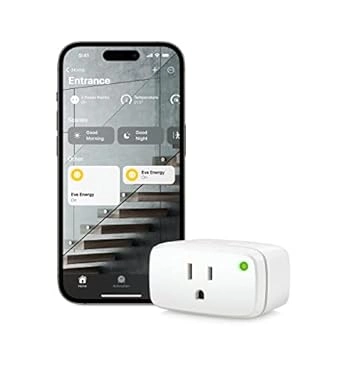
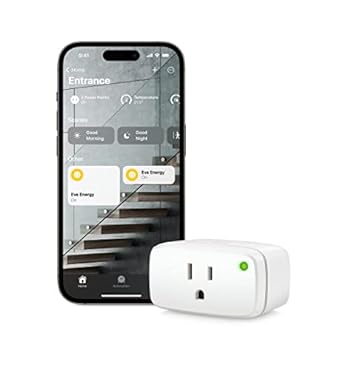
Eve Energy (U.S. & Canada)
Technically, groups within Apple Home can contain a mixture of device types—just like scenes—but doing so limits your customization options. That's because groups are represented by the first device type chosen and will only allow for icons based on its category.
For example, a group that starts with an LED strip light but also includes a smart plug like the Eve Energy will only appear as a light in the Apple Home app. If you then go to customize the group by changing its icon, you'll only find lighting-related options to choose from, so in this case, it would be better to go the scene route instead.
How to create and manage Matter device groups in Apple Home
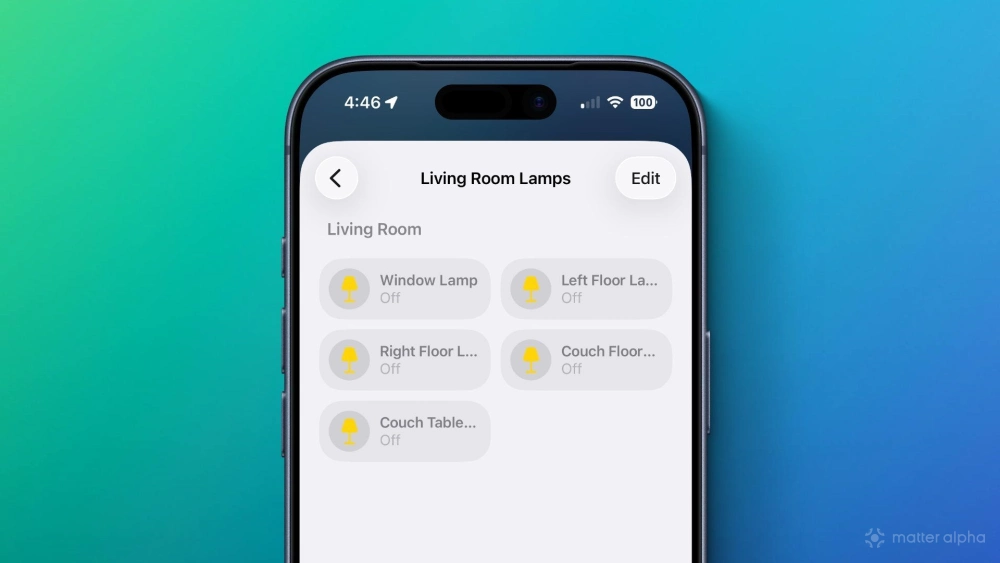
As with other features of the Apple Home app, managing groups is quite simple. We've broken the entire process into four walkthroughs below.
How to create a Matter device group
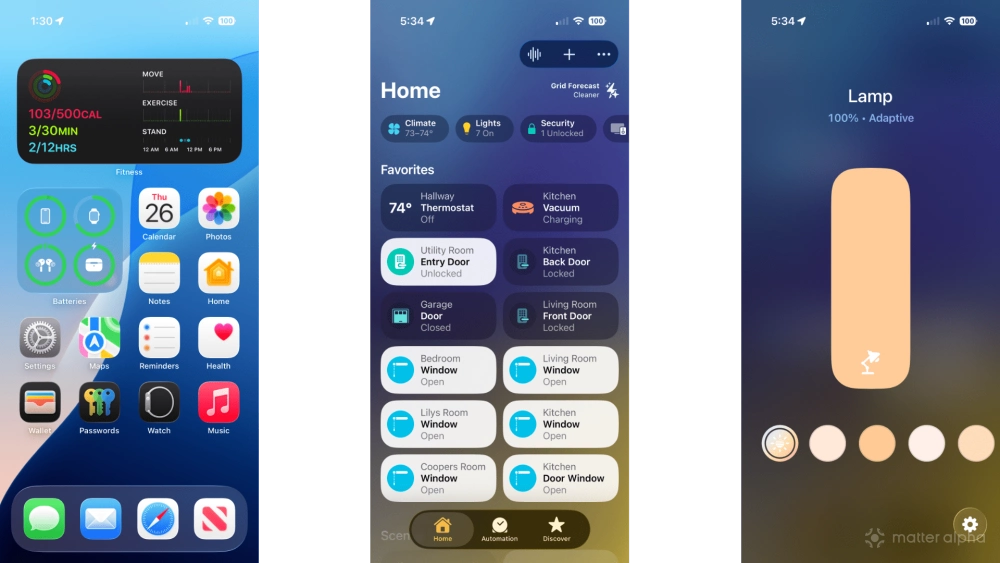
- Launch the Apple Home app.
- Tap an accessory that you wish to group.
- Tap the Settings button (looks like a gear).
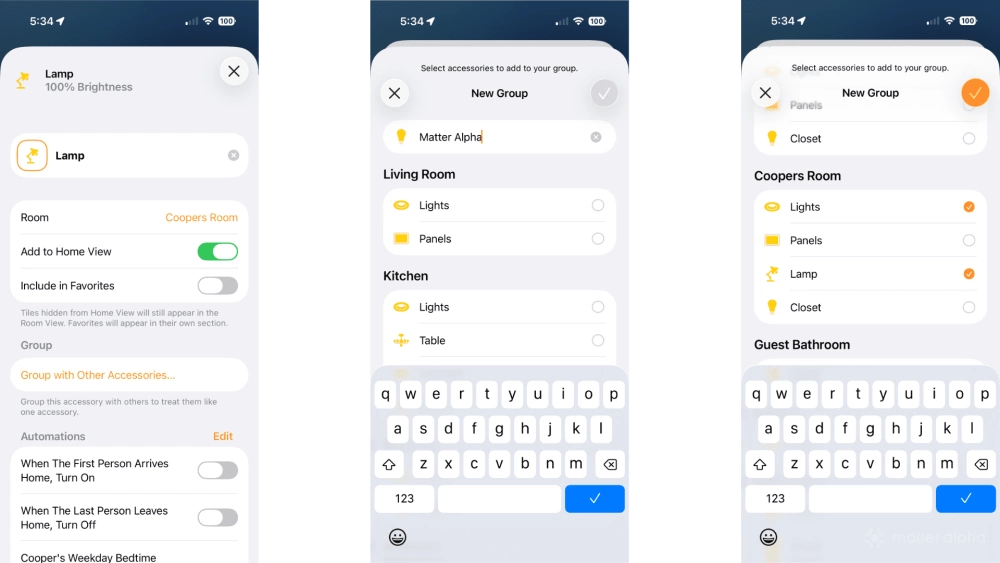
- Tap Group with Other Accessories...
- Type a name for your group, then tap the Done button (looks like a checkmark).
- Tap the accessories that you wish to group then tap the Done button to save.
Controlling all the devices within your new group works just like toggling a single accessory in the Home app. For quick toggles, simply tap the group's icon to turn devices on/off, or tap the group's name to bring up sliders and color adjustments with compatible accessories.
How to customize your Matter device group's icon
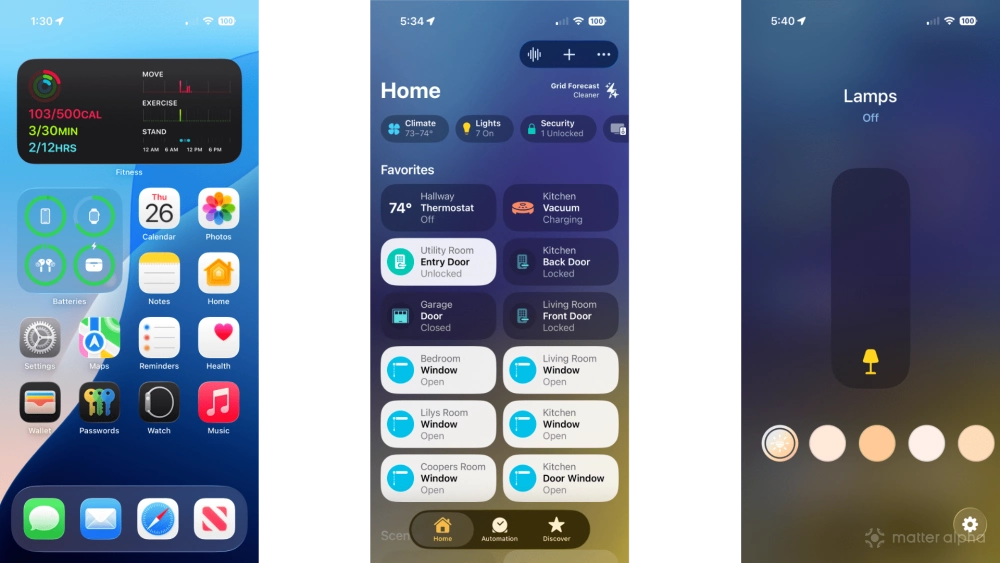
- Launch the Home app.
- Tap the group that you wish to customize.
- Tap the Settings button.
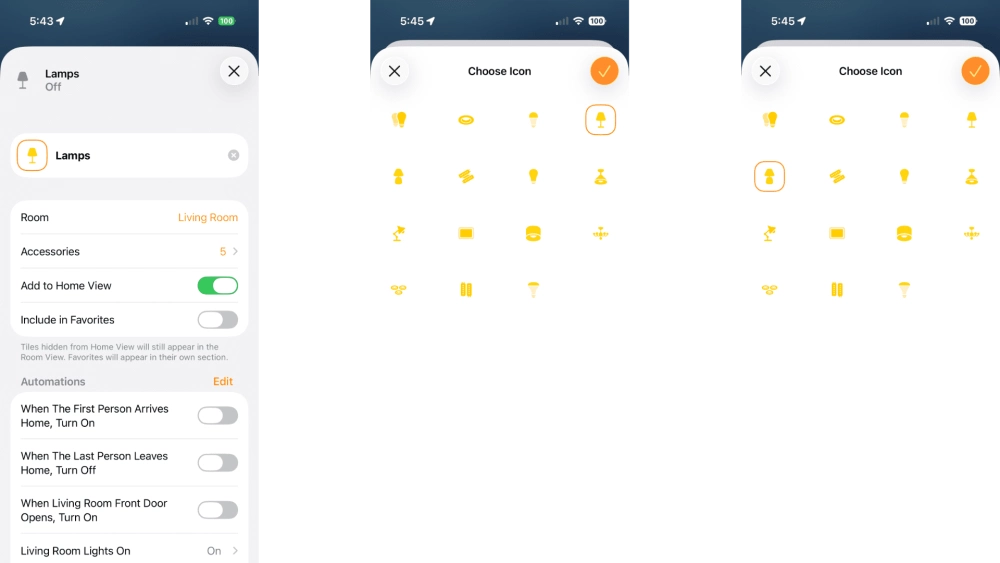
- Tap the current device icon.
- Tap a new icon for your group.
- Tap the Done button to save your group.
The icon customization option will only appear if your groups include devices of the same type—such as lighting or smart plugs. You cannot change group icons if you mix different device types.
How to edit existing groups
- Launch the Home app.
- Tap an existing group.
- Tap the Settings button.
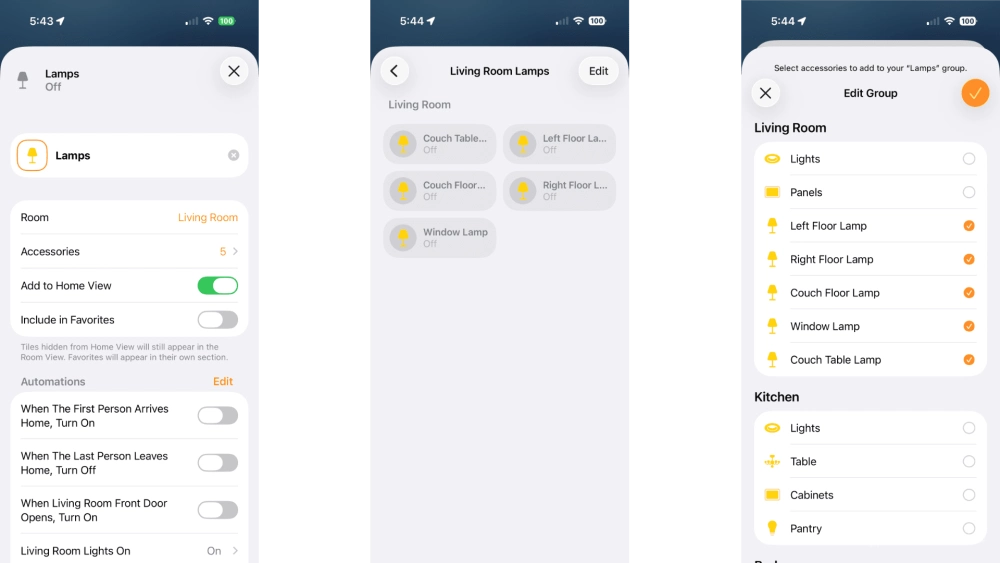
- Tap Accessories.
- Tap Edit.
- Tap the devices that you wish to add or remove then tap the Done button to finish.
Keep in mind, if you added devices, you will want to check any automations that involve the group afterwards for consistency. Devices that are added may not match the state of other accessories within the group by default, so you'll need to toggle them accordingly in your automations.
How to ungroup your Matter devices
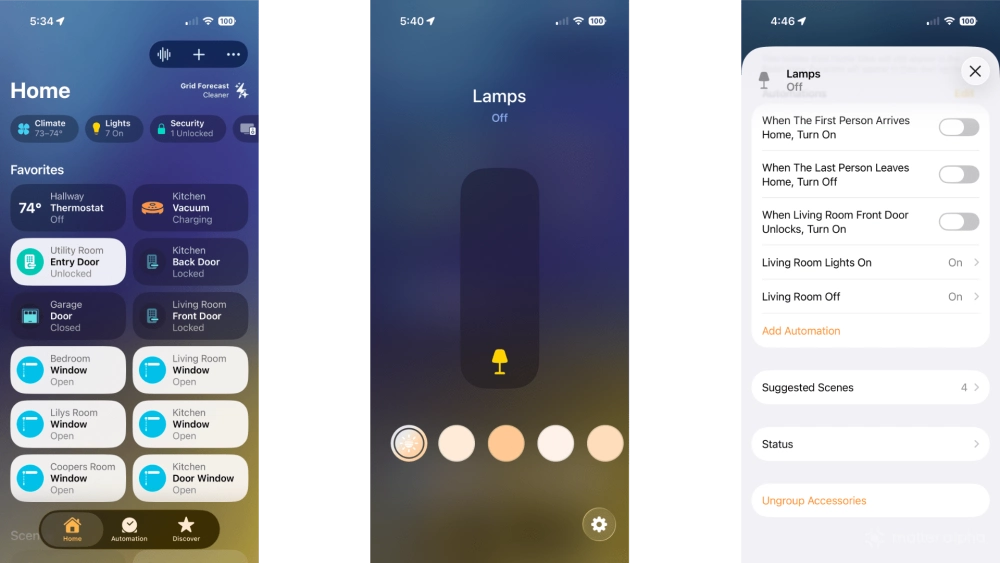
- Launch the Home app.
- Tap the group that you wish to ungroup.
- Tap the Settings button then tap Ungroup Accessories.
After tapping Ungroup Accessories, your devices will return to the state that they were before grouping. This includes details such as device icons, names, and participation in automation, but we strongly recommend double-checking the Automation tab to ensure that your smart home operates smoothly.
Simplify your Matter experience with Apple Home groups
Now that you know how to create Matter device groups in Apple Home, your days of tracking down and toggling individual accessories in the app are over. You'll also benefit from speedier—and potentially, more effective—Siri interactions, just by asking Apple's virtual assistant to control your devices, its group name.
For more home automation tips, be sure to check out our guides: how to control Matter robot vacuums and how to use Apple Home Adaptive Lighting.