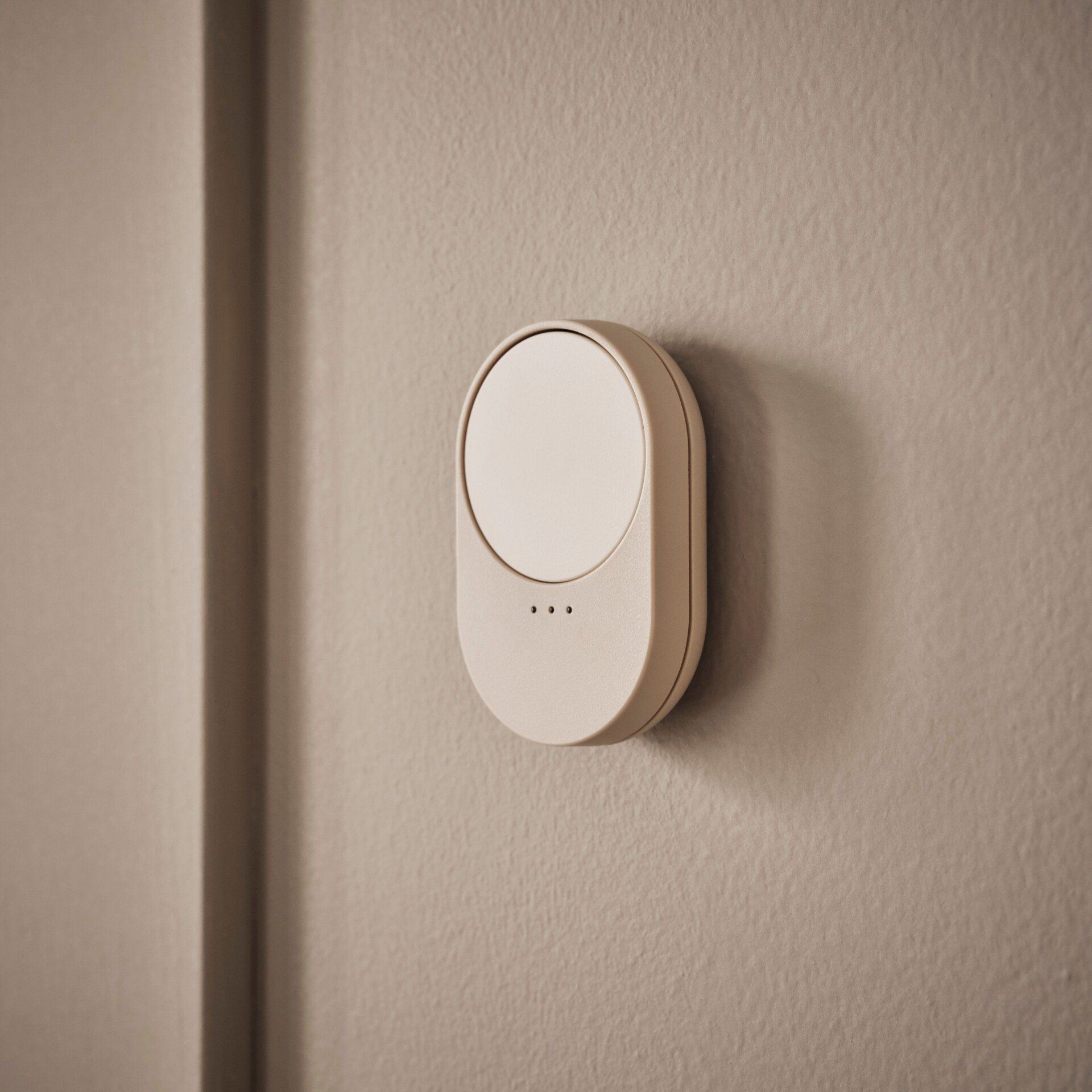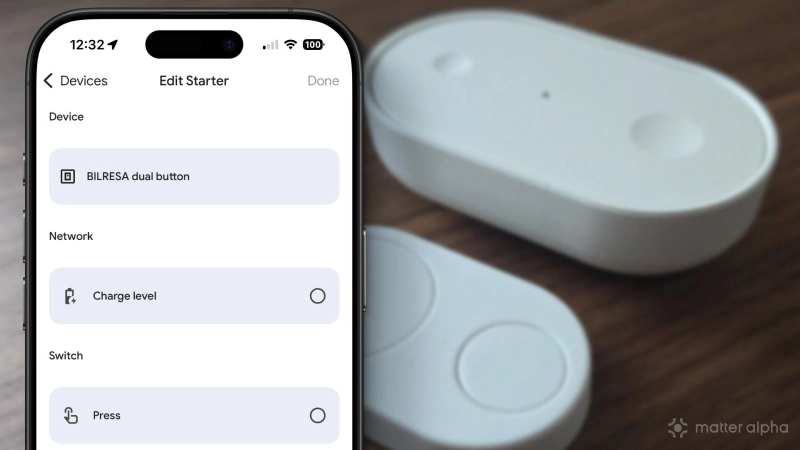
Thanks to a recent update, Matter-compatible buttons and remotes are now capable of triggering smart device actions and sending custom notifications within Google Home. This new functionality opens the doors to a world of automation possibilities, including the ability to control a smart light bulb without having to track down your phone or having a conversation with an unreliable voice assistant.
Ready to get physical with Google Home? Here's everything you need to get started with Matter buttons and remotes in Google Home.
Matter buttons and Google Home: what you'll need
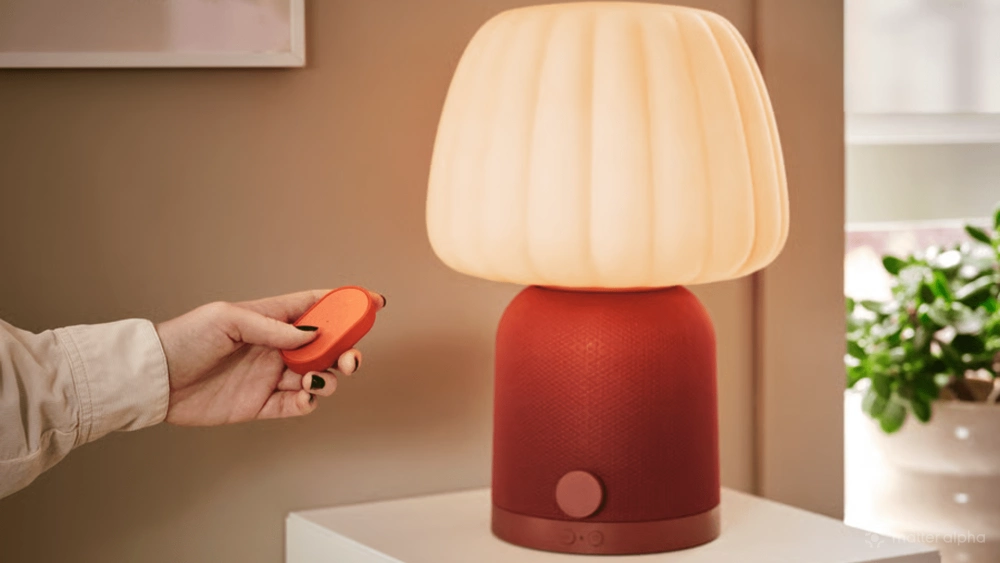
Before you get started with Google Home, you'll first need to meet a few requirements. To start, you'll need to have an active Google Home Matter Controller already set up for your home—like a Nest Hub, or Nest Wi-Fi 6E Router.
Next, you'll need a Matter-compatible button or remote—for this example we will be using an IKEA BILRESA, but if you need some recommendations, be sure to check out our buyer's guide. It doesn't matter—pun intended—which brand or type as long as it sports the Matter logo on its packaging or chassis.
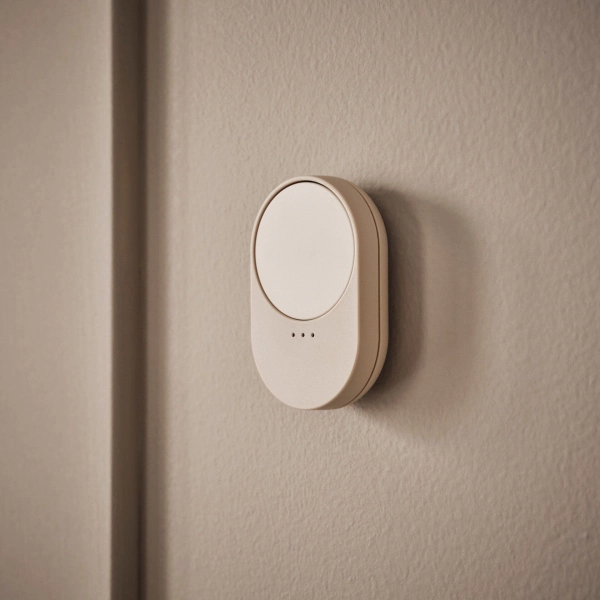
BILRESA scroll wheel
A tactile scroll-wheel remote that lets you adjust light brightness, colour, and scenes with a simple turn or press.
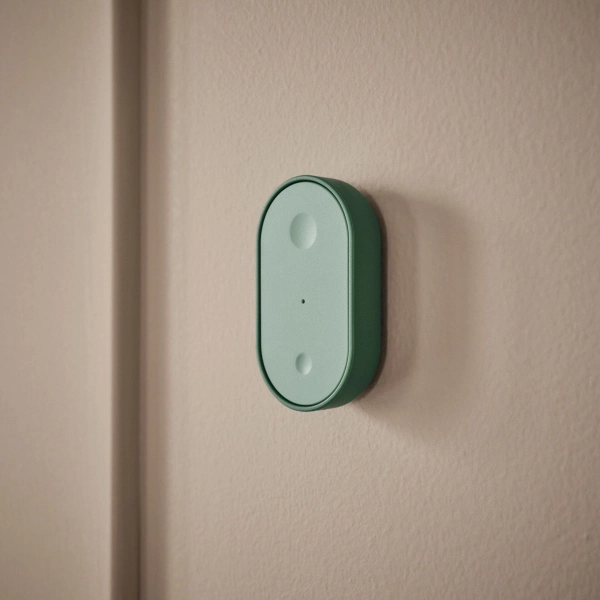
BILRESA Remote Control with Dual Button
A simple, two-button remote that lets you control smart lighting functions like power, brightness, colour, and scenes from anywhere nearby.
Next, you will need to add your Matter device to the Google Home app, available on iOS or Android. And finally, you'll need to ensure that your Google Home app is up-to-date, running version 4.8 or later.
With all of that out of the way, you are now ready to create button or remote actions and notifications with Google Home.
How to create Matter button actions to control devices with Google Home
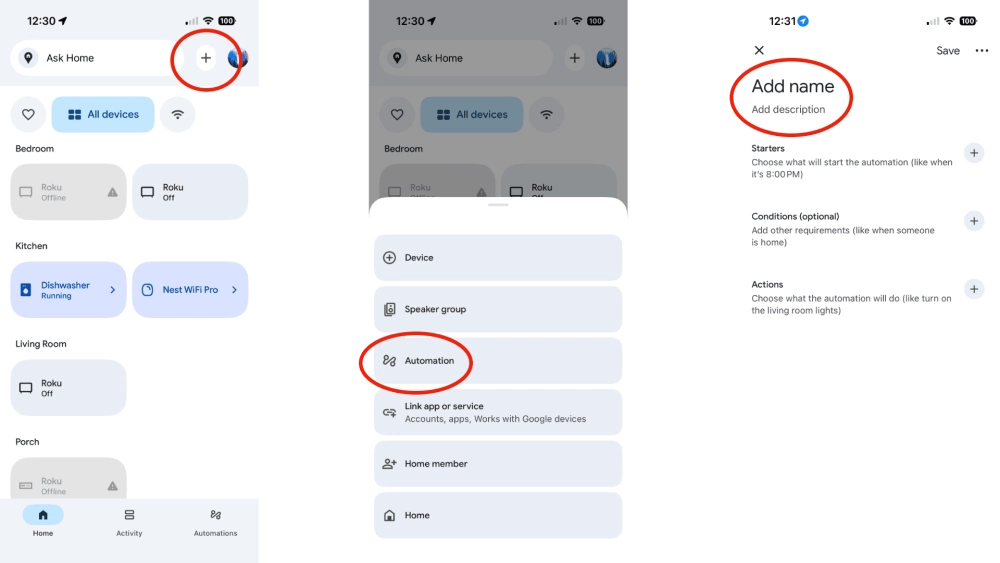
Although assigning an action to a Matter button or remote may sound straightforward, the Google Home app features lots of screens that you'll need to navigate. As always, we have got you covered with a step-by-step walkthrough of the entire process for the iOS version of the app—Android screens and steps should look similar.
Just follow the steps below immediately after launching the app, and you should have no trouble adding actions to your smart button or remote:
- Tap the “add” button (it looks like a plus sign) near the top right corner.
- Tap Automation.
- Tap Add name, enter a name for your action and a description if desired, then tap Back.
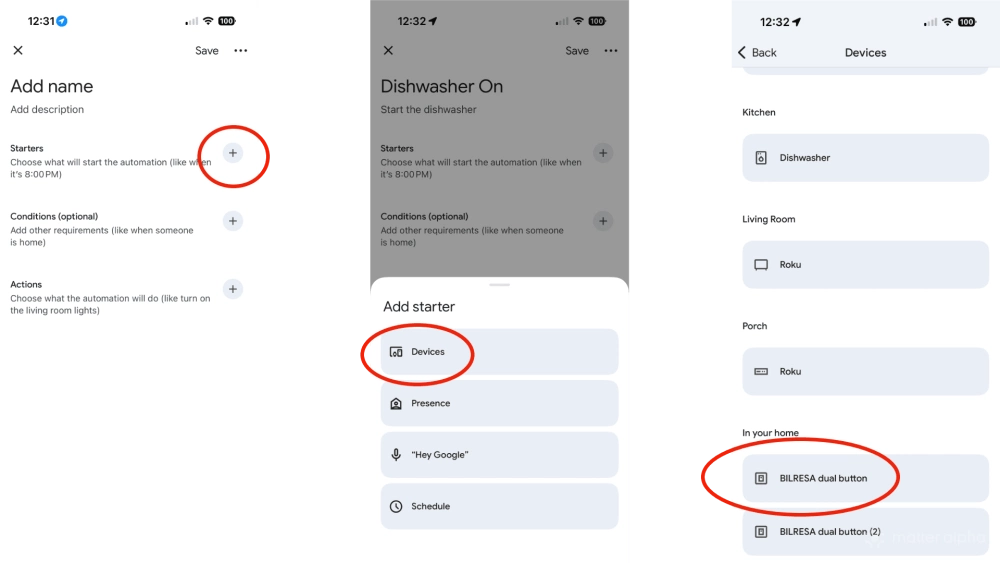
- Tap Starters.
- Tap Devices.
- Tap your button or remote.
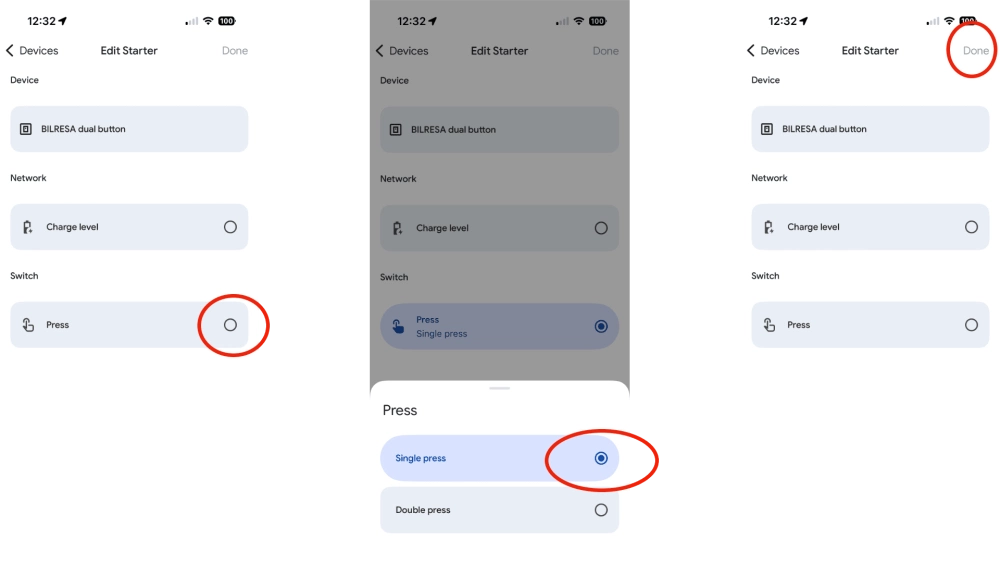
- Tap Press.
- Tap Single or Double press.
- Tap Done.
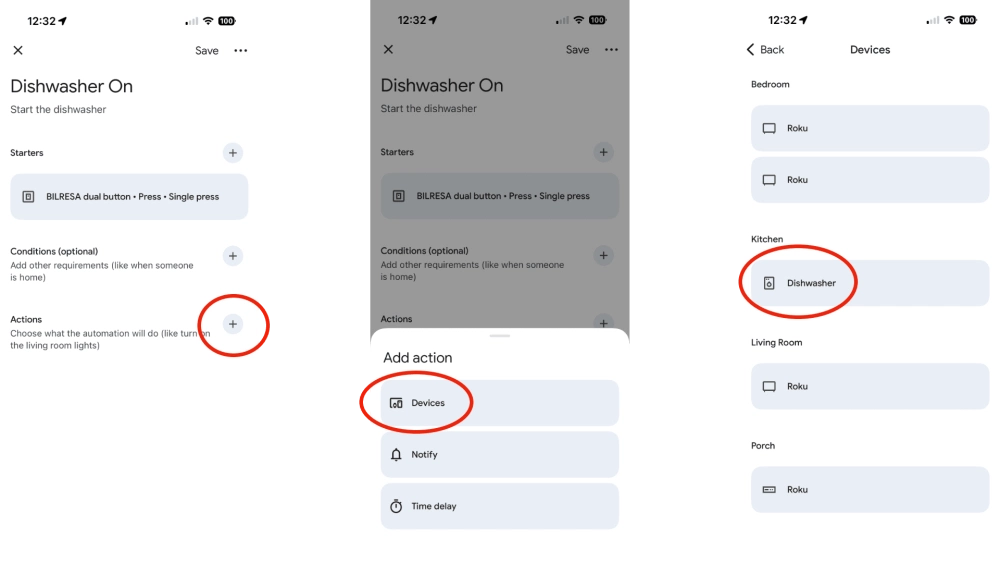
- Tap Actions.
- Tap Devices.
- Tap the device that you wish to control.
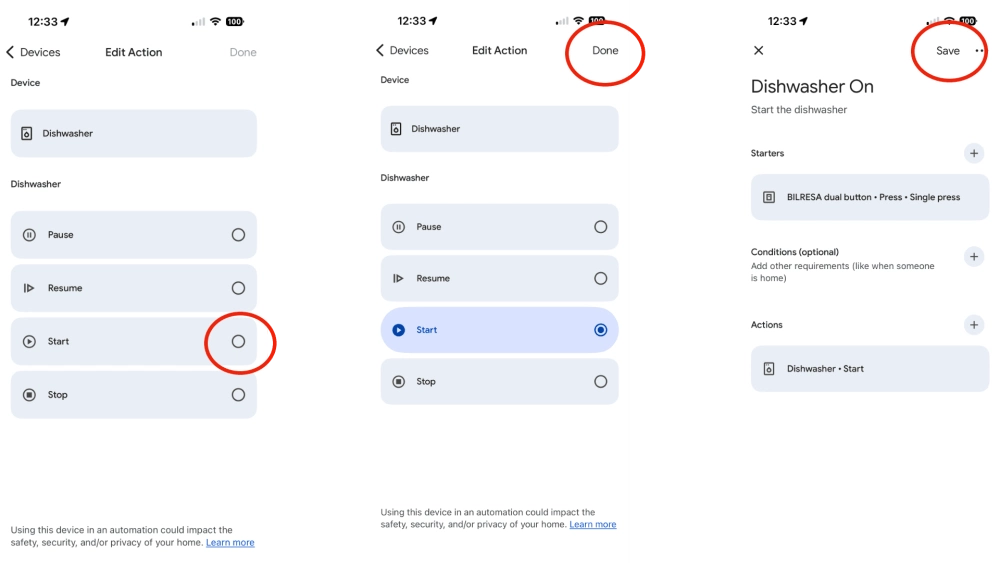
- Tap the desired action.
- Tap Done.
- Tap Save. Tap Save again if a safe automation prompt appears.
The steps above are all you need to cover simple smart button functionality. After saving, your Matter button or remote will execute your action with just a click.
However, you can take things even further by using the Conditions option when creating your action. Conditions allow Google Home to factor in the presence of people, the time or date, or the state of another smart device, like whether the lights are on or off.
How to create Google Home notifications with your Matter button or remote
You can also send notifications to select recipients or everyone in your home using your Matter button or remote. The process is similar to adding device actions, so you can start by launching the Google Home app, then follow these steps:
- Tap the “add” button (it looks like a plus sign) near the top right corner.
- Tap Automation.
- Tap Add name, enter a name for your action and a description if desired, then tap Back.
- Tap Starters.
- Tap Devices.
- Tap your button or remote.
- Tap Press.
- Tap Single or Double press.
- Tap Done.
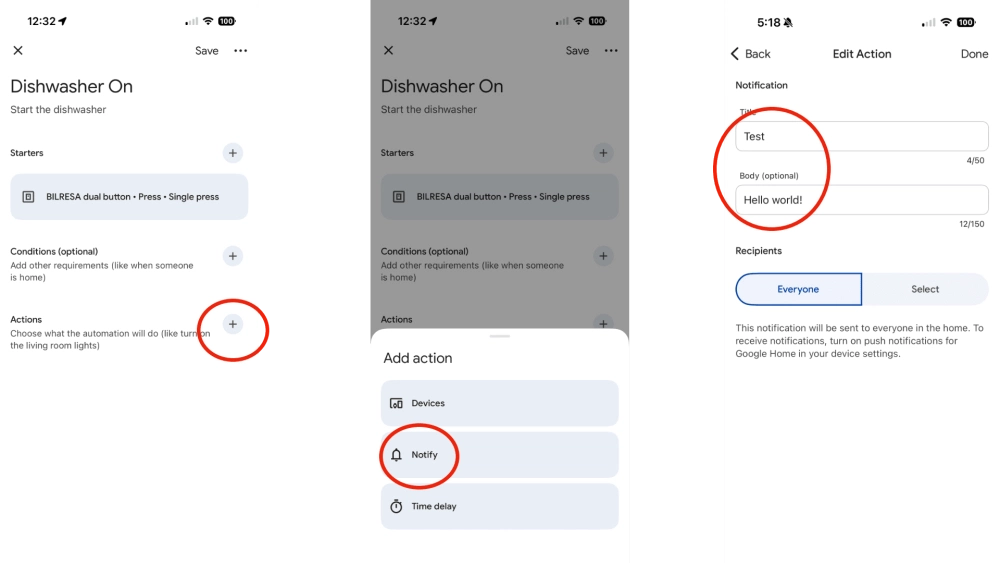
- Tap Actions.
- Tap Notify.
- Enter a title and body for your message.
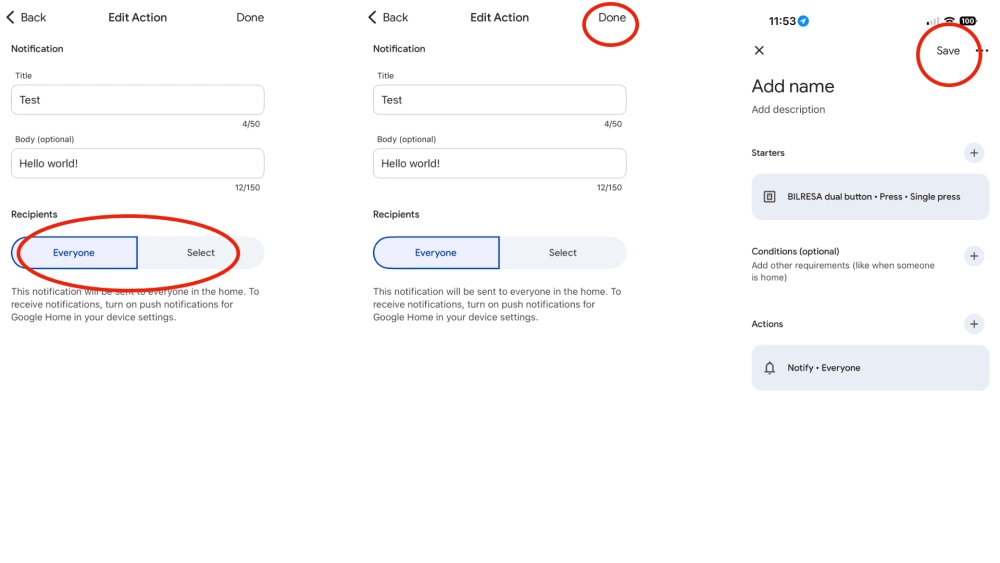
- Tap Everyone or Select and choose who you want to notify.
- Tap Done.
- Tap Save. Tap Save again if a safe automation prompt appears.
Once completed, your custom notification will be sent to all the selected recipients when you press the assigned button. This option is especially useful for letting everyone know that dinner is ready, requesting help from someone in another room, or even for a bit of fun with the right message.
Press to automate with Google Home
Now that you know how to use a Matter button or remote with Google Home, you can add convenient physical controls for your smart devices in the areas most important to your home. You can also send important announcements or notifications to everyone within your household, all with just a click.
For even more smart button or remote home automation possibilities, try using Matter Multi-Admin capabilities to share your devices across ecosystems. While Matter has unified a large portion of smart devices on the market today, some accessories require specific ecosystems—Multi-Admin bridges the gap.