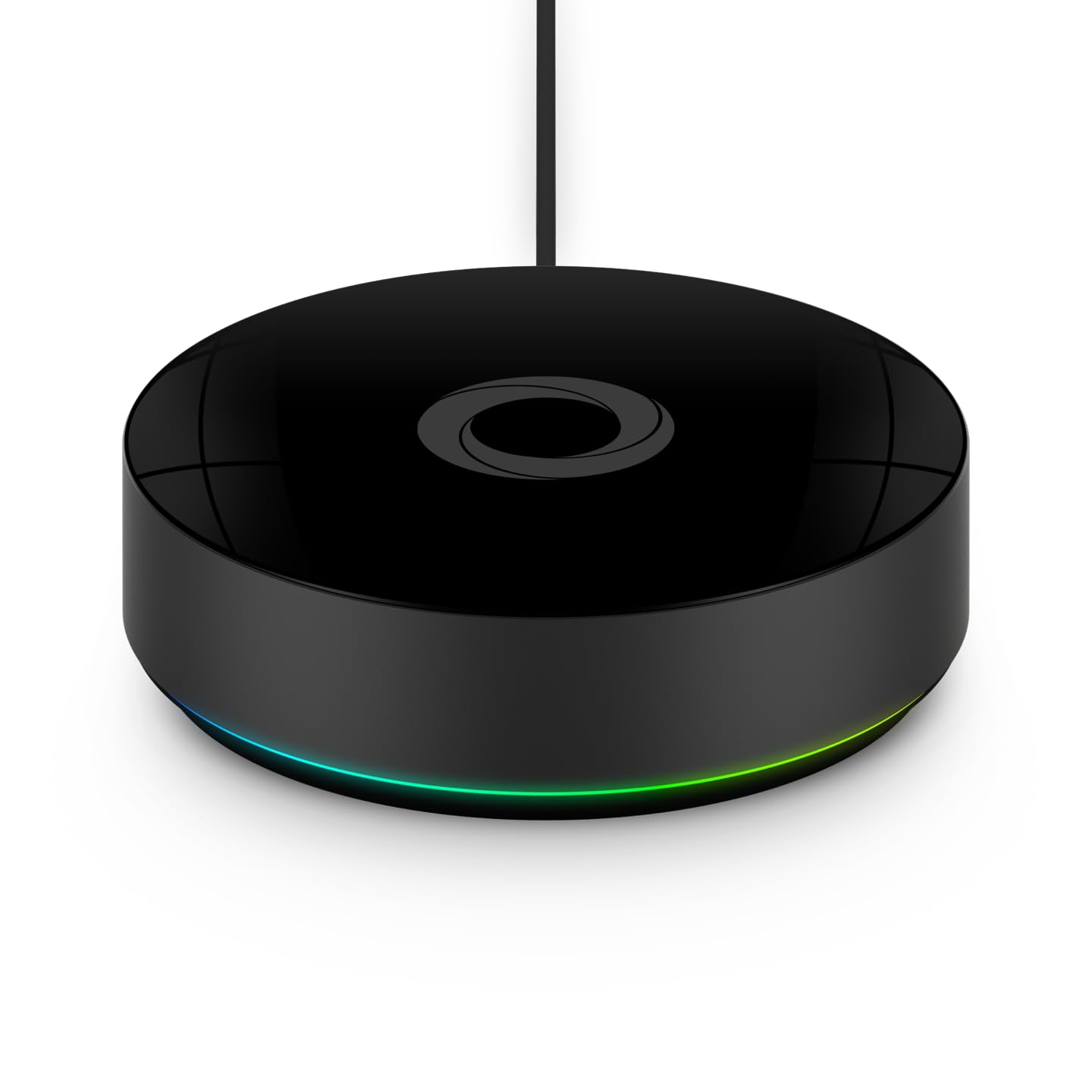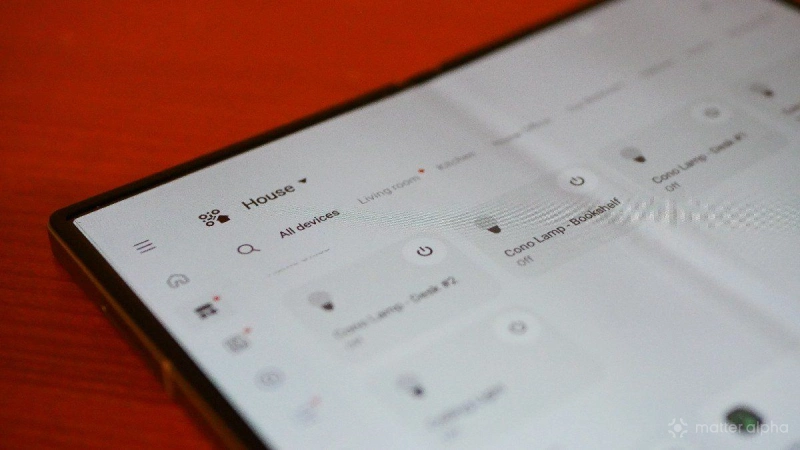
Samsung SmartThings is one of the largest smart home platforms in the world, providing a way to control Samsung TVs and appliances along with smart lights and robot vacuums. You can find SmartThings hubs in everything from Samsung TVs and smart monitors to refrigerators, making it an easy way to dip your toes into the Matter ecosystem. No matter where you find your SmartThings hub, here’s how you go about adding your first Matter device.
How to add a Matter device in Samsung SmartThings
You can find the SmartThings app for Android and iOS. It’s easy to install, and you will need to create a Samsung account if you don’t already have one. The onboarding process will then guide you through the steps of recreating the rooms in your house.
Then it is time to start adding devices. Here's what you need to do.
- Tap the + icon in the top right corner of the screen
- Select Add device
- On the next screen, you have the option to select between Samsung devices and Partner devices. You want the latter.
- Tap Matter, which should be the first option at the top of the screen.
At this point, you will be prompted to scan the QR pairing code that’d came with your device. If there is no QR code, but you have a Matter pairing number, then tap Add without QR code at the bottom. The Matter pairing code will either be an 11- or 21- digit number.
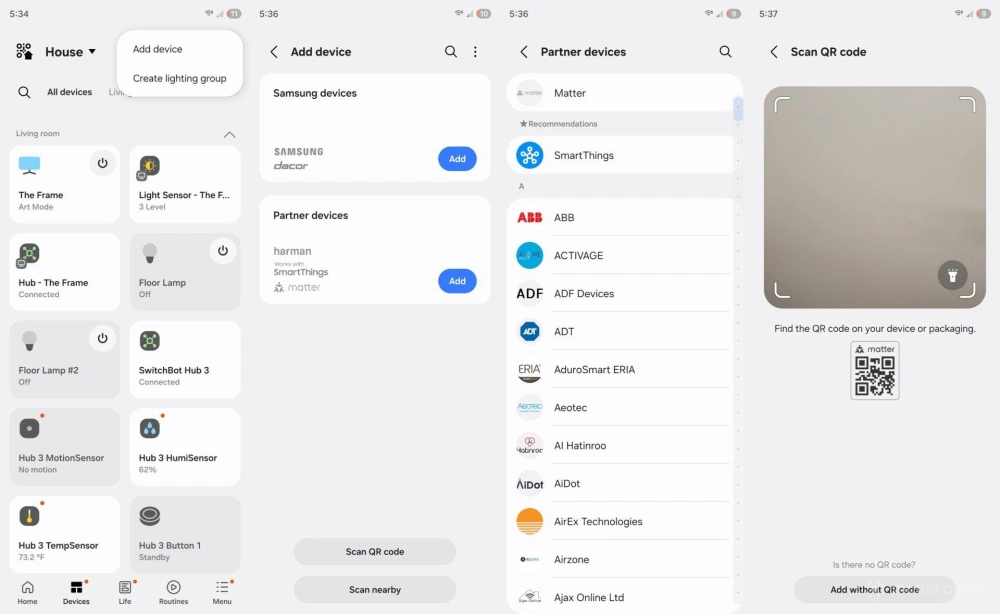
From here, SmartThings will take over the process of connecting to your device, assigning it to a hub, and generating the necessary security keys. All of this happens in the backend. Assuming you aren't hit with a “something went wrong” message, you will be soon be asked to give the new device a name, select an icon, and assign it to a room. Once this information is saved, the process is complete.
Adding a device that’s already in use
One of the nice things about the Matter standard is that you can control your Matter devices using multiple smart home platforms simultaneously. If you want to add a device to Samsung SmartThings that you’ve already set up elsewhere, such as in Apple Home, then you can’t re-use the pairing code that shipped with the device. Instead, you will need to enter Apple Home and generate a new one.
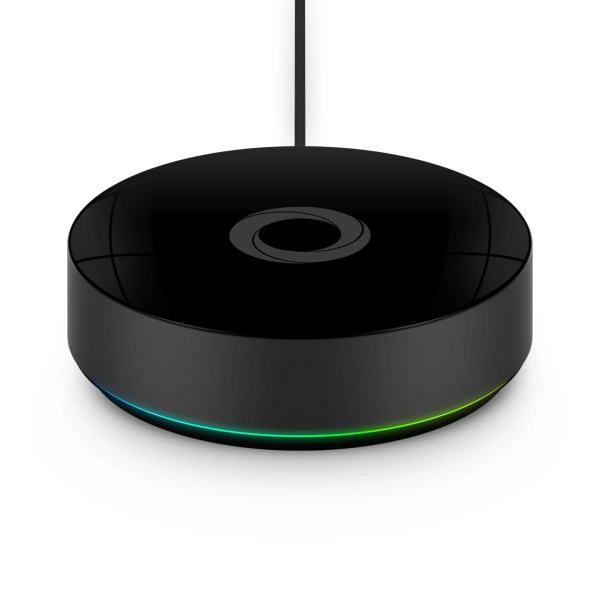
Homey Pro (2026)
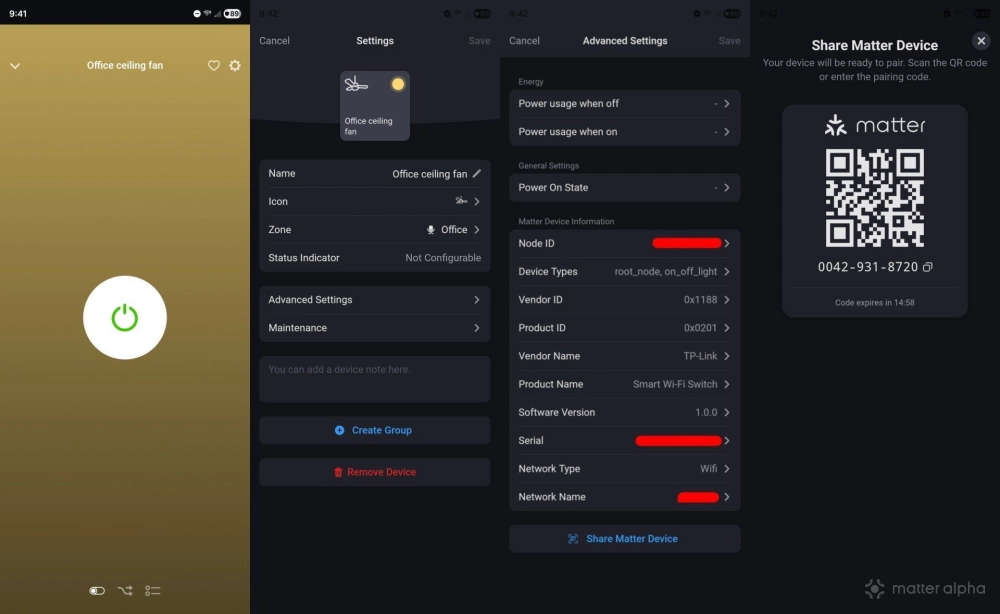
In my case, my Matter devices are already set up and controlled using a 2026 Homey Pro. To import the device into SmartThings, I need to select the device in Homey, open advanced settings, and tap Share Matter device. This then generates a new Matter code and places my device into pairing mode. I have 15 minutes to open SmartThings and follow all the same steps above for adding a new device, only using this new code instead.
SmartThings is an excellent choice for a Matter-based smart home
While Matter is intended to be a universal standard that works across all the major smart home platforms, that isn’t the whole story. Some ecosystems have better support for Matter devices and features than others. When new versions of Matter come out, SmartThings is often the first to support the latest features. If you aren’t yet committed to the ecosystem, you can read our Samsung SmartThings review to best gauge if Samsung’s smart home platform is a good fit for you.