I have two SwitchBot AI Art Frames on my wall, and no one ever suspects that they are hidden pieces of tech. So I was intrigued when SwitchBot announced an E-Ink frame that displays not art but weather. The SwitchBot Home Dashboard is not the kind of smart home product I would have thought to ask for, but it's exactly the kind of addition I'm grateful to have, even if I can't quite give it a whole-hearted recommendation.
A design safe enough to live on any wall or shelf
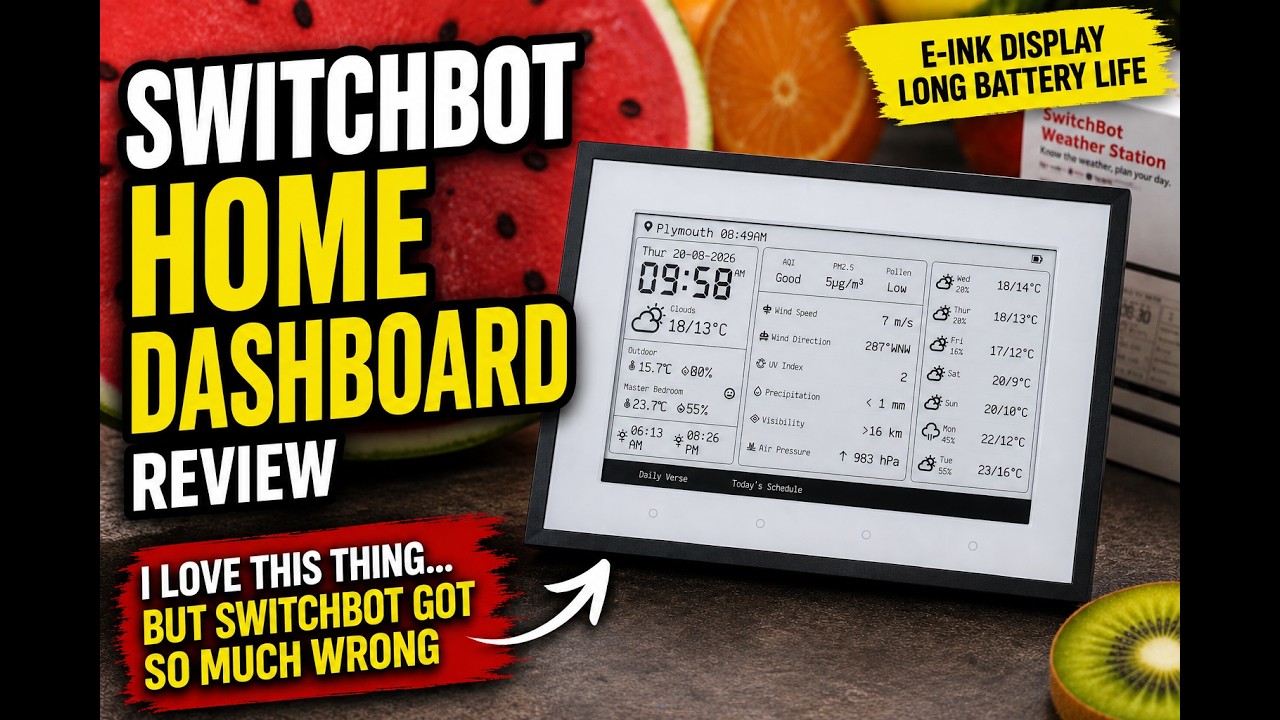
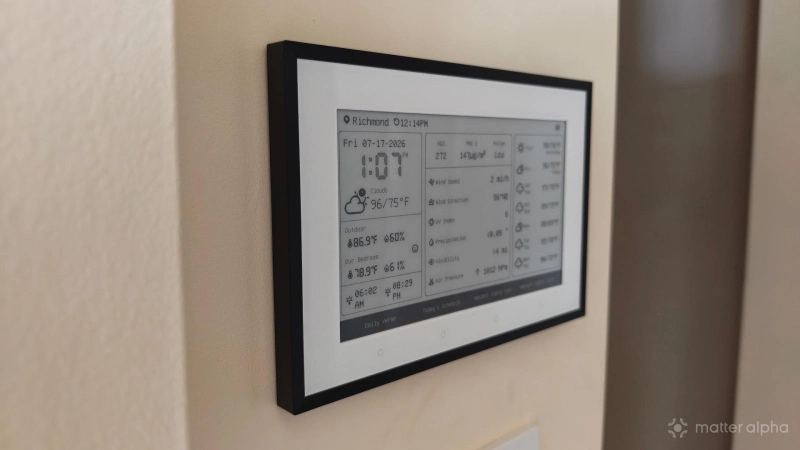
Unboxing the SwitchBot E-Ink Home Dashboard is a lot like unboxing a digital picture frame. You have your choice of whether to attach legs that enable the frame to rest on a tabletop or desk, or you can simply hang it on a wall from two nails. You’ll want to take your time with the latter, since the nails need to be both level and the appropriate distance apart. Alternatively, you can go with included 3M adhesive to affix the dashboard to a wall.
SwitchBot’s Home Dashboard uses a black frame similar to that of SwitchBot’s AI Art Frames, but thinner. Unlike those frames, this one is not IKEA compatible and cannot be swapped out.
There are six buttons on the device. Tapping the button above the top-right corner of the frame turns on the light for nighttime viewing. Holding this button down for two and a half seconds refreshes the information on the screen.
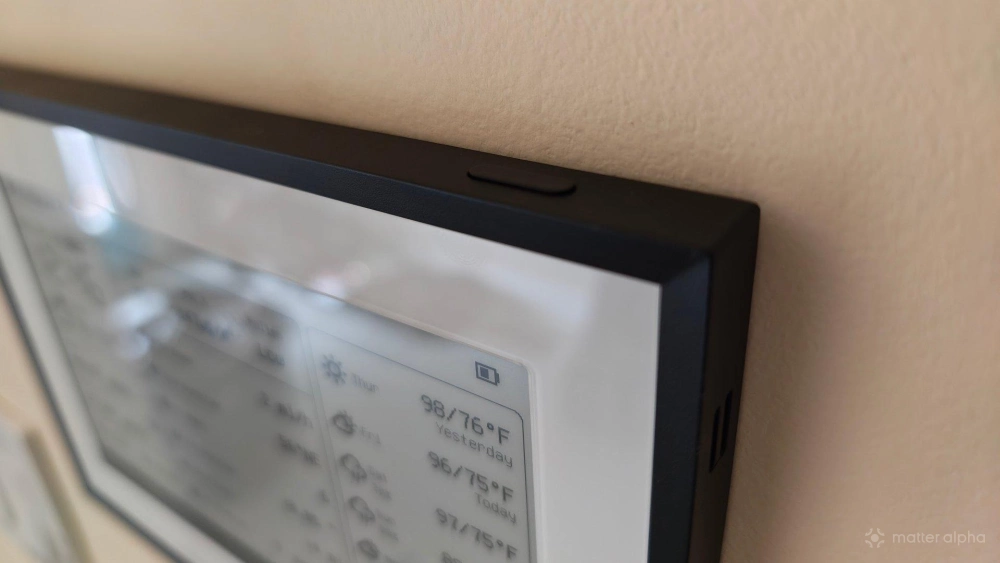
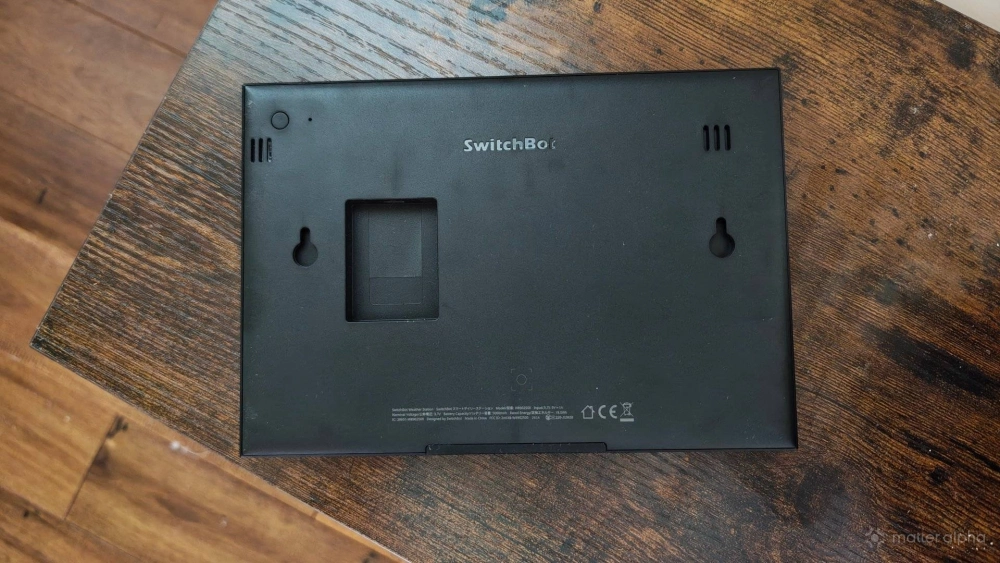
There’s a pairing button on the back for establishing a connection to your phone. Underneath the E Ink display, there are the four buttons for interacting with what you see on-screen.
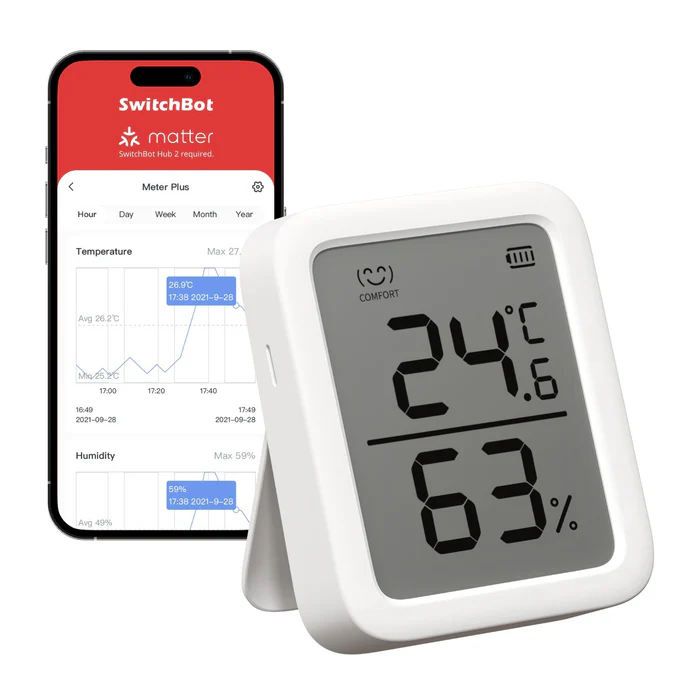
Unlike some SwitchBot products such as the SwitchBot Meter Plus, you need a mobile app in order to get any use out of the Home Dashboard. It connects to your phone via Bluetooth Low Energy to transfer data and establish a Wi-Fi connection. You do not need a SwitchBot hub unless you wish to integrate the dashboard with other smart home products. While that is a big part of the device’s appeal for someone like me, my parents are happy with the weather functionality alone. You can also use the dashboard as an alarm clock and sync your calendars without needing to spring for a hub.
Figuring out how to pair the Home Dashboard with your phone can be a bit unintuitive. When you make changes in the app, it can take up to 30 minutes before the station refreshes on its own. You can speed this process along by tapping the button on the back of the weather station to sync it with your phone and trigger changes right away.
You'll no longer need a weather app
Prior to launch, the Home Dashboard was concieved of as a SwitchBot Weather Station, and that is the dashboard’s primary feature. After using the app to give the dashboard your location, those of us in the US will also likely use the app to switch from Celsius and kilometers to Fahrenheit and miles. Unlike the SwitchBot Meter Plus, you can't simply switch between units by pressing a button located on the device.
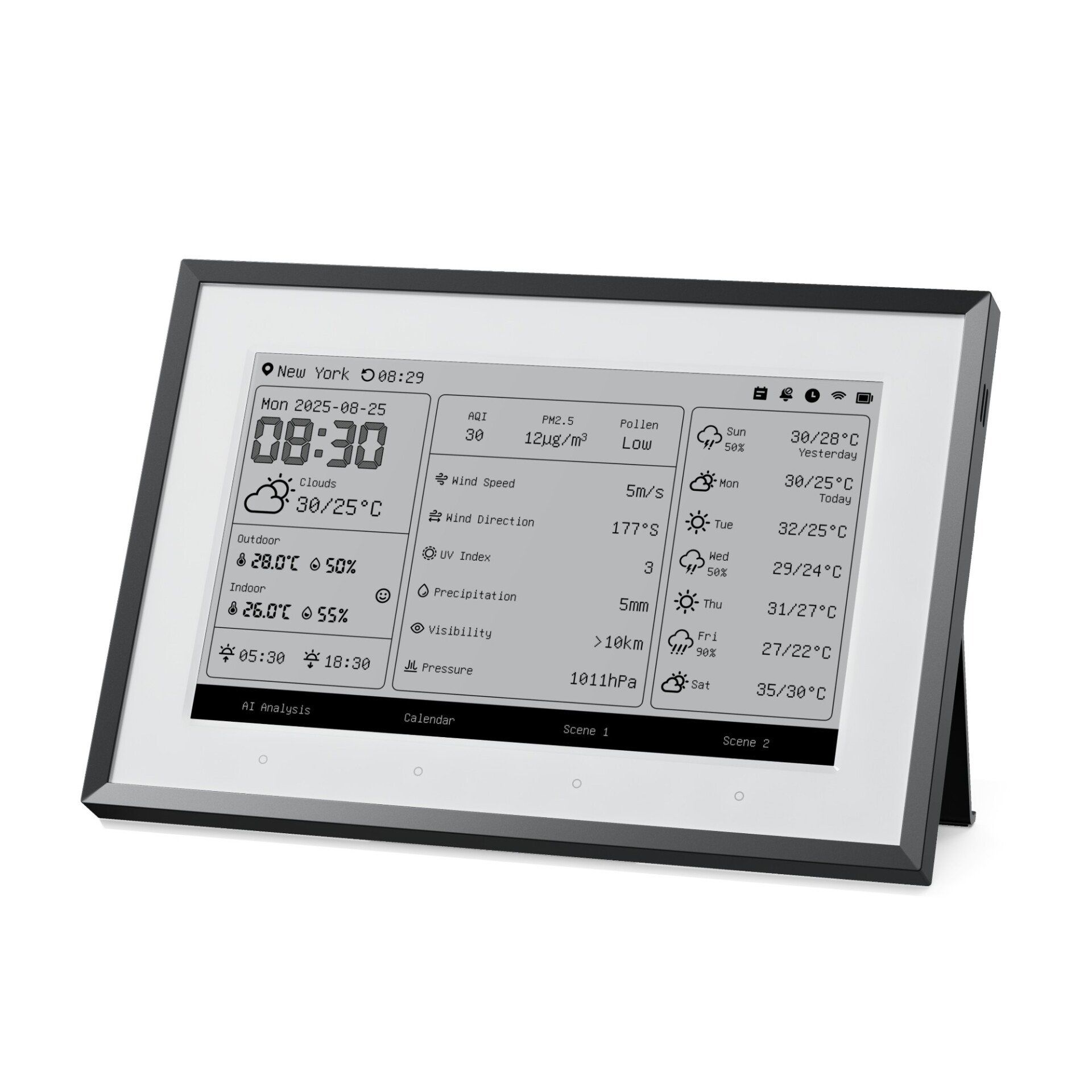
I feel SwitchBot has done a good job deciding which information to display on the Home Dashboard. The default layout shows the current temperature next to the current day's high and low. It also shows today's forecast compared to yesterday's as well as the forecast for the upcoming five days. Seeing this information relative to the day before helps me better gauge how the weather feels. I simply know it's slightly hotter or slightly cooler than it was before without needing to recall what feeling a number corresponds to. Upcoming weather is communicated via small icons as well as the percentage likelihood of precipitation.
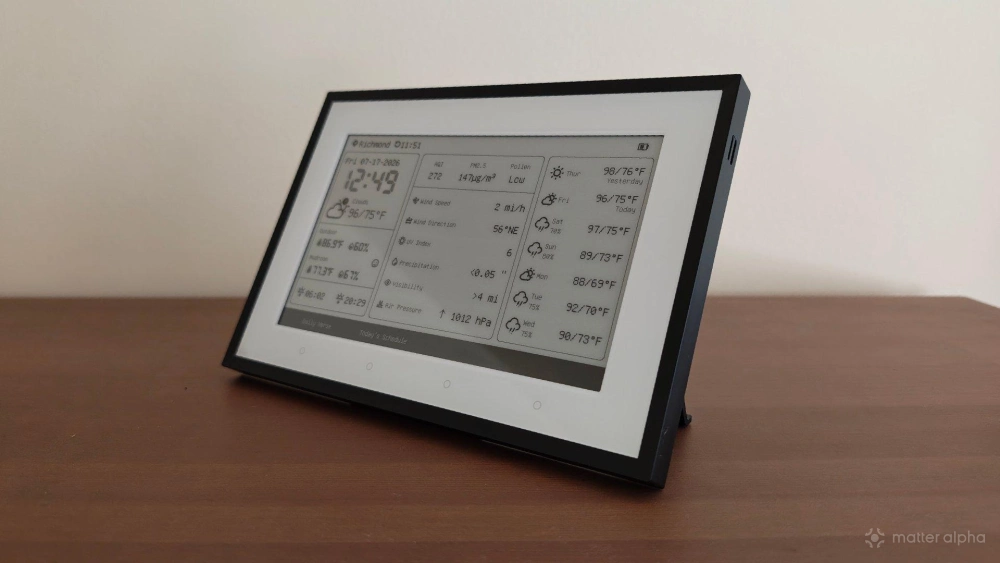
The default screen also goes far more in-depth, providing information such as sunrise and sunset times along with wind speeds and direction. The dashboard tells you the humidity outside along with the temperature and humidity of the room you're in. I've mounted dashboards in the areas of the house where this information is most useful. There's one in our closet for my spouse and me to glance at as we’re getting dressed in the morning. There are others near three of the four doors leading into our home, to help us decide if we need to reach for a hoodie, jacket, or coat. At $110 each, buying this many units adds up, but since SwitchBot sent me multiples to evaluate, I leaned fully into the experience of going all-in.
The calendar syncing is both useful and frustrating
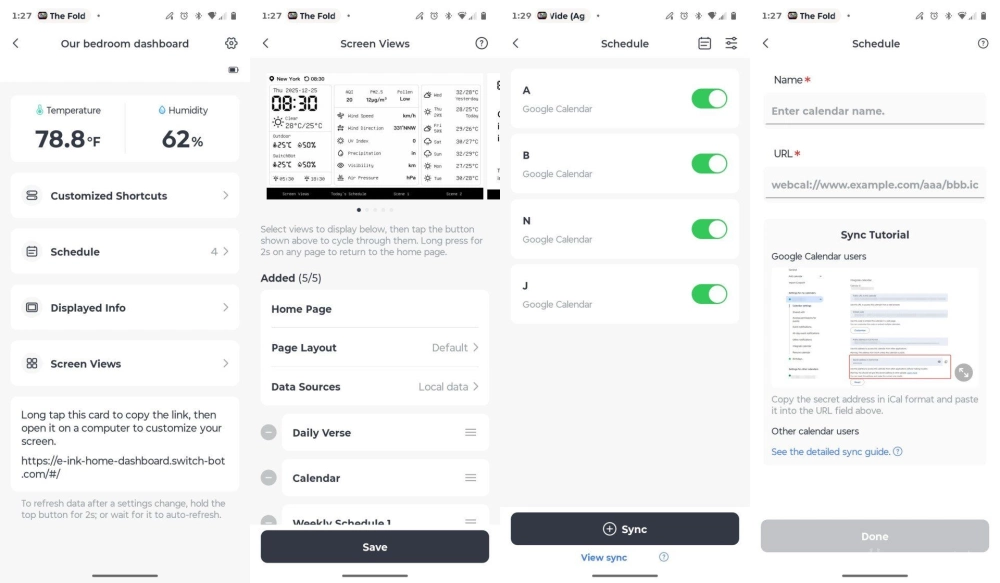
SwitchBot intends for the Home Dashboard to be a place where you can view upcoming events, with support for Google Calendar, Outlook, iCloud, and Yahoo. The process of adding a calendar is easy enough. You go to your webmail account and look for the iCal address. You then paste this into the SwitchBot app and wait for the dashboard to sync.
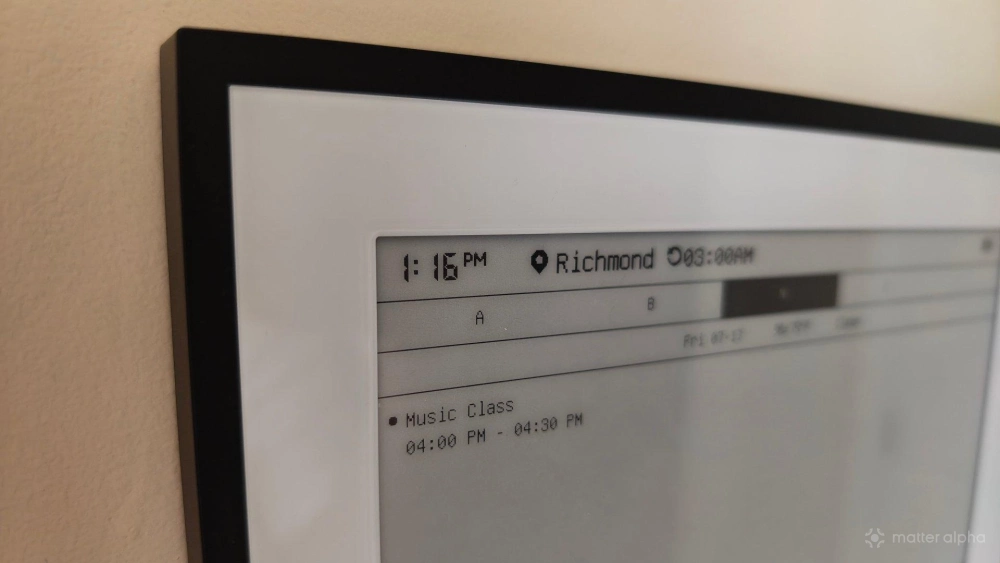
Unfortunately, this process grows tedious quickly if you have more than one calendar you wish to view. Even if your Google account has several calendars available, you must import them one at a time.
The process becomes even more strained if you have more than one SwitchBot Home Dashboard. My family has four calendars that we like to keep visible: one each for my spouse and me along with one for each kid. We have to insert these calendars one at a time on each weather station. To fully take advantage of the four Home Dashboards that I have mounted, we would have to insert our calendar information 16 times altogether.
If I want to add other calendars in the future, I must do so four times each. This is enough tedium to make me want to disregard the feature and purely use a dashboard for weather information. That said, if you are setting up multiple dashboards in your home, I recommend waiting until each one is set up and configured within the SwitchBot app before adding any calendars, so that you can go through and paste the same calendar link as many times as needed before copying the next one.
Another downside, though an understandable one, is the reality that the calendar information on the dashboard is passive only. Unlike a Skylight calendar, you cannot enter new events directly on the dashboard. Since this device lacks a touchscreen, interacting with the dashboard in this way wouldn’t have been a pleasant experience anyway.
The Home Dashboard integrates well with other SwitchBot devices, but Matter integration is limited
The Home Dashboard is able to integrate quite well with other SwitchBot devices in your home. Out of the box, it can tell you the temperature and humidity of the room it is in, but I could change the dashboard in our closet to instead give us the temperature and humidity in the living room instead.
As a Matter product, the dashboard is able to function as a temperature and humidity sensor, and that’s it. While this information can then be used to trigger automations such as turning on a smart air conditioner when the temperature gets too high, this pales in comparison to the degree of integration available to other SwitchBot products.
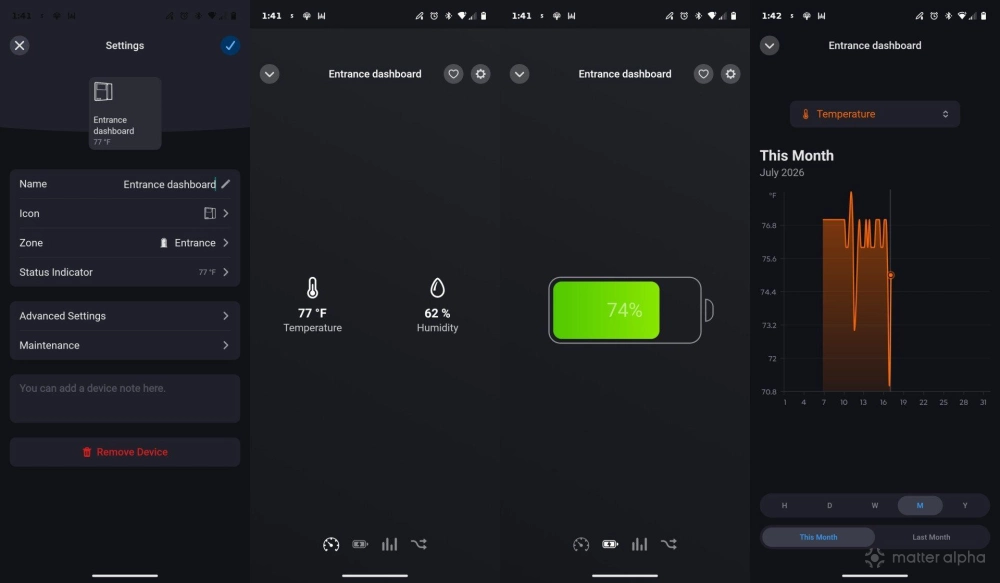
While the dashboard can be used to display the climate in other parts of the home, this only works if that information is being gathered by a SwitchBot weather sensor. The dashboard can’t tell me the temperature in my home office, which is being measured by an IKEA TIMMERFLOTTE.
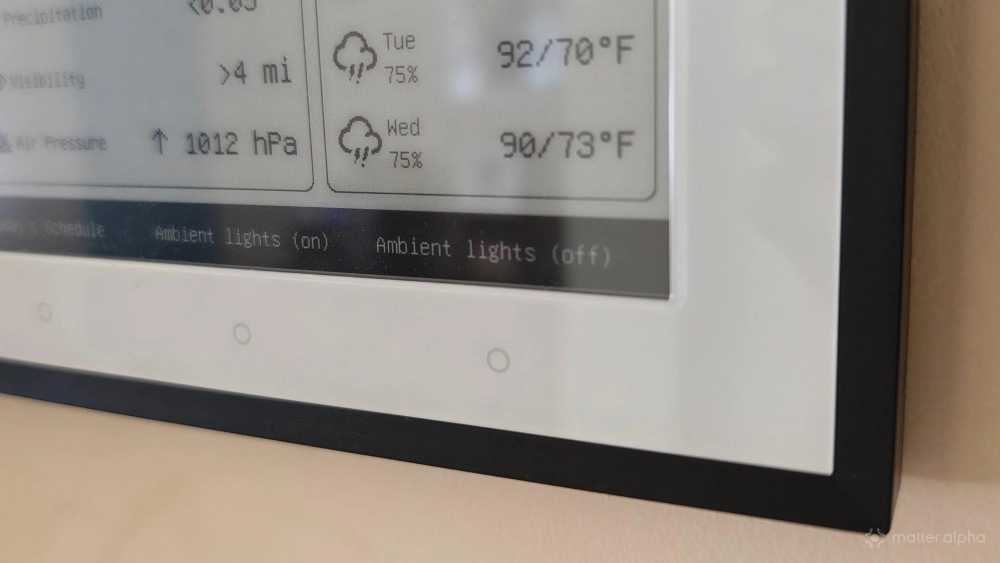
Here is where we return to the four touch buttons underneath the screen. These can be used to switch between views of the weather, access to an AI-generated daily quote and advice on how to dress for the day, to views of your calendars. The first two buttons switch between these views whereas the third and fourth buttons can be used to trigger scenes and automations.
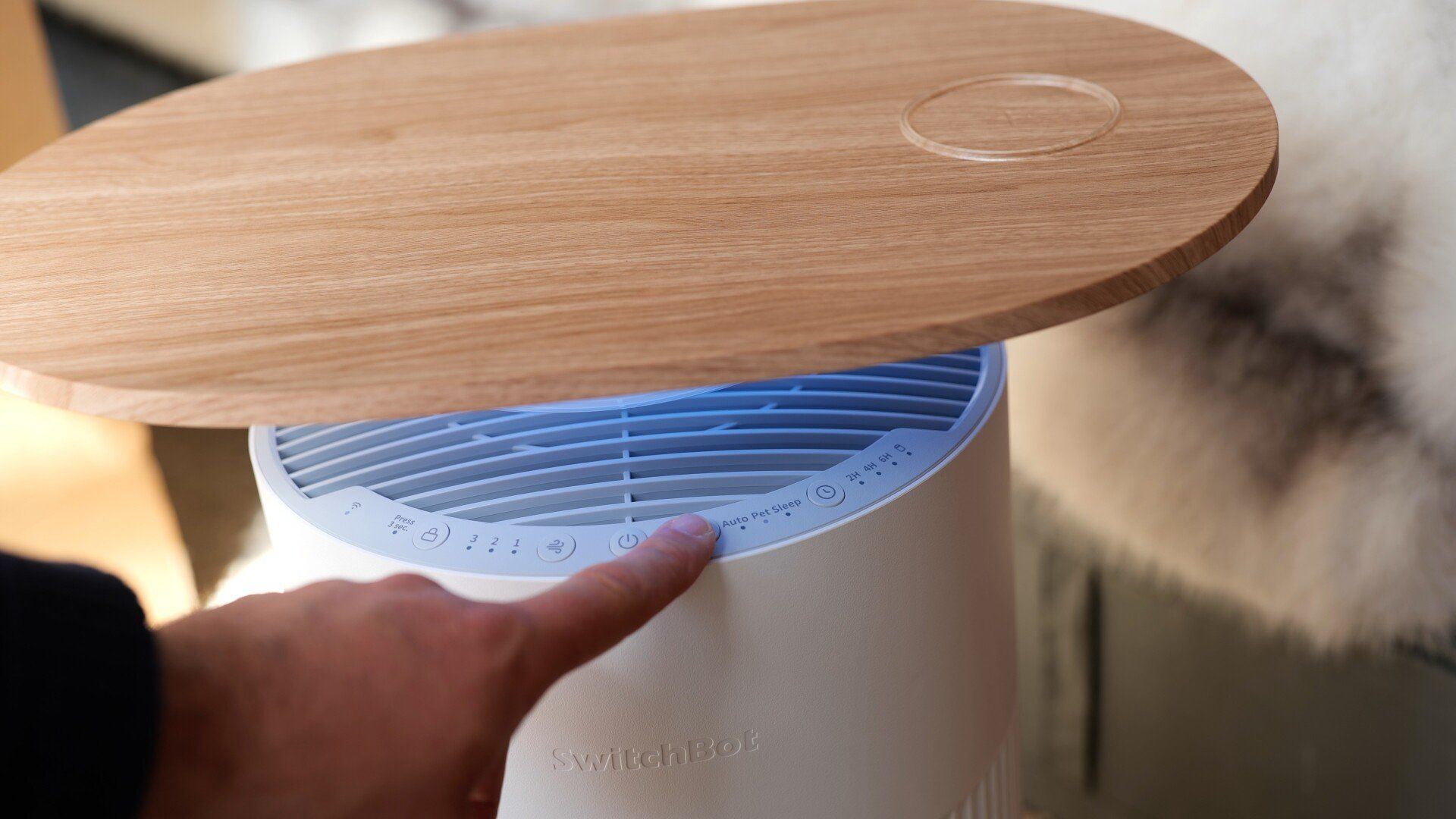
I have the night light in my SwitchBot Air Purifiers and SwitchBot Floor Circulator Fans set to come on at night and turn off in the morning. On the Home Dashboard, I have configured the third and fourth buttons to function as manual controls. Pressing the third button turns on all of these night lights at once. Pressing the fourth button turns them off. This way I can manually override my automations without having to pull out my phone. They also provide my family members with controls over the lights in a way that feels familiar to flipping a light switch.
The Home Dashboard is not a Matter-native device. It not only requires a SwitchBot hub, and it functions as two devices when being bridged to Matter. This means if you have a SwitchBot Hub Mini that can expose up to four SwitchBot devices to your Matter controller, the Home Dashboard will count as two of them, even though it isn’t adding any more functionality than a SwitchBot Meter.
If you've bought a SwitchBot Hub 3, make sure to apply firmware updates before attempting to add the Home Dashboard as a Matter device. I found that I could initially set the device up but it wouldn't appear in my list of available devices until after applying the update.
Should you buy a SwitchBot E-Ink Home Dashboard?
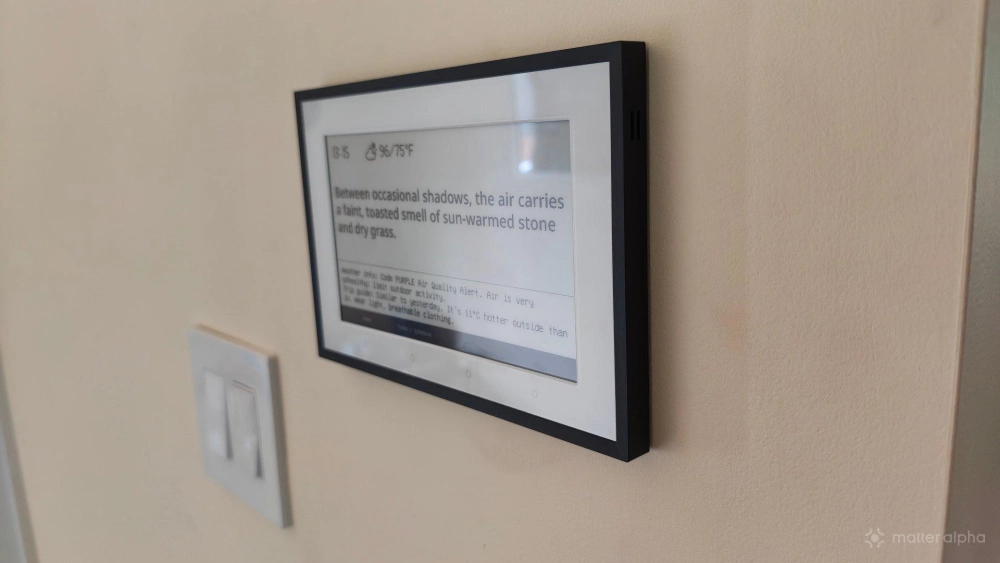
The SwitchBot Home Dashboard is not a perfect product. Its implementation is a bit clunky, syncing calendars is tedious, and its Matter integration is so lacking, you might as well regard it as a product limited exclusively to the SwitchBot ecosystem. Yet it’s a product that multiple extended family members have expressed interest in since being exposed to the device, all of whom are pretty skeptical of smart home tech in general. The core premise of being a weather dashboard with a non-distracting screen is, ultimately, almost all this product needs to do to be useful. But I do feel that it doesn’t fully justify its price unless you have a home filled with SwitchBot products to integrate with, otherwise its ability to double as a smart switch is wasted.
All in all, while the SwitchBot Home Dashboard makes for a good gift, I wouldn't call it a must-have addition to your home. It is nowhere near the functionality you can get from creating your own dashboard using a tablet running Home Assistant, Homey, or even Apple Home--but it’s useful enough that I’ll be keeping it on my wall.