Have you ever dreamed of having an Apple smart home that greets you the moment you arrive home from work? Or have you longed for the day when all the lights and appliances in your home shut down automatically at bedtime?
Well, you've come to the right place. In this guide, we'll discuss the types of automation available to you through the Apple Home app and walk you through the process of creating each so you can experience the Matter smart home of your dreams today.
Apple Home automation: what you'll need
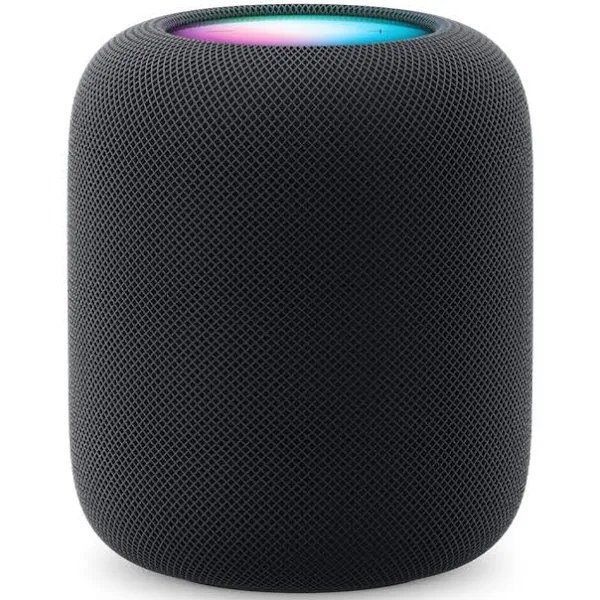
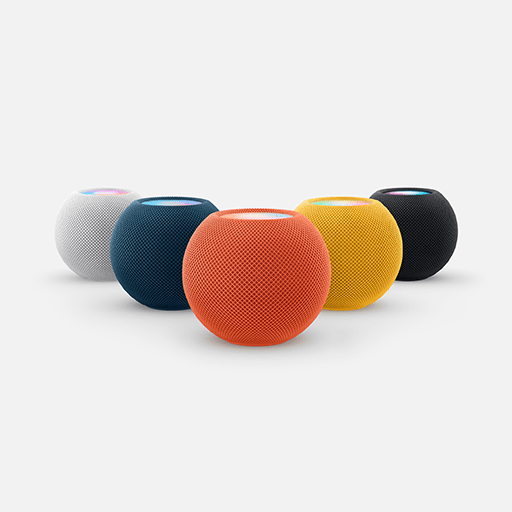
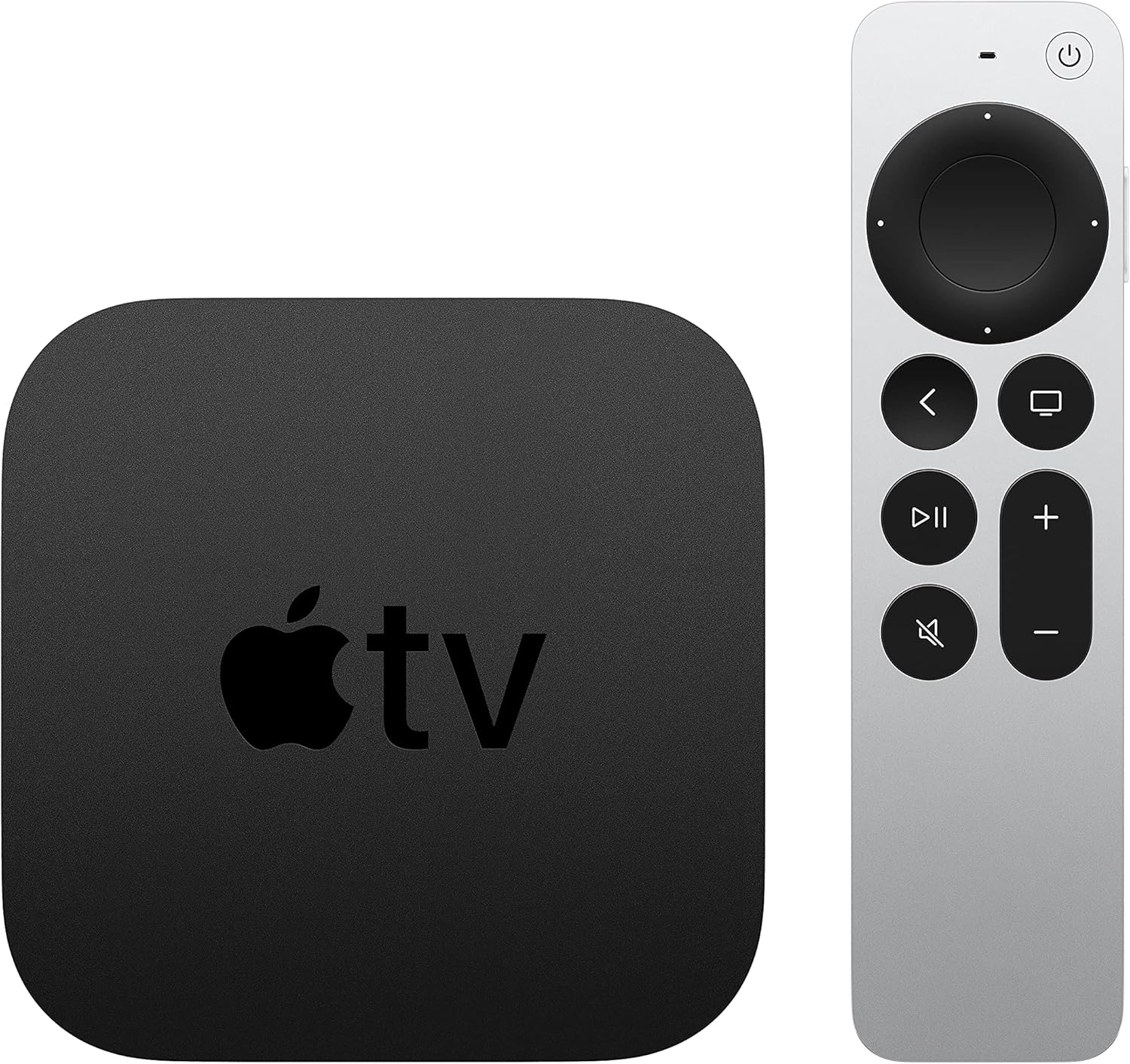
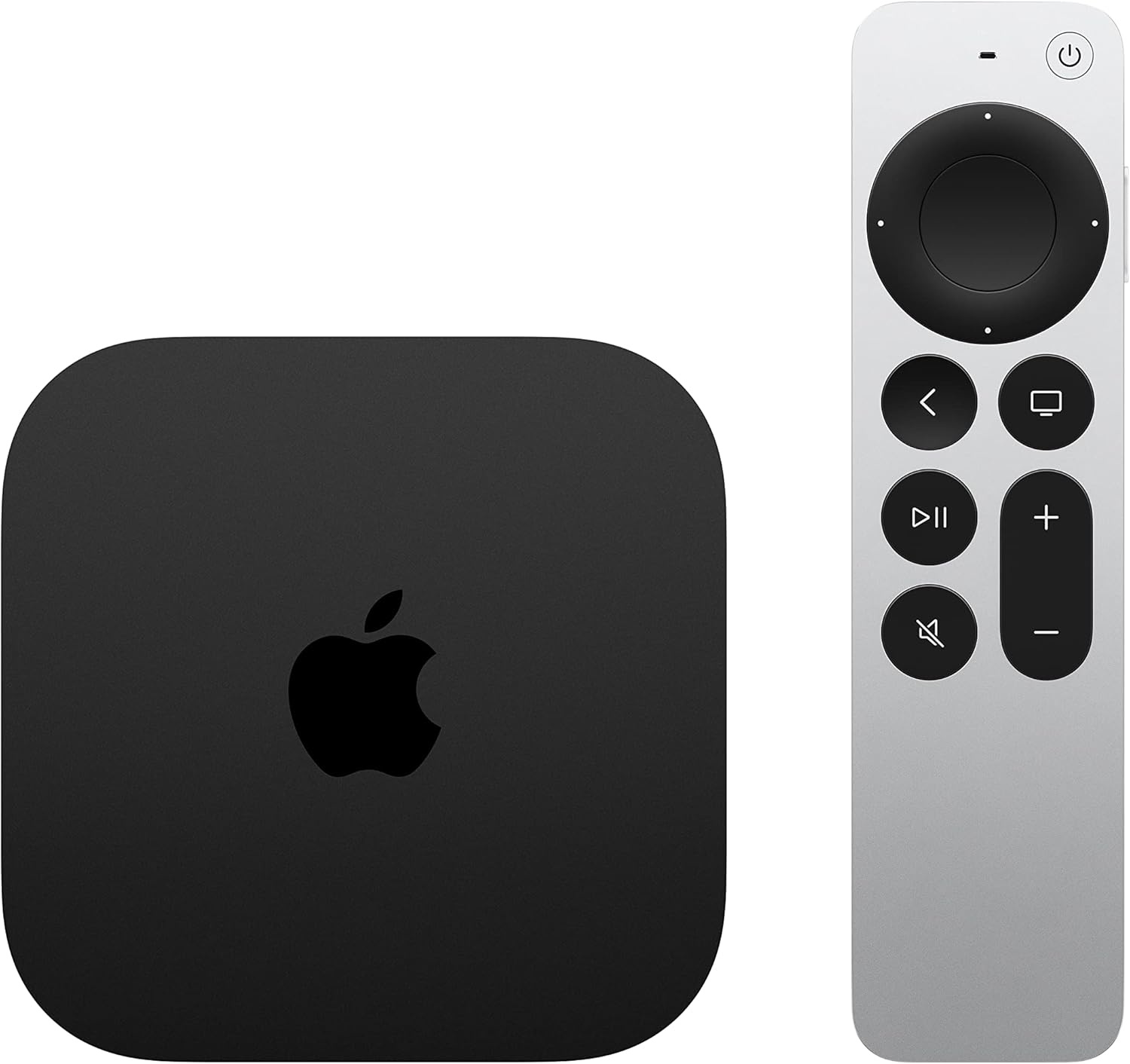
To get started with Apple Home automation, you'll need to have a couple of things in order. First, you'll need an active Apple Home hub set up in your home, like an Apple HomePod, HomePod mini, or Apple TV.
If you are new to the smart home world, Apple Home hubs function as the command center for your Apple smart home. Apple Hubs run automations locally, sending signals to your Matter devices based on the triggers or conditions that you establish during the creation process.
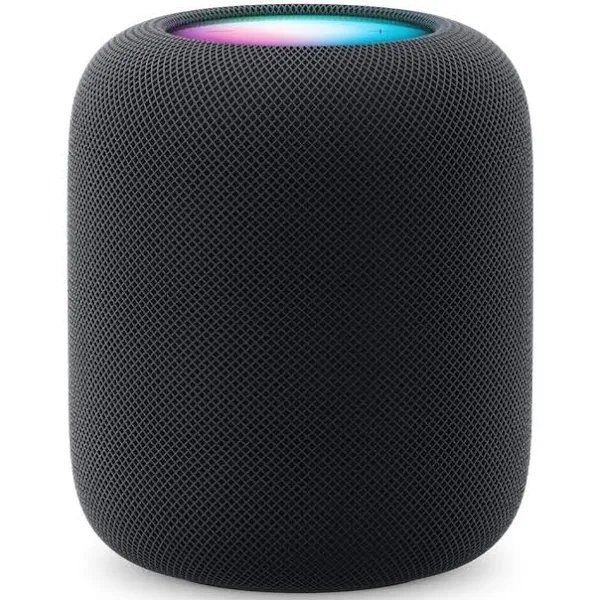
Apple HomePod (2nd Gen)
Next—if you haven't done so already—you'll need to add your Matter device to Apple Home. You won't need to worry about the brand of device, as long as it has a Matter logo on the box, then you should be to go.
If you are just starting your smart home journey and are looking for recommendations, we've got you covered there as well. We have buyer's guide for almost every category of device, from Matter-compatible smart light bulbs to in-wall outlets, and our product database will give you a complete look at all of your available options.
Although automation may sound complicated, an Apple Home hub and some Matter devices are all you really need, so with that out of the way, let's move on to the walkthroughs.
How to automate your Matter devices with Apple Home
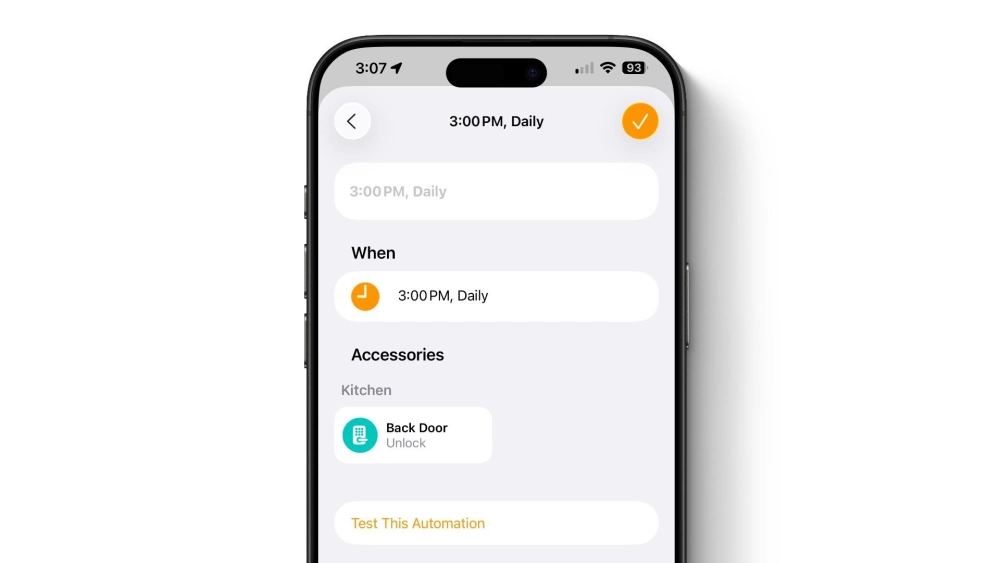
Apple's Home app offers four distinct automation types for your Matter devices: time, location, sensor, and accessory-based automations. We've broken each one out below.
How to create a time-based automation
As its name implies, a time-based automation will run only on the day and time of your choosing. The Home app has presets available for sunrise and sunset, and you can enter a custom time with the Time of Day option.
You can also choose which days of the week it runs under the Repeat section during setup. Here's how to create a time-based automation:
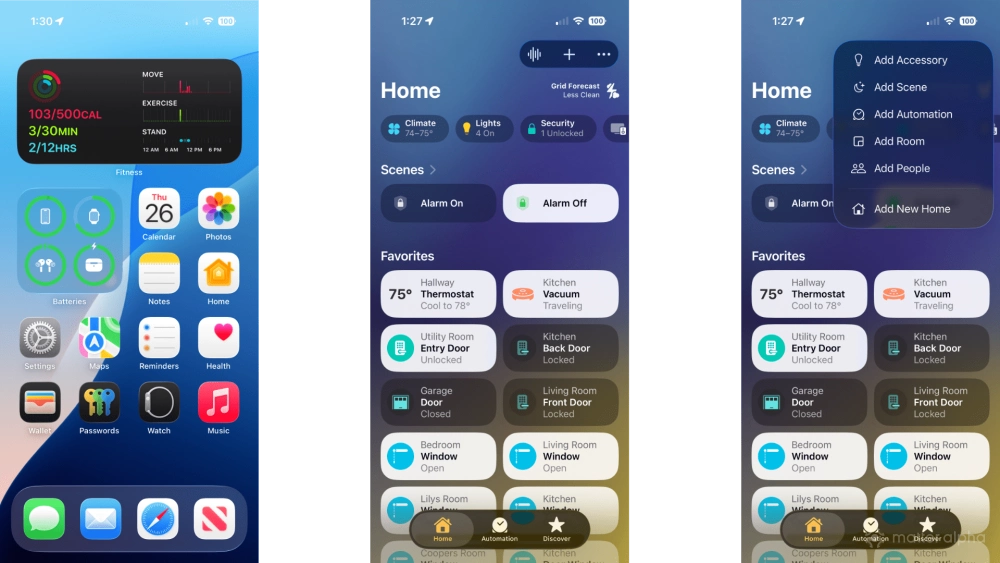
- Launch the Apple Home app.
- Tap the Add button (looks like a plus sign).
- Tap Add Automation.
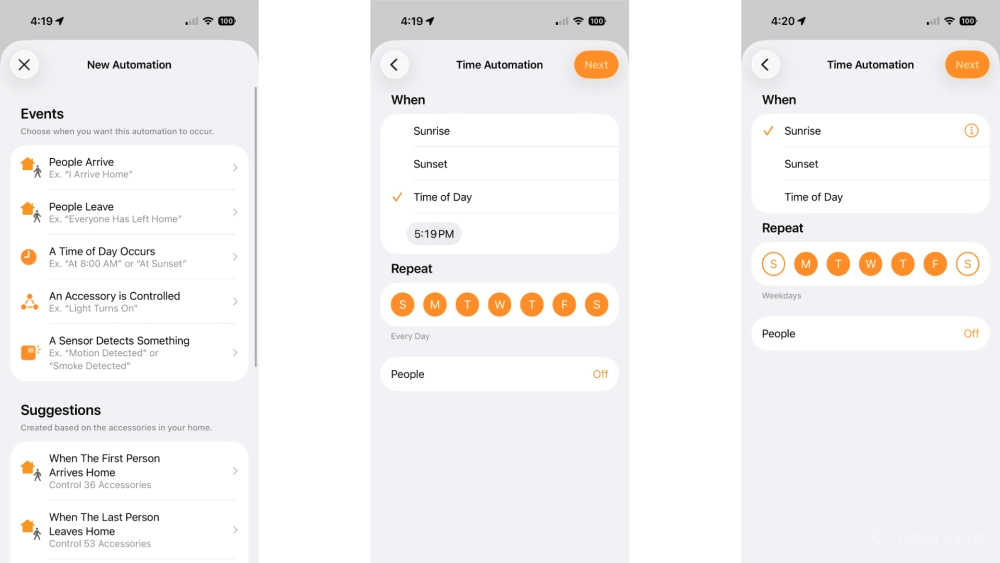
- Tap A Time of Day Occurs.
- Tap a preset or Tap Time of Day to enter a custom time.
- Tap the desired days for your automation.
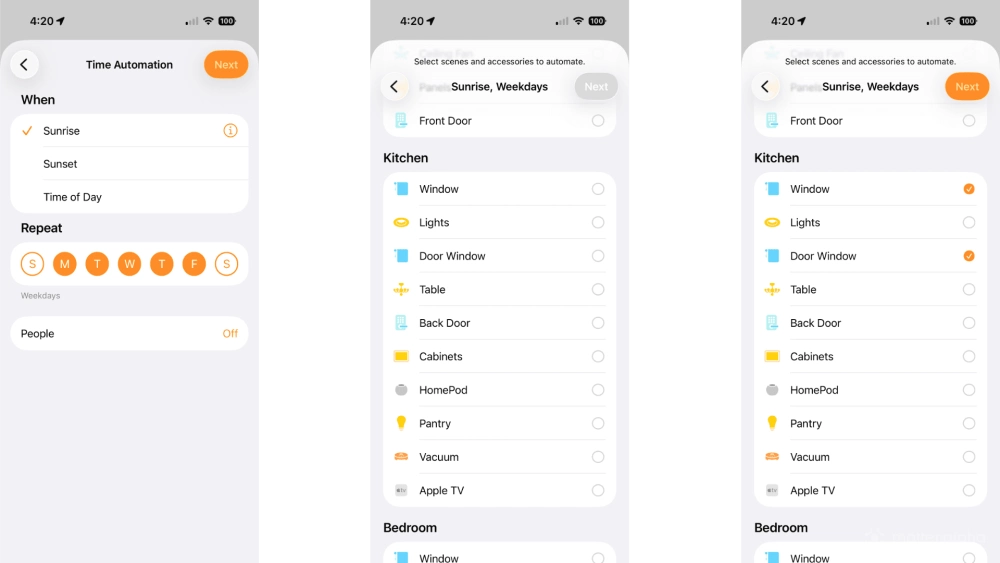
- Tap Next.
- Tap the accessories or scenes that you wish to automate.
- Tap Next.
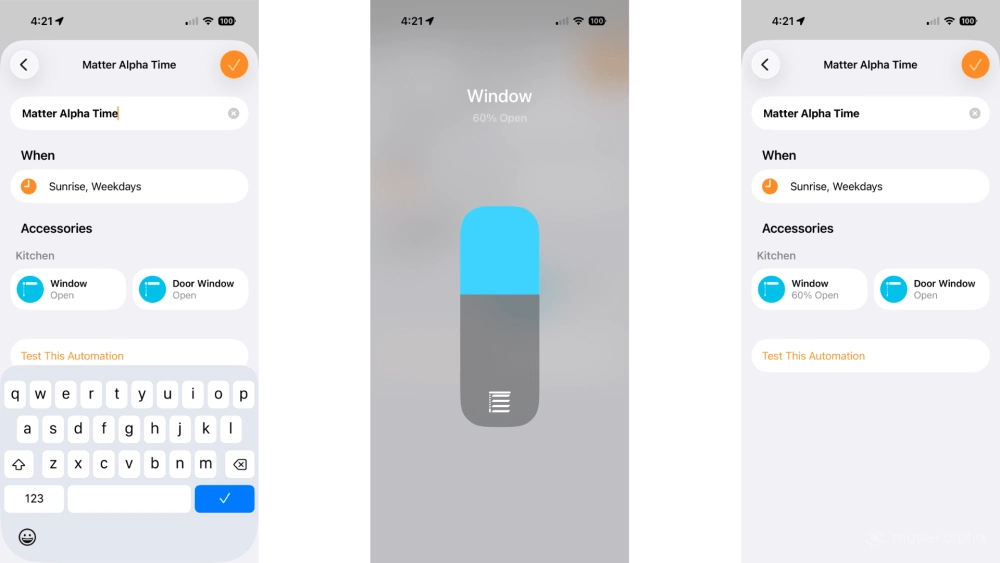
- Type a name for your automation.
- Tap your accessories and set the desired state.
- Tap the Done button (looks like a checkmark) to save.
If you prefer to only have it run on days when someone is home or away, you can use the People option during setup, or you can edit it through the Automation tab.
How to create a location-based automation
Location-based automation in Apple Home utilizes real-time GPS data from an iPhone to determine when to toggle your smart home devices. This can be from your personal iPhone or from the phones of others in your household, as long as you have invited them to your Apple Home.
Apple provides options for arriving or leaving specific locations, and you can set an automation to run when Anyone Arrives or when the First Person Arrives. Here's how:
- Launch the Apple Home app.
- Tap the Add button (looks like a plus sign).
- Tap Add Automation.
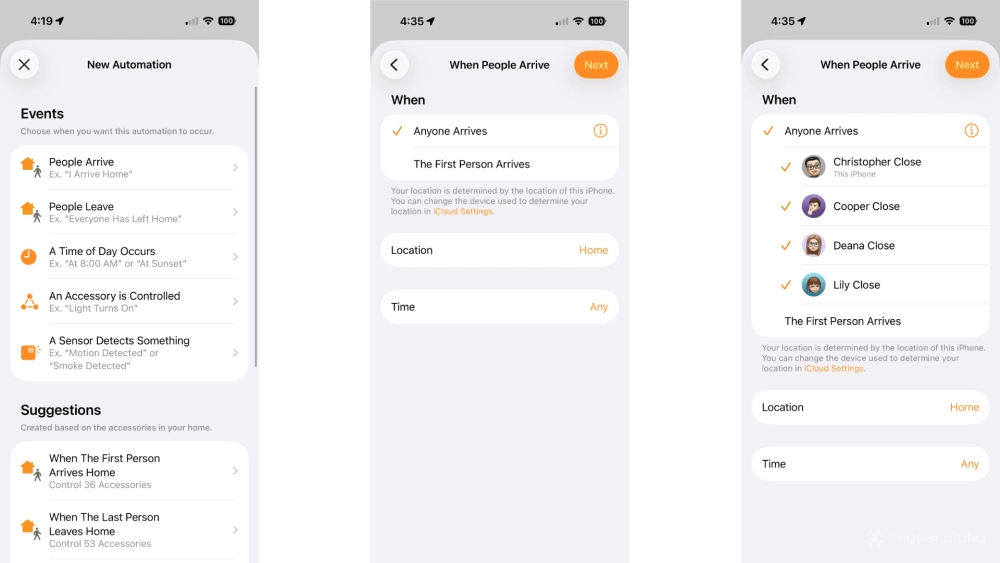
- Tap People Arrive or People Leave.
- Tap Anyone Arrives or First Person Arrives.
- Tap the i button to select people as desired.
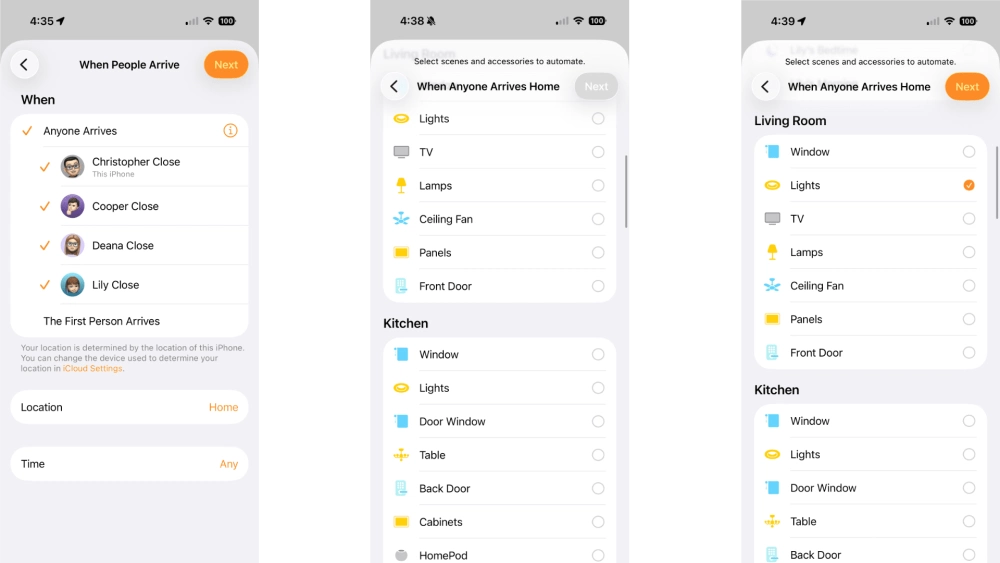
- Tap Next.
- Tap an accessory or scene.
- Tap Next.
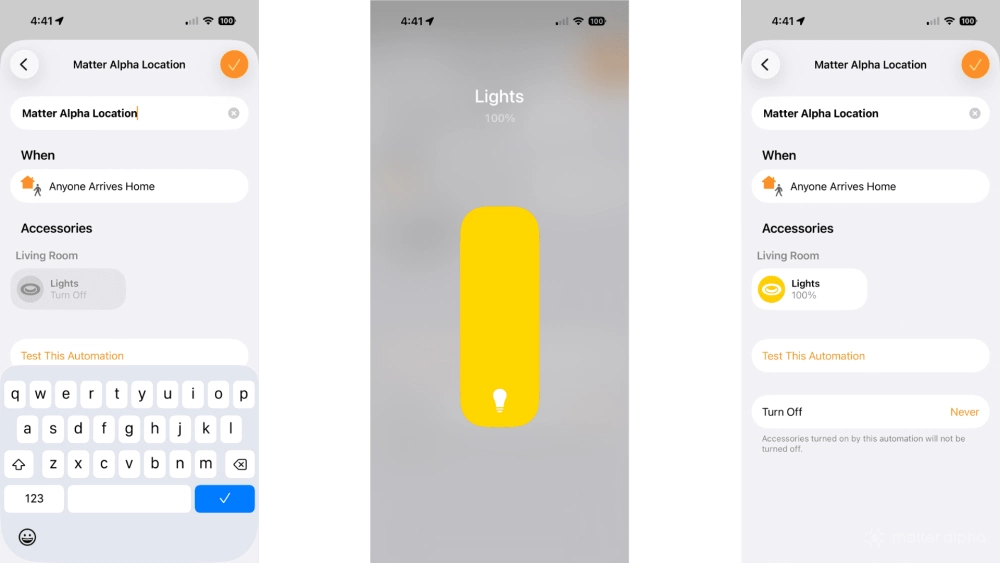
- Type a name for your automation.
- Tap your accessories and set the desired state.
- Tap the Done button (looks like a checkmark) to save.
While our example above is set to run when someone arrives home, you can fine-tune your automation to suit your needs with three conditional options. The i button will allow you to select specific people, Time will restrict when it runs, and you can choose where it will start with the Location option.
How to create a sensor-based automation
A sensor-based automation in Apple Home takes into account the current status of devices such as motion sensors, climate sensors, door and window sensors, and more. Sensor-based automations are particularly useful for relaying conditions, like changing Matter light bulbs in your home to red if the garage door is open.
Available triggers will vary depending on the type of sensor, so you may see different options from the steps below, but our walkthrough should give you a good starting point for building your automation.
- Launch the Apple Home app.
- Tap the Add button (looks like a plus sign).
- Tap Add Automation.
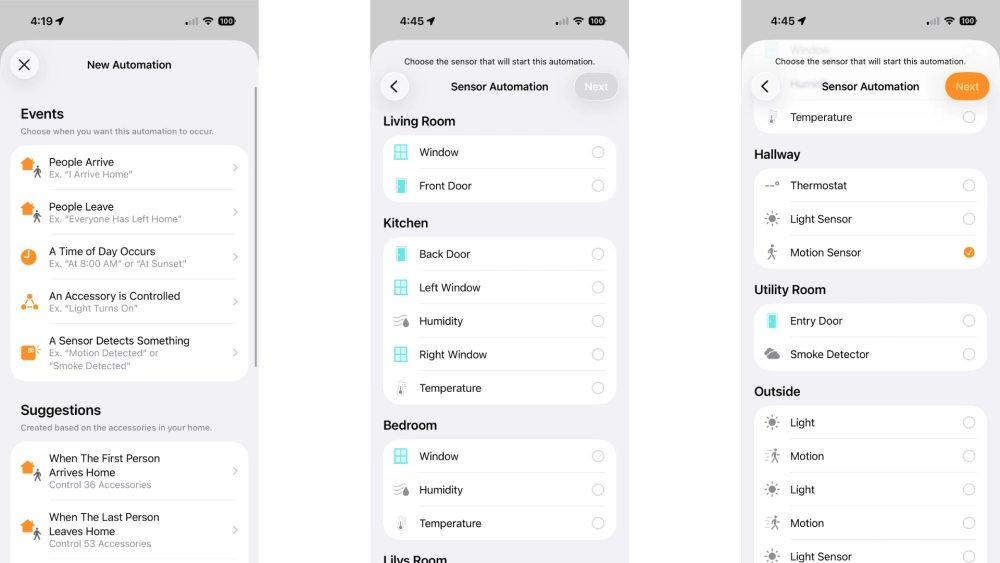
- Tap A Sensor Detects Something.
- Tap the sensor that will trigger your automation.
- Tap Next.
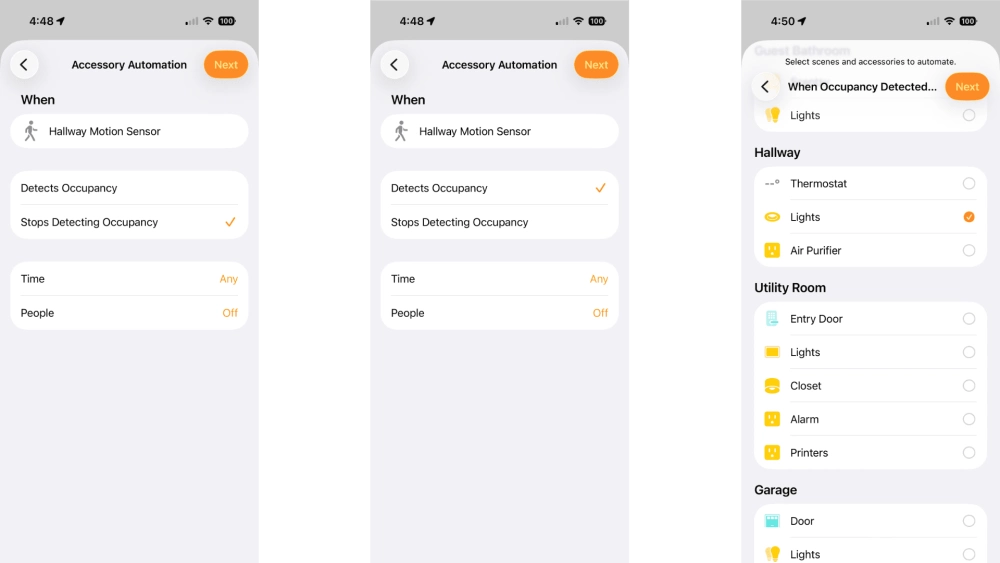
- Tap the desired sensor state.
- Tap Next.
- Tap the accessories that you wish to automate.
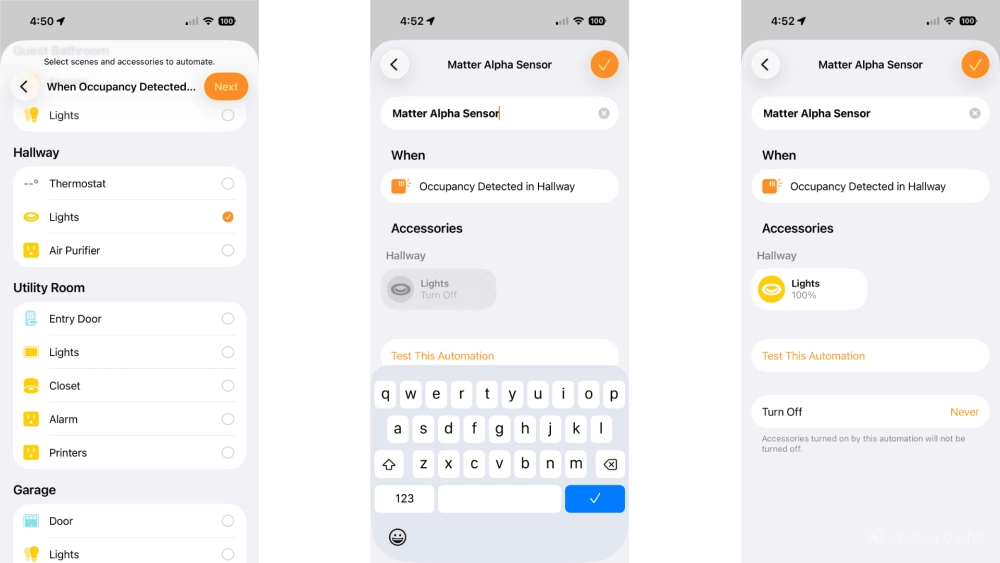
- Tap Next.
- Type a name for your automation.
- Tap your accessories and set the desired state, then tap the Done button.
As with other automation types, you can set specific times for when your sensor automation will run. You can also choose to only have it run when People are home or away, too.
How to create an accessory-based automation
Accessory-based automations open the door to a world of possibilities with their ability to set other devices into motion with common tasks. For instance, a room with multiple lamps, strip lights, and bulbs can be set to follow the on/off state of an overhead fixture automatically—even when using a light switch if it is connected to Matter.
- Launch the Apple Home app.
- Tap the Add button (looks like a plus sign).
- Tap Add Automation.
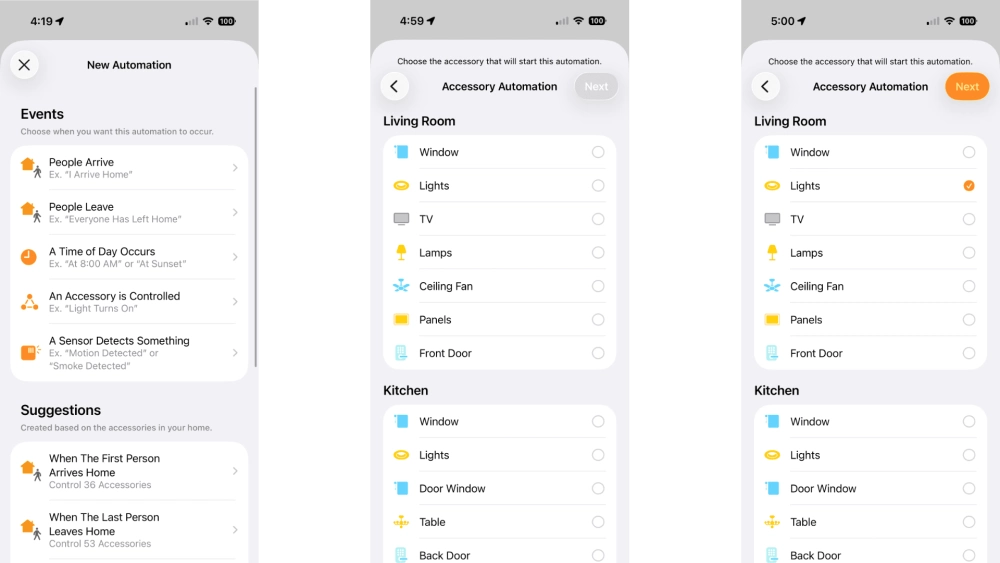
- Tap An Accessory is Controlled.
- Tap the accessory that will trigger your automation.
- Tap Next.
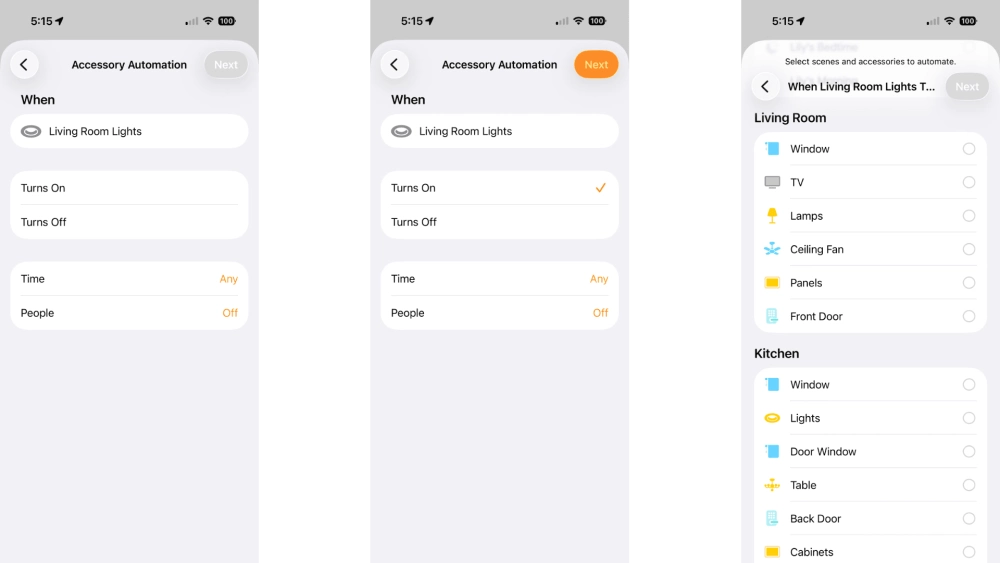
- Tap the desired accessory state.
- Tap Next.
- Tap the accessories that you wish to automate.
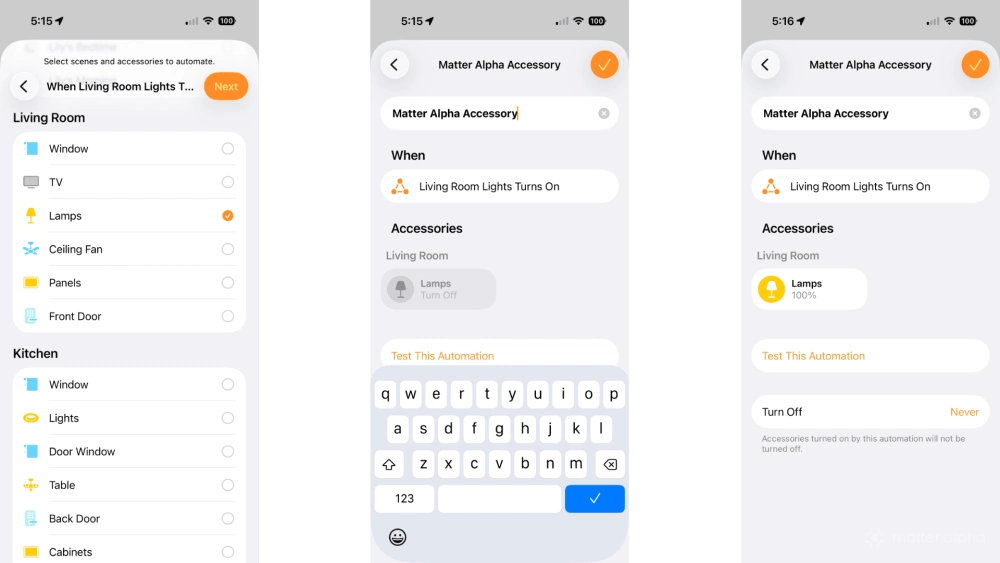
- Tap Next.
- Type a name for your automation.
- Tap your accessories and set the desired state, then tap the Done button.
In addition to controlling individual devices, accessory-based automations can also be used to set Apple Home scenes for Matter. And any future changes to your scenes will update your automation automatically—no editing needed.
Put the "auto" in home automation with Apple Home
With the power of Apple Home automation at your disposal, you are now free to create the smart abode of your dreams. Whether you want to eliminate tedious tasks, strengthen home security, or reduce energy consumption by only running certain devices when someone is home, you can do it all through Apple Home.
For other ways to make controlling your accessories quicker and easier, be sure to check out the following guides: How to group Matter devices in the Apple Home app, and How to use Apple Home Adaptive Lighting.