While the transition to Matter for Apple HomeKit users was pretty seamless, the omission of one major feature—Adaptive Lighting—left some smart home fans in the dark. Users who made the upgrade to Matter were no longer able to rely on Apple to make automatic color temperature adjustments to their lights, taking away a crucial component of the home automation experience.
Thankfully, that gap was eventually addressed with the releases of iOS 18 and iOS 26—along with the Matter 1.4 specification. With these updates, Apple eased both its hardware and software restrictions, bringing us to today, where most Matter-compatible lighting devices on the market now support Adaptive Lighting.
But how do you set up and use Adaptive Lighting? In this guide, we will walk you through all the steps and requirements so you can put your home's lighting on cruise control.
What is Apple Home Adaptive Lighting?
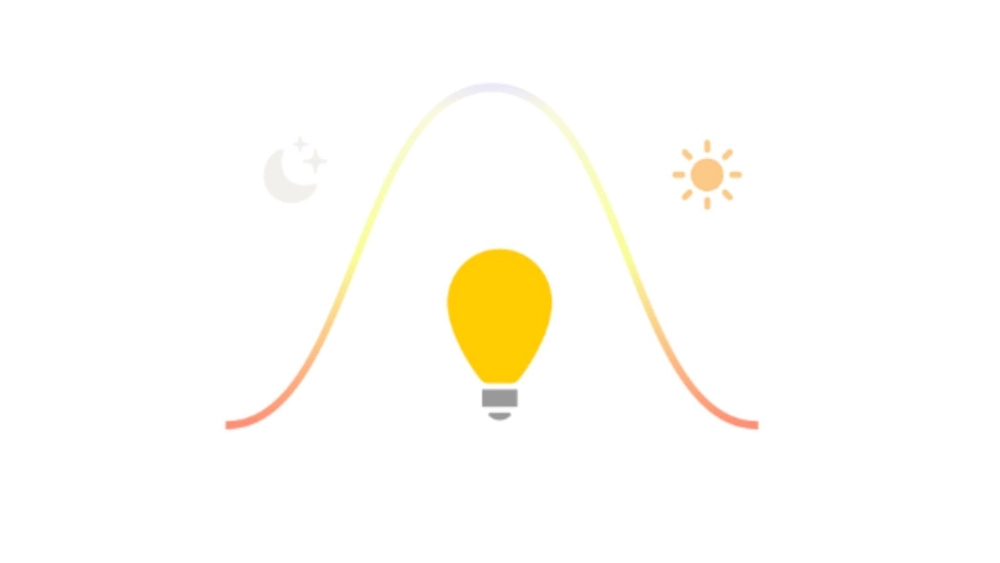
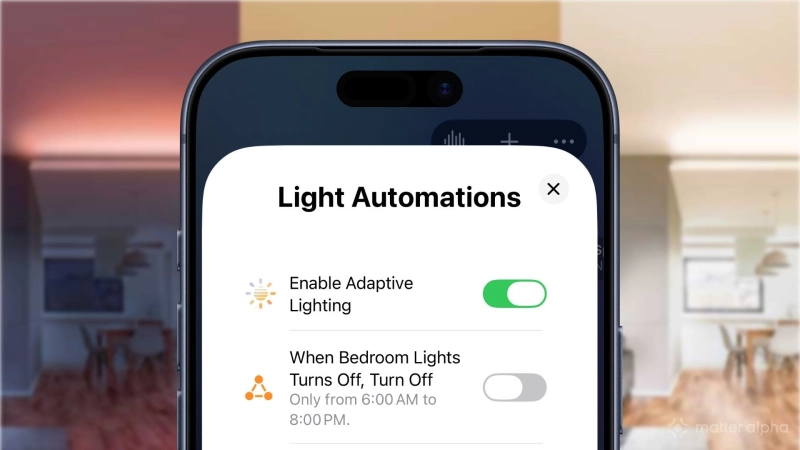
As previously mentioned, Apple Home Adaptive Lighting automatically adjusts the color temperature of compatible light bulbs, strip lights, ceiling lights, and lamps. With Adaptive Lighting enabled, the Apple Home app intelligently makes these adjustments throughout the course of the day with the aim of increasing productivity, energy, and rest.
A typical day with Adaptive Lighting starts with warmer (yellow) shades in the morning to help ease you into the day. In the afternoon, Adaptive Lighting will switch to cooler light (white/daylight) which is brighter, potentially boosting focus and energy levels.
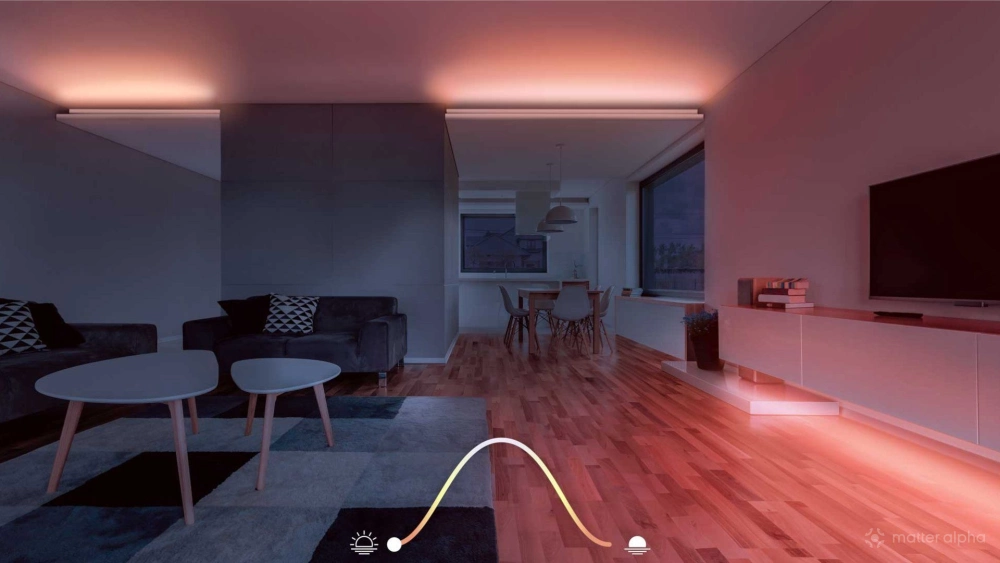
During the evening hours, Adaptive Lighting will revert to softer, warmer tones, which should help with winding down when it's time to head to bed. Shifting to warmer shades should also eliminate any shocking or jarring experiences when flipping on a light during a late-night snack run.
Adaptive Lighting even takes dimming into account. For instance, lowering the brightness on a bedside Matter lamp at night will result in warmer/yellower light and ramping it up during the day will produce brighter white light.
Apple Home Adaptive Lighting: what you'll need
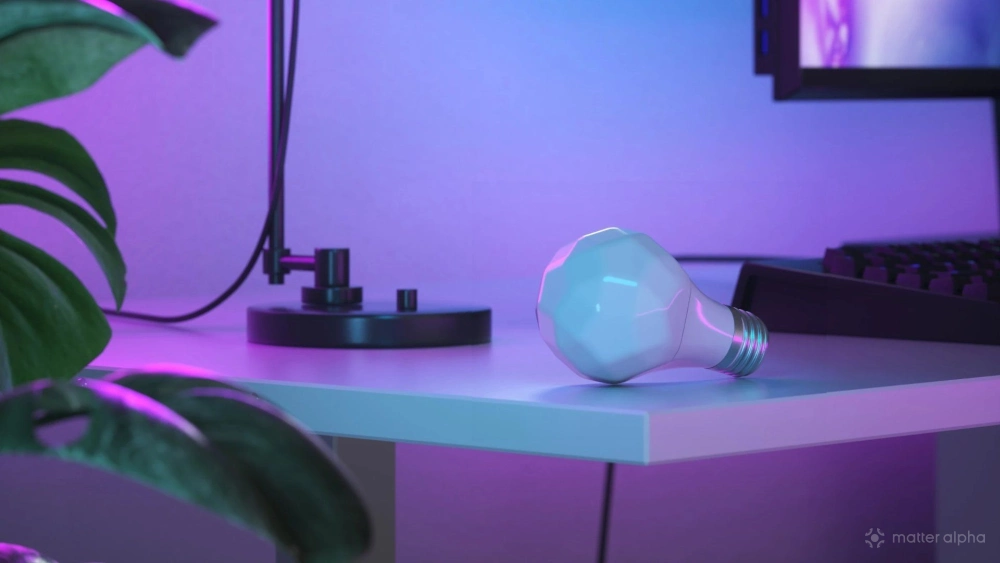
As you might have guessed, Apple's Adaptive Lighting feature requires the right combination of hardware and software to make the magic happen. According to Apple's developer documentation, Adaptive Lighting is enabled by default in iOS 26 for devices that are capable of color temperature adjustments between 2700 and 5000 Kelvin, and for devices that support the Matter 1.4 specification.
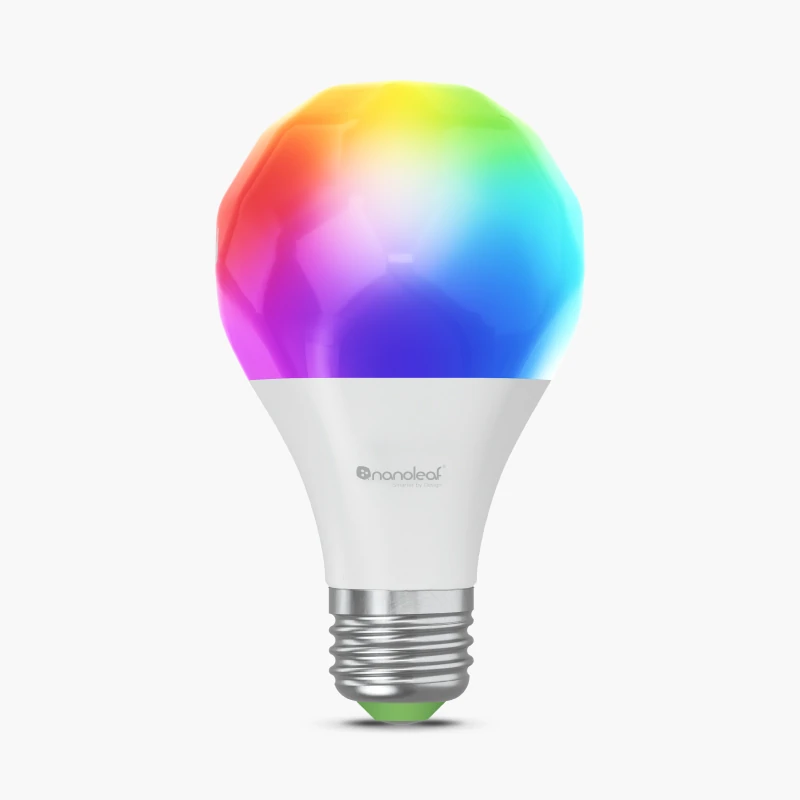
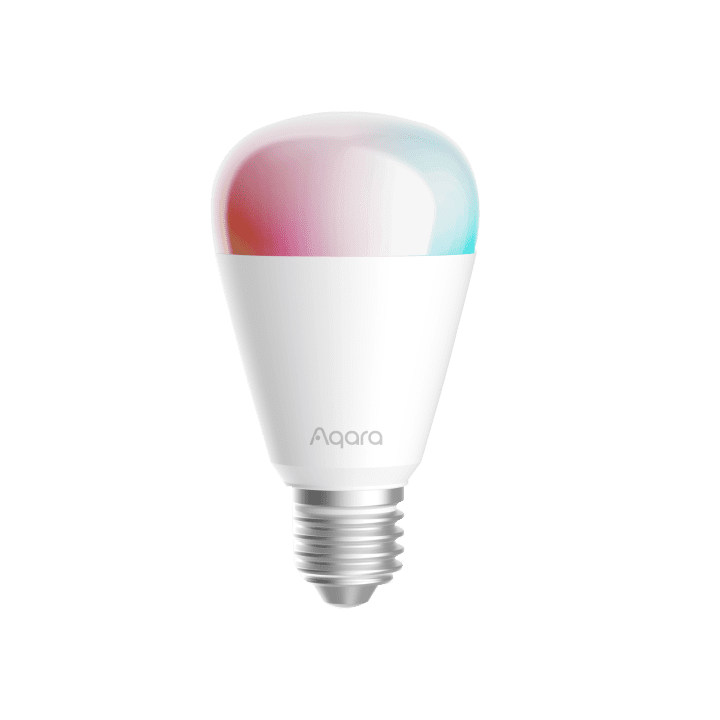
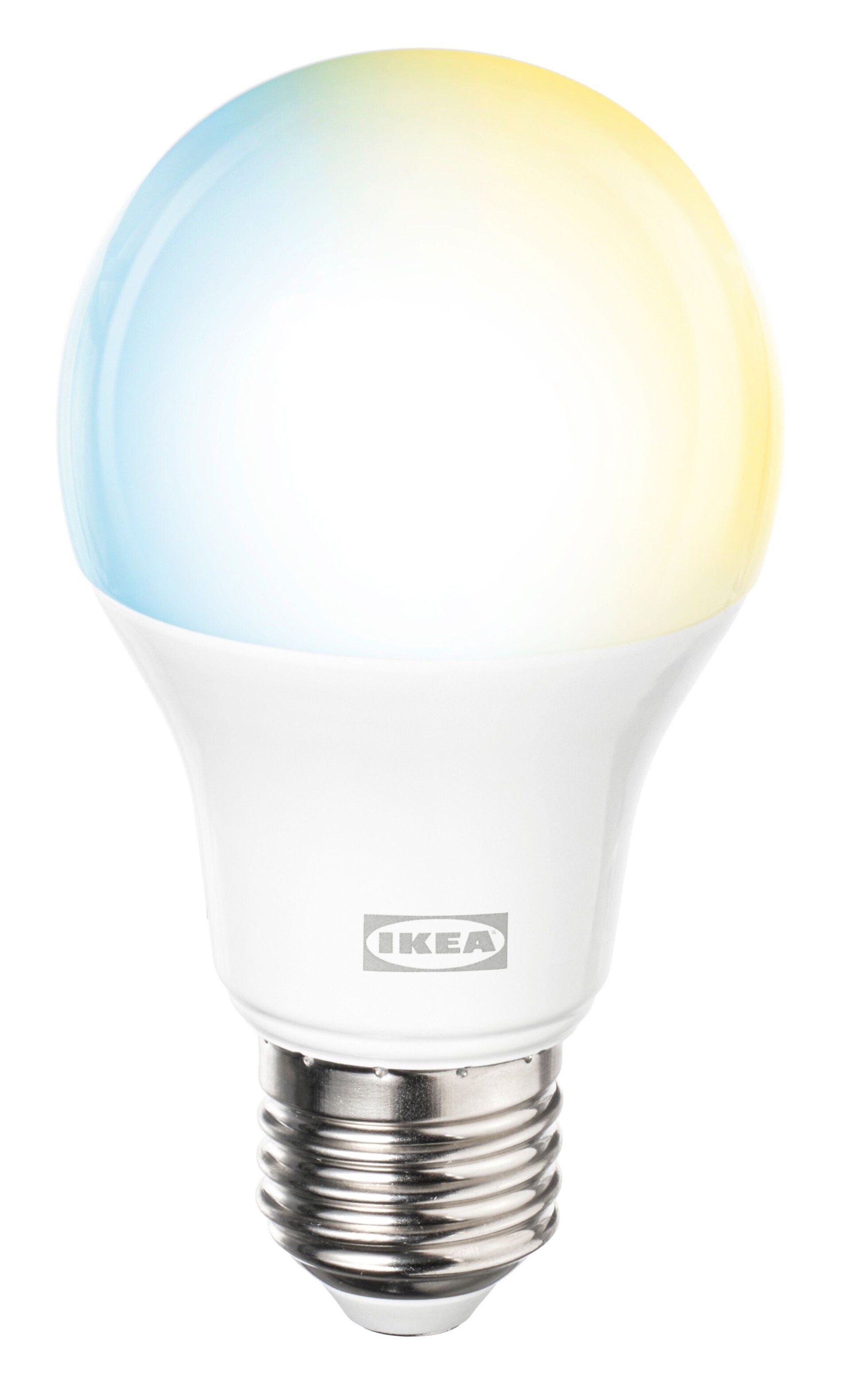
The good news is that the best Matter light bulbs and strip lights already meet these requirements. Devices like the Aqara LED Bulb T2, the Nanoleaf Essentials Matter A19, and IKEA's entire lineup of KAJPLATS light bulbs support Adaptive Lighting right out of the box with very little configuration.
Older devices—such as those from the original "king" of smart home lighting, Philips Hue—can get in on the Adaptive Lighting fun, too. However, you may need to update some Matter devices in the Apple Home app or through a vendor's app before the option appears.
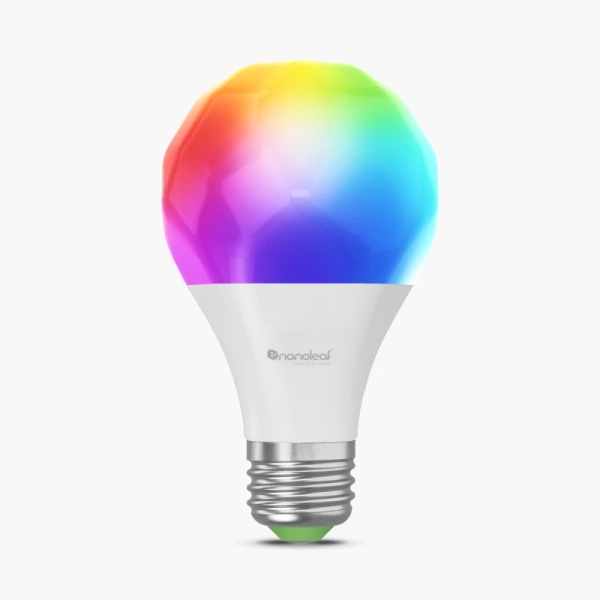
Nanoleaf Matter A19 E26 Smart Bulb
The Nanoleaf Matter A19 E26 is a color-changing LED smart bulb that supports Matter over Thread for compatibility with various smart home ecosystems, offering over 16 million colors and tunable white light.
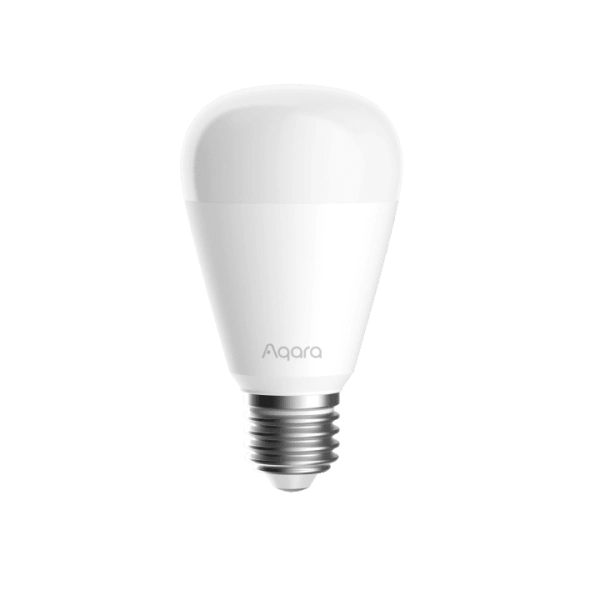
Aqara LED Bulb T2 (E26, CCT)
Smart LED bulb with dual-protocol support (Thread and Zigbee), offering tunable whites and advanced features like dynamic effects, adaptive lighting, and multi-device grouping for enhanced control.

KAJPLATS E26 WS globe 1600lm
A powerful smart LED bulb with adjustable white tones and dual Zigbee/Thread connectivity for flexible, connected lighting.
And now for the bad news. Some lighting devices simply do not meet the hardware requirements, while others are seemingly abandoned after release, so they will, unfortunately, miss out on Adaptive Lighting.
Speaking of updates, you'll also need your iOS device to be running iOS 26 or later. The same goes for your Apple Home Hubs with tvOS 26/HomePodOS 26, respectively, and once updated, you'll find the Adaptive Lighting setting in the Apple Home app.
If you don't see the option, you may need to restart your home hub, lights, and possibly your iOS device before it appears, so don't get discouraged if you don't see it right away.
How to enable Adaptive Lighting in the Apple Home App
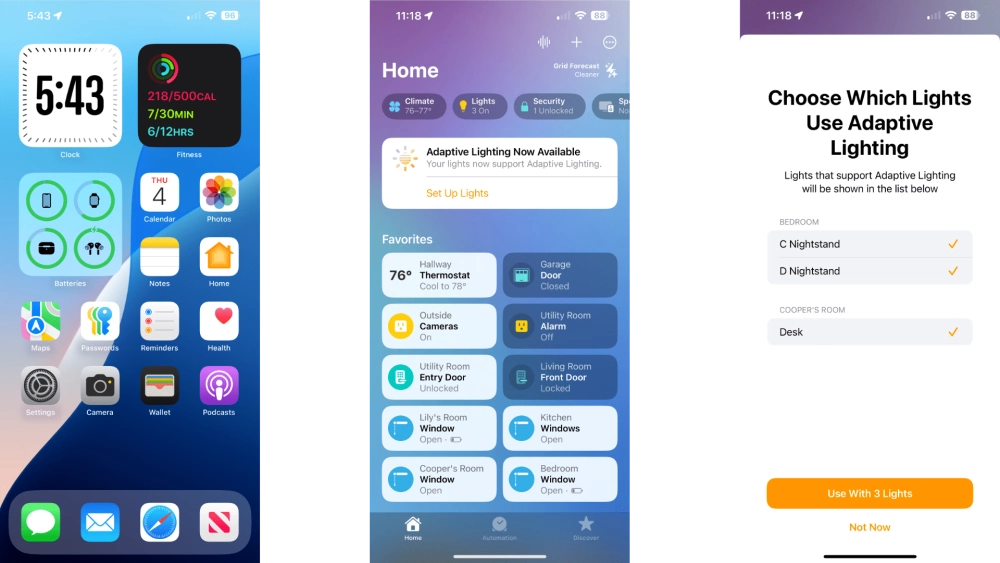
Once you have met the requirements, you will need to open the Apple Home app on your iOS device. Upon launching the app, you should see a banner advertising the feature at the top of the Home page. From there, you'll only need to follow the steps below to enable Adaptive Lighting:
- Launch the Apple Home App.
- Tap Set Up Lights.
- Select the lights that you wish to use with Adaptive Lighting.
- Tap Use With Lights to finish setup.
Alternatively, you can enable Adaptive Lighting when adding a Matter device to the Apple Home app. During the pairing process, you'll see a toggle for Adaptive Lighting on the suggested automation prompt, simply tap it to enable the feature.
If you missed the Adaptive Lighting toggle during setup or if the banner isn't appearing on the Home screen of the Home app, then you can manually enable it through device settings.
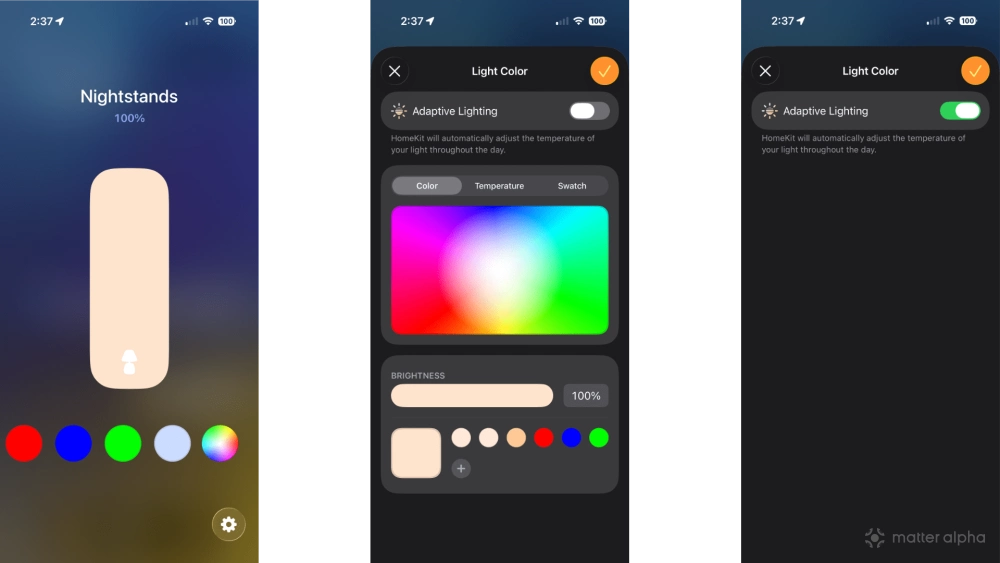
- Launch the Apple Home app.
- Tap your Matter light.
- Tap the Color Picker button (the one with multiple colors) on the right.
- Tap the Adaptive Lighting toggle.
It is important to note that enabling Adaptive Lighting doesn't automatically apply it to your lights. Read on to find the steps to actually using Adaptive Lighting with your lights.
How to use Adaptive Lighting with your Matter lights
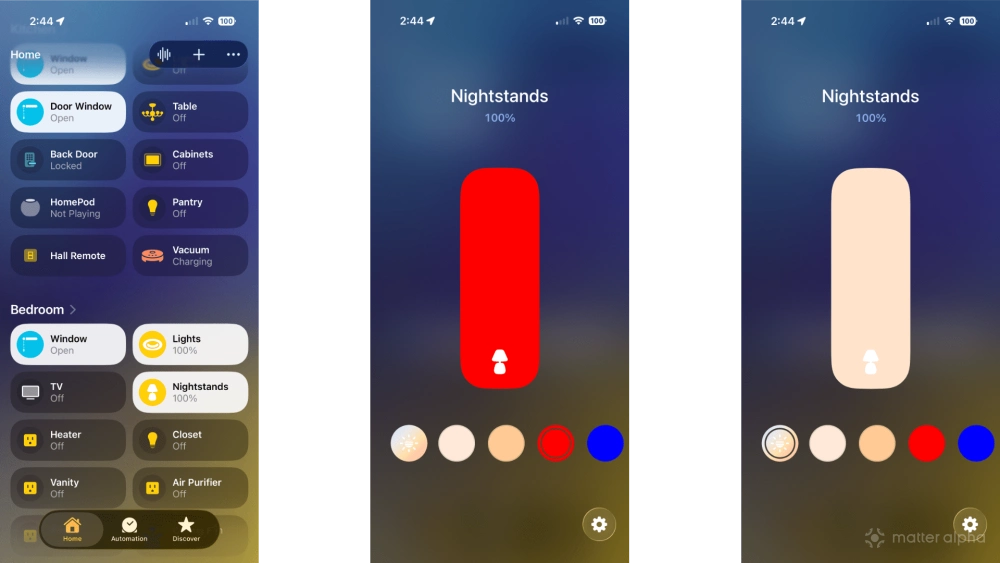
With Adaptive Lighting enabled, it is time to set your lights to use the newly activated feature. The process is incredibly easy as Adaptive Lighting appears alongside all of your existing colors on the device control screen for your light. You can find it by following the steps below:
- Launch the Apple Home App.
- Navigate and tap your compatible light to bring up the device controls screen.
- Tap the Adaptive Lighting icon (looks like a shining sun) on the left side of the color picker.
In addition to toggling Adaptive Lighting manually in the Apple Home app, you can also use it in Scenes, Automation, and with voice commands through Siri. When creating a Scene or configuring an Automation, choose the Adaptive Lighting icon as you would with picking any other color to set it.
If you want to invoke Adaptive Lighting via Siri you can use phrases like "Hey Siri—Set the living room lamp to Adaptive" to set it on one device, or "Siri—Set the bedroom to Adaptive" to toggle an entire room.
How to disable Apple Home Adaptive Lighting
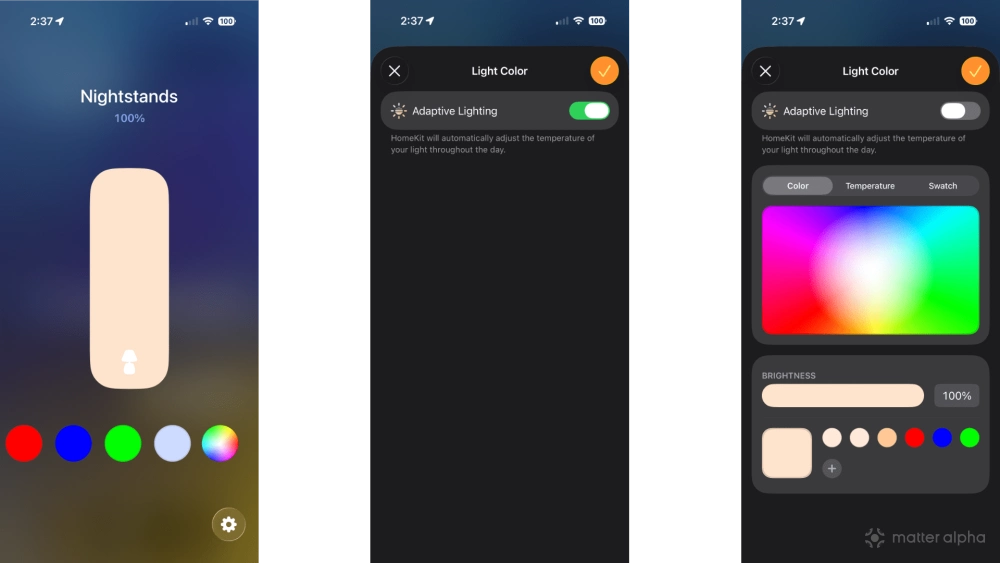
While Adaptive Lighting takes the guesswork out of color temperature adjustments, it might not be for everyone. If you are not quite happy with Apple's color temperature choices, you can revert back to manual controls at any time. Here's how to disable Adaptive Lighting:
- Launch the Apple Home App.
- Tap your compatible light to bring up the device controls screen.
- Tap the Color Picker button (the one with multiple colors) on the right.
- Tap the Adaptive Lighting toggle to turn it off.
Note: the above method only applies to the currently selected light in the Apple Home app. If you have multiple lights, you'll need to toggle the Adaptive Lighting setting off on each individually.
The right shade at the right time with Apple Home Adaptive Lighting
With Adaptive Lighting, you'll never have to worry about making color temperature adjustments to your lights again. Just remember, any temporary color changes you make will override Adaptive Lighting, so you'll need to set it back to resume automatic adjustments.
Want to put your home's heating and air on autopilot with Apple Home? Then check out our guide: How to use Apple Home Adaptive Temperature with your Matter thermostat. Similar to Adaptive Lighting, Adaptive Temperature tailors your home's climate to your household routines and activities through scheduling, location, and presence detection features.