While Apple's Home app has always been great for making the occasional temperature adjustment to Matter-compatible thermostats, it hasn't been so great for scheduling. Sure, you can create somewhat of a makeshift solution through Apple Home automation, but in most cases, using the app for your thermostat has always been just plain easier—until now.
With the release of iOS 26, Apple has finally given smart thermostat owners a way to create and manage schedules through a new feature called Adaptive Temperature. In this guide, we will explain how Adaptive Temperature works, what you'll need to take advantage of it, and show you how to set it up for your home.
What is Apple Home Adaptive Temperature?
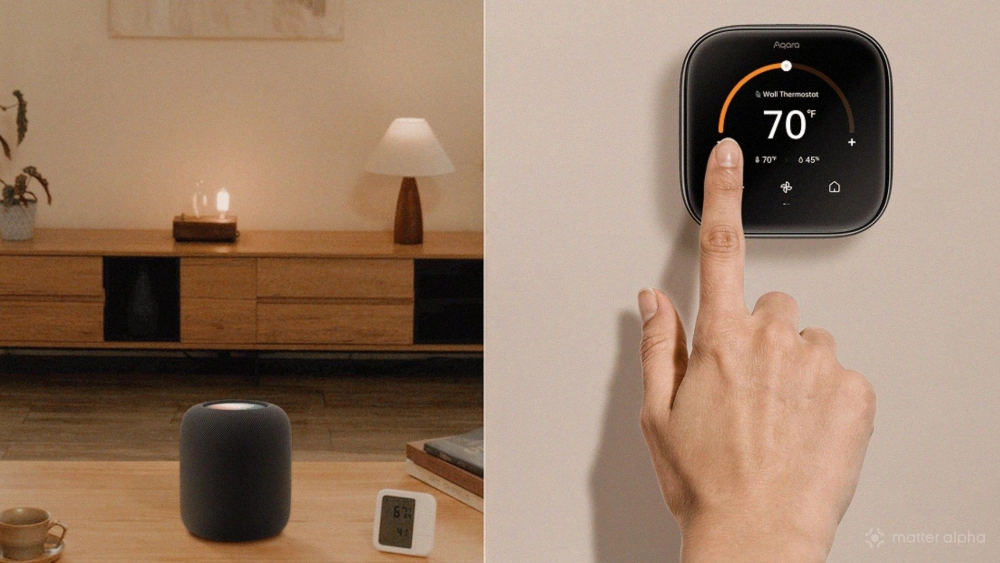
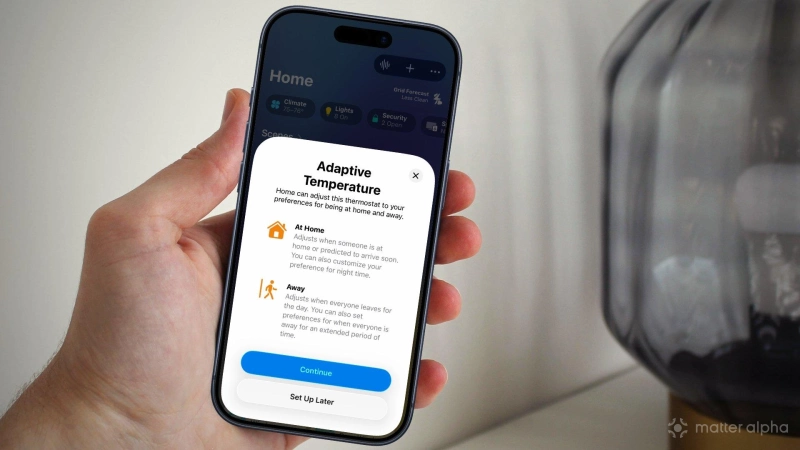
Simply put, Adaptive Temperature is Apple's attempt at making climate control and energy savings as effortless as possible. Similar to how Adaptive Lighting makes color temperature adjustments throughout the day for light bulbs, LED strips, and lamps, Adaptive Temperature manages your home's heating and air conditioning in conjunction with compatible Matter thermostats.
As previously mentioned, one key aspect of Adaptive Temperature is the ability to create thermostat schedules solely within Apple's Home app. Users can define their preferred temperature ranges for three modes: At Home, Away, and Night, and once set, the Home app will take care of the rest quietly in the background.
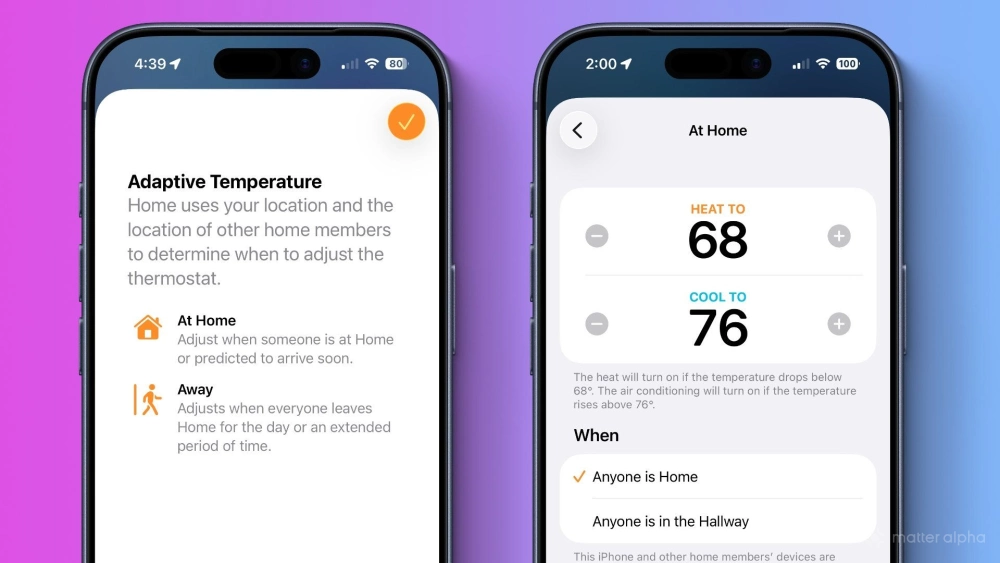
Adaptive Temperature goes beyond mere scheduling as it takes into account location data from iPhones and Apple CarPlay, as well as appointments from the Calendar app. By using location data, Apple Home keeps temperatures consistent when anyone is at home, and reduces energy consumption by switching to higher or lower setpoints while away.
Adaptive Temperature can also use location data to predict when someone is on their way home, ensuring that the home is comfortable the moment they arrive. And, for those "lucky" enough to have an electricity provider that supports Apple Grid Forecast and Clean Energy Guidance features, Adaptive Temperature can optimize HVAC usage so that it runs less during off-peak hours.
Apple Home Adaptive Temperature: what you'll need
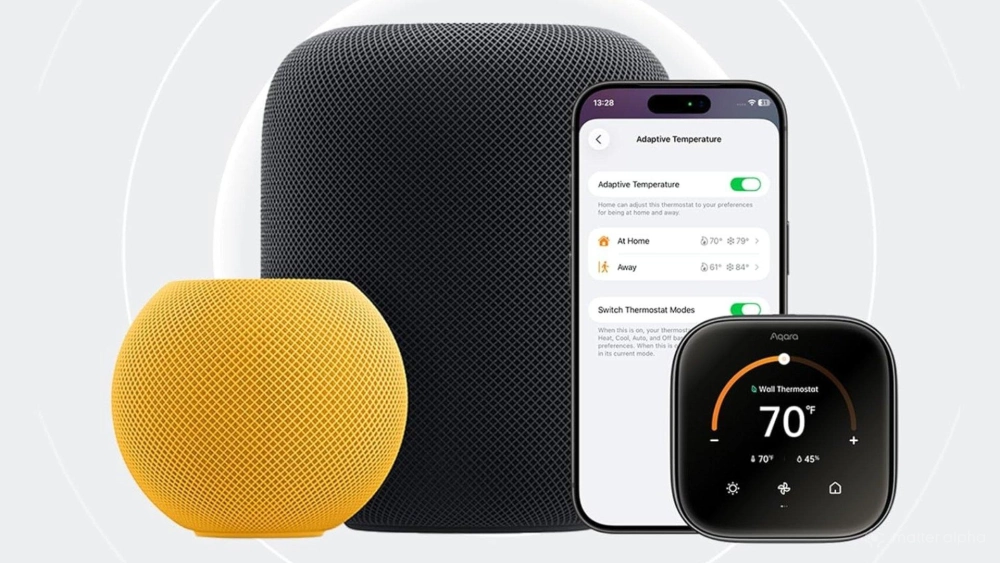
Although the process of setting up and using the Adaptive Temperature feature is fairly straightforward, there are a few requirements that you'll need to meet before you can put it to good use. First, you'll need to have an iPhone running iOS 26 or later, and you must have Location Services turned on for the Apple Home app and for Home under System Services in the Settings app.
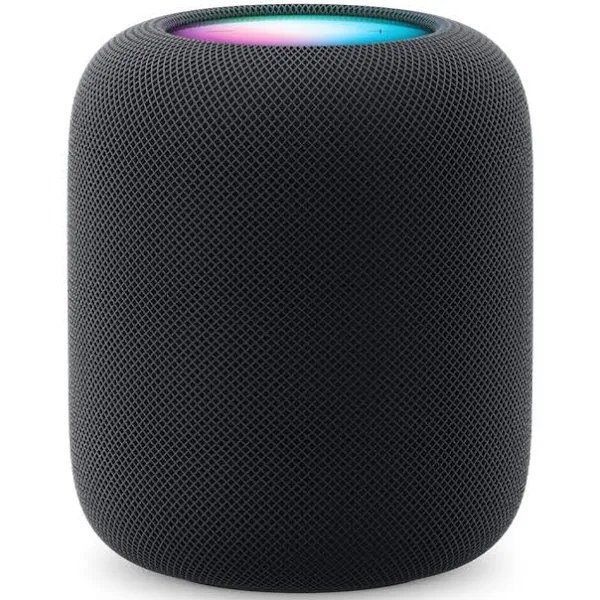
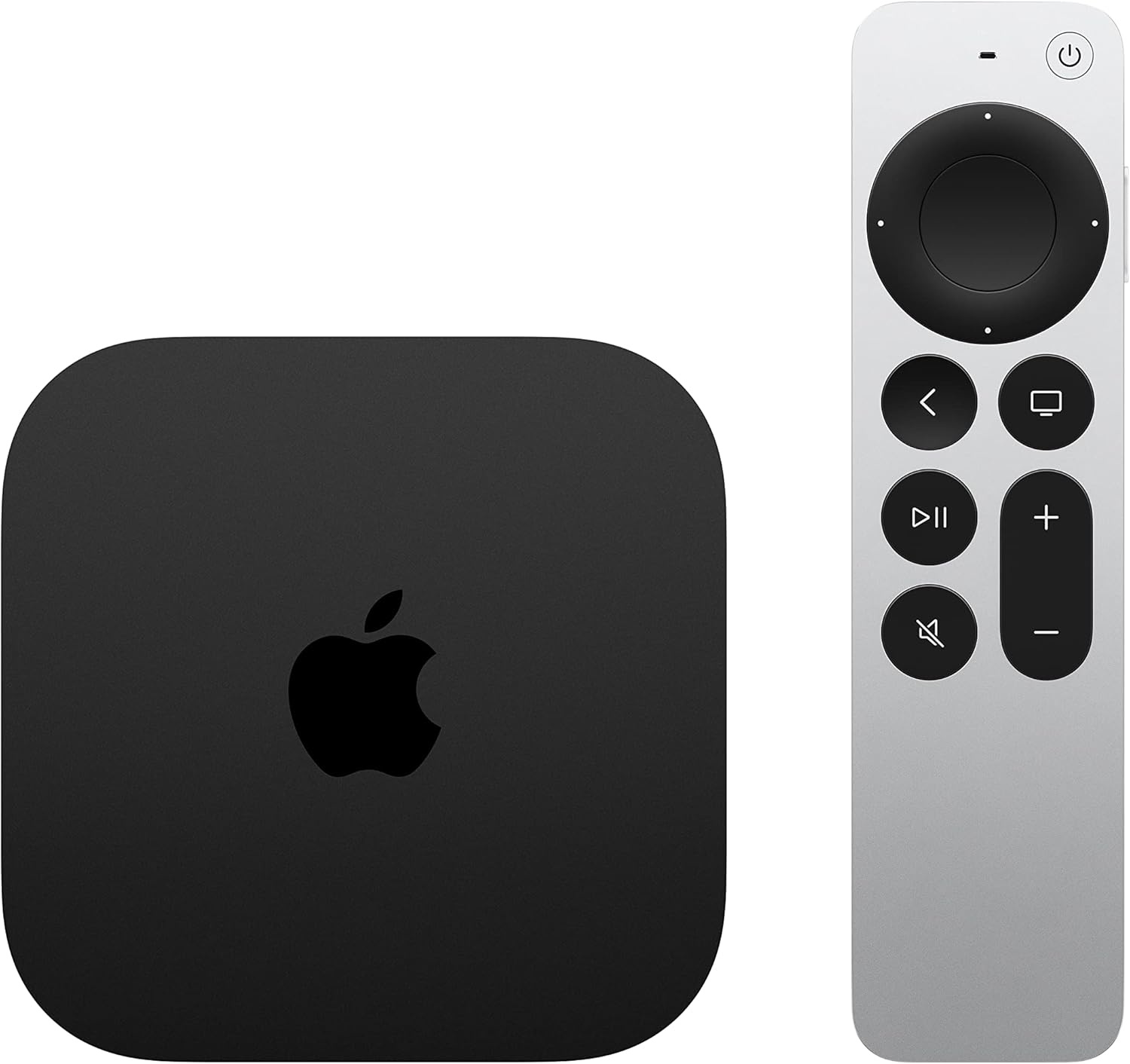
You'll also need an active Apple Home Hub set up for your home, and it too must be running software version 26 or later. Compatible Home hubs include Apple's HomePod and HomePod mini from its smart speaker line, and the company's current-generation Apple TV 4K set-top boxes.
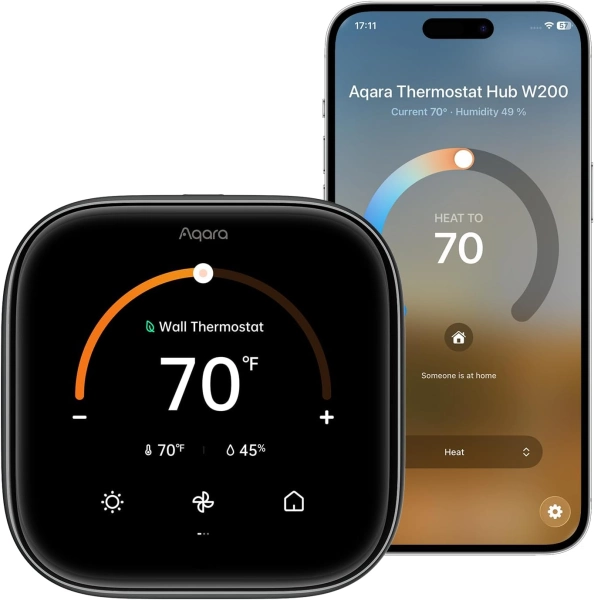
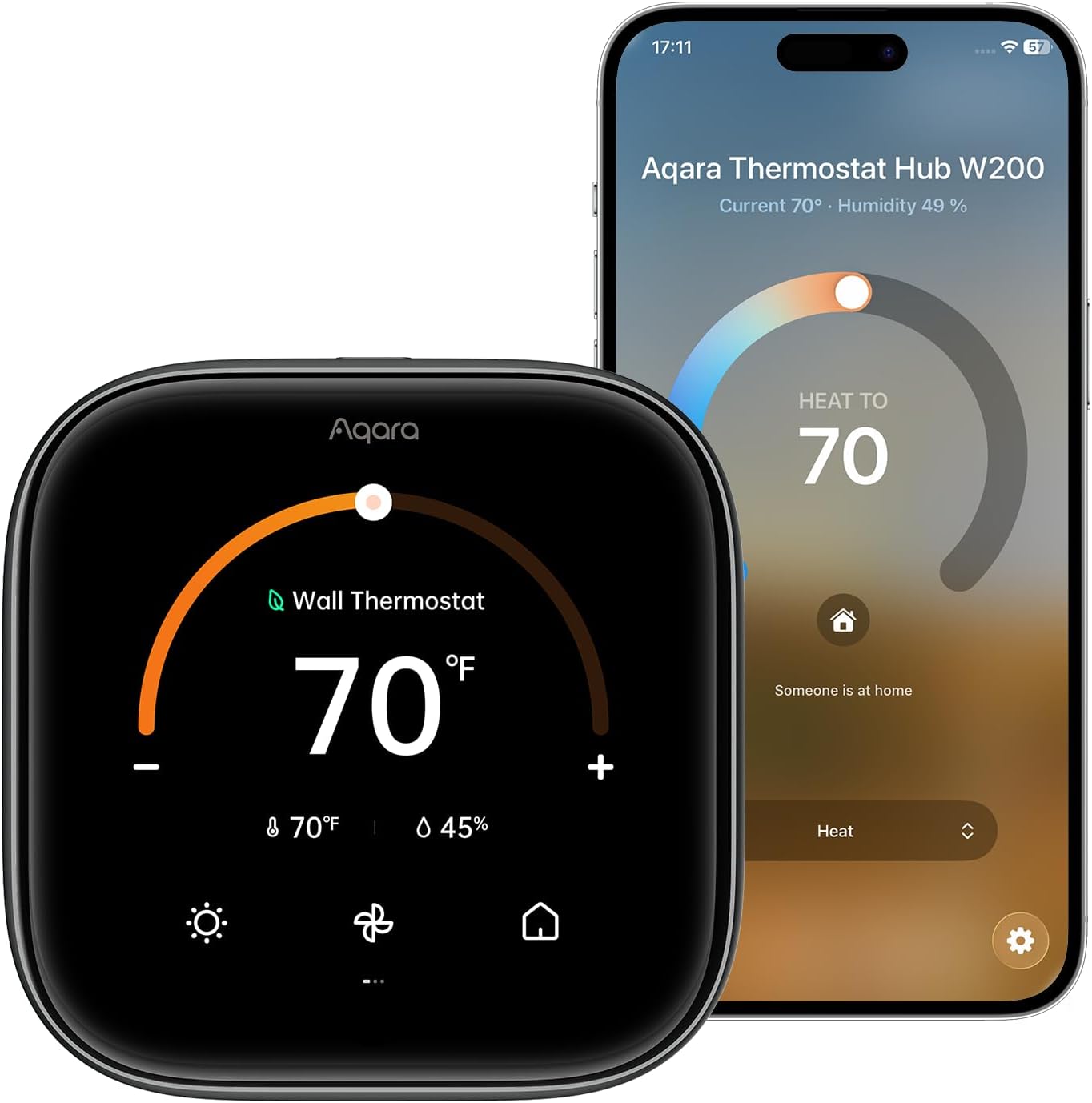
Aqara Thermostat Hub W200
Moving on to hardware, you'll need a Matter-compatible thermostat, and you must add the device to the Apple Home app. Not just any old thermostat will do either; it must specifically support the Adaptive Temperature feature.
Unfortunately, there is only one compatible option on the market currently—the Aqara Thermostat Hub W200. More should be hitting store shelves soon, as we expect upcoming offerings from companies like Eve Systems to include support in future product releases.
How to enable Apple Home Adaptive Temperature
When pairing a compatible thermostat to your smart home network, the Apple Home app should prompt you to enable Adaptive Temperature when assigning a name and room for the device. There's no need to worry if you missed it, as you can enable it at any time. Just follow the steps below.
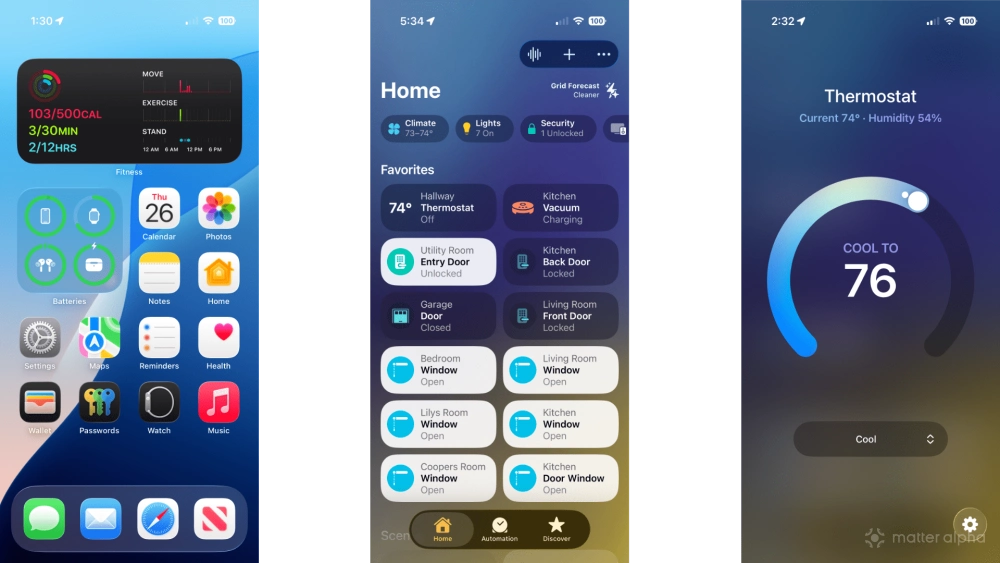
- Launch the Apple Home app.
- Tap your thermostat.
- Tap the Settings icon (looks like a gear).
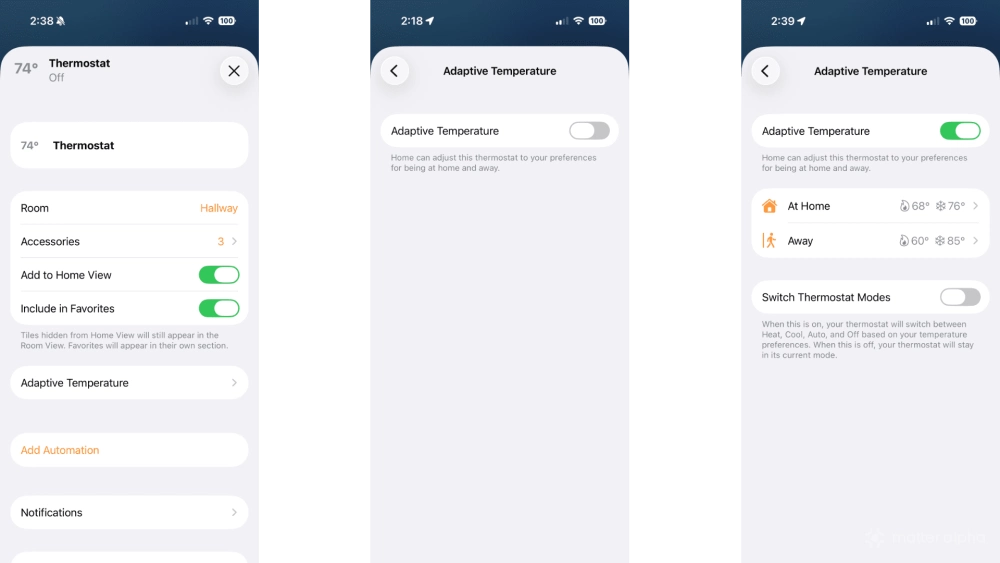
- Tap Adaptive Temperature.
- Tap the Adaptive Temperature toggle.
- Tap the Switch Thermostat Modes toggle if desired.
By enabling the Switch Thermostat Modes option, your thermostat will automatically cycle between heating and cooling based on the schedule that you create next. Read on for those steps and more.
How to set your preferred temperatures while at home
Apple's Adaptive Temperature feature works best when you set your household's preferred temperatures. The first step in the process is to establish setpoints, location settings, and active times for At Home and Night modes.
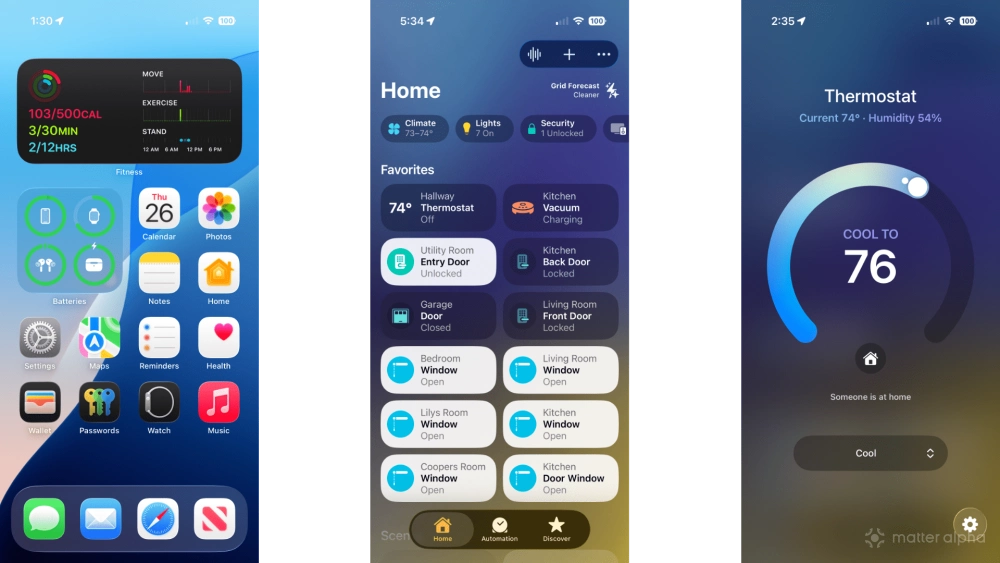
- Launch the Apple Home app.
- Tap your thermostat.
- Tap the Settings icon (looks like a gear).
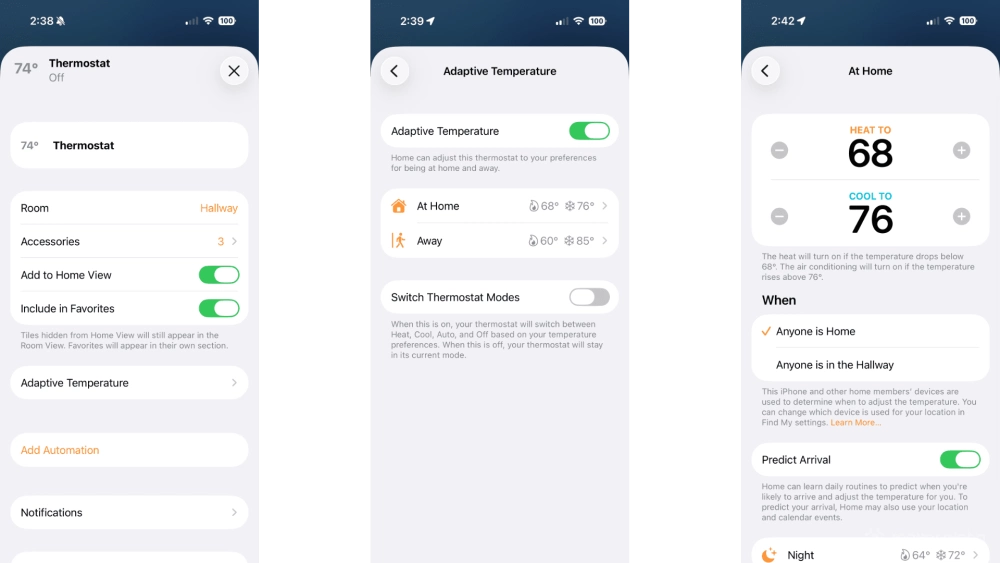
- Tap Adaptive Temperature.
- Tap At Home.
- Tap the - or + buttons to set your preferred temperatures.
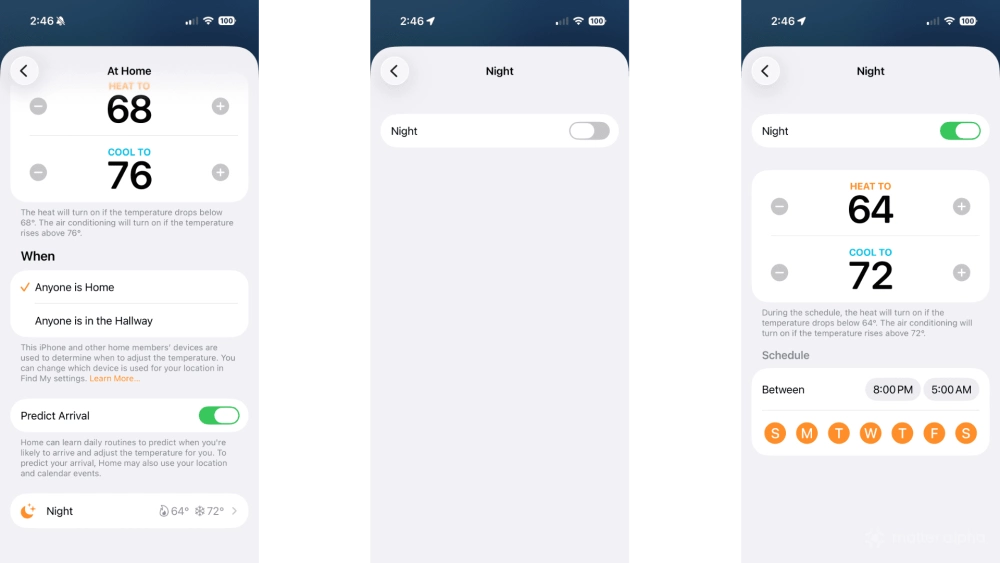
- Tap Night.
- Tap the - or + buttons to set your preferred temperatures.
- Tap Between to set the active times, then tap the desired days.
In addition to your schedule, you can maximize energy savings by choosing either the Anyone is Home or Anyone is in options along with Predict Arrival. These options utilize the location data from the devices of everyone in your household, as well as Apple CarPlay, to determine when to switch between At Home and Away modes—which we will get into next.
How to set your preferred temperatures while away
The final Adaptive Temperature step is to define settings for the times when you—or members of your household—are away. This step is quick and easy as the process is almost identical to setting at home temperatures, aside from one additional option.
- Launch the Apple Home app.
- Tap your thermostat.
- Tap the Settings icon (looks like a gear).
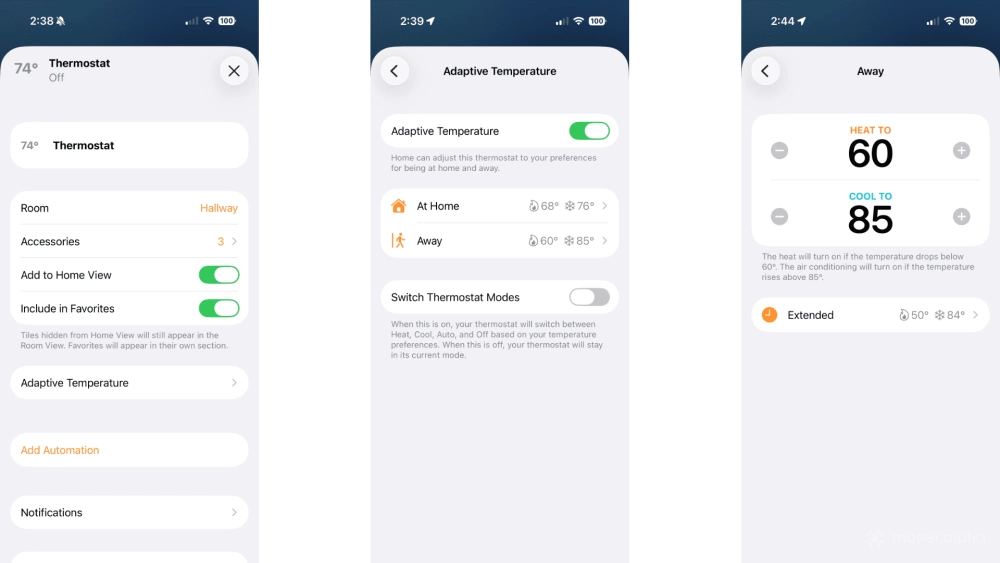
- Tap Adaptive Temperature.
- Tap Away.
- Tap the - or + buttons to set your preferred temperatures.
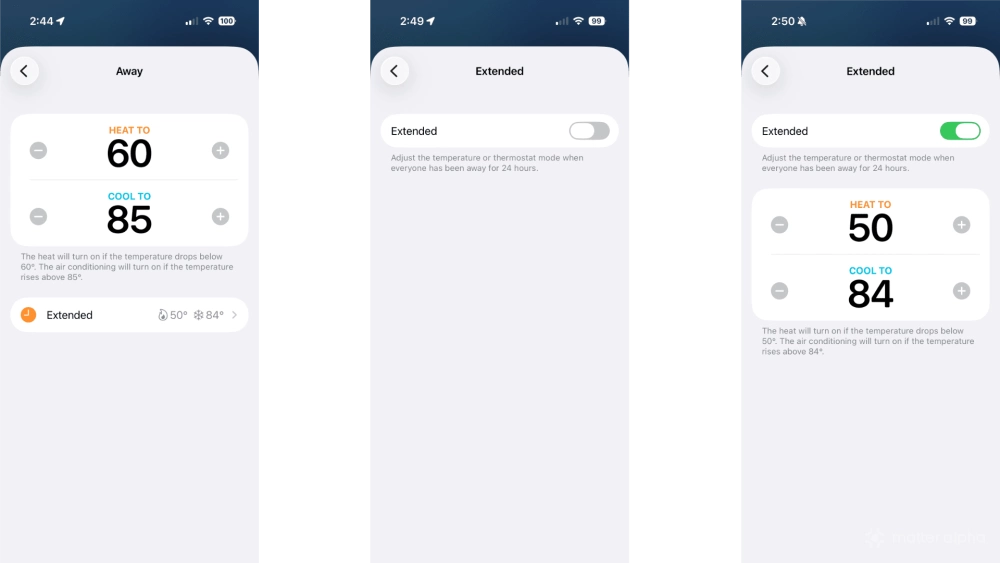
- Tap Extended.
- Tap the Extended toggle.
- Tap the - or + buttons to set your preferred temperatures.
Now, when everyone in your household is out and about, your thermostat will automatically switch to your preferred Away temperatures. And, when your home has been empty for over 24 hours, Apple Home will transition to Extended temperatures, further increasing energy savings.
How to view Adaptive Temperature Activity History
Once you have Adaptive Temperature up and running, you can monitor and review any changes that Apple Home makes to your home's thermostat through Activity History. Here's how:
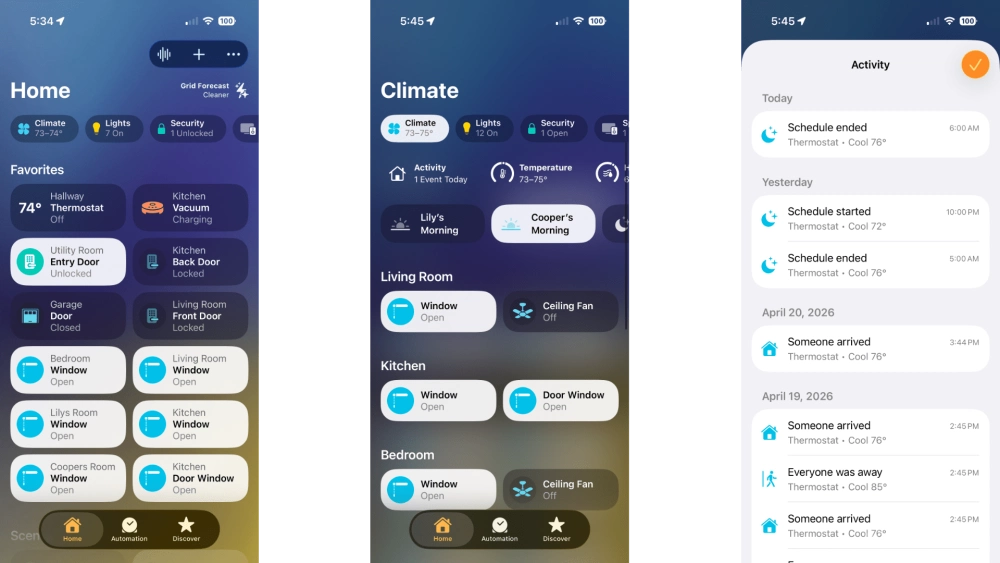
- Launch the Apple Home app.
- Tap Climate in the status area at the top of your screen.
- Tap Activity.
Activity History logs the times when your schedule starts and ends, and when adjustments are made based on location/presence detection. However, these are read-only for now, as the Apple Home lacks options for exporting data.
Put your home's climate on autopilot with Apple Home Adaptive Temperature
With Apple Home now in charge of your home's heating and air, you won't need to micromanage adjustments in the sake of comfort or energy savings. And, you may be able to finally unite all of your home's controls under one roof by deleting that pesky thermostat app that you've been keeping around solely for scheduling purposes.
Of course, Adaptive Temperature is just one of many ways that Apple Home can help automate your Matter smart home. For more, be sure to check out our guides: How to create and use Apple Home scenes, and How to group Matter devices in the Apple Home app.