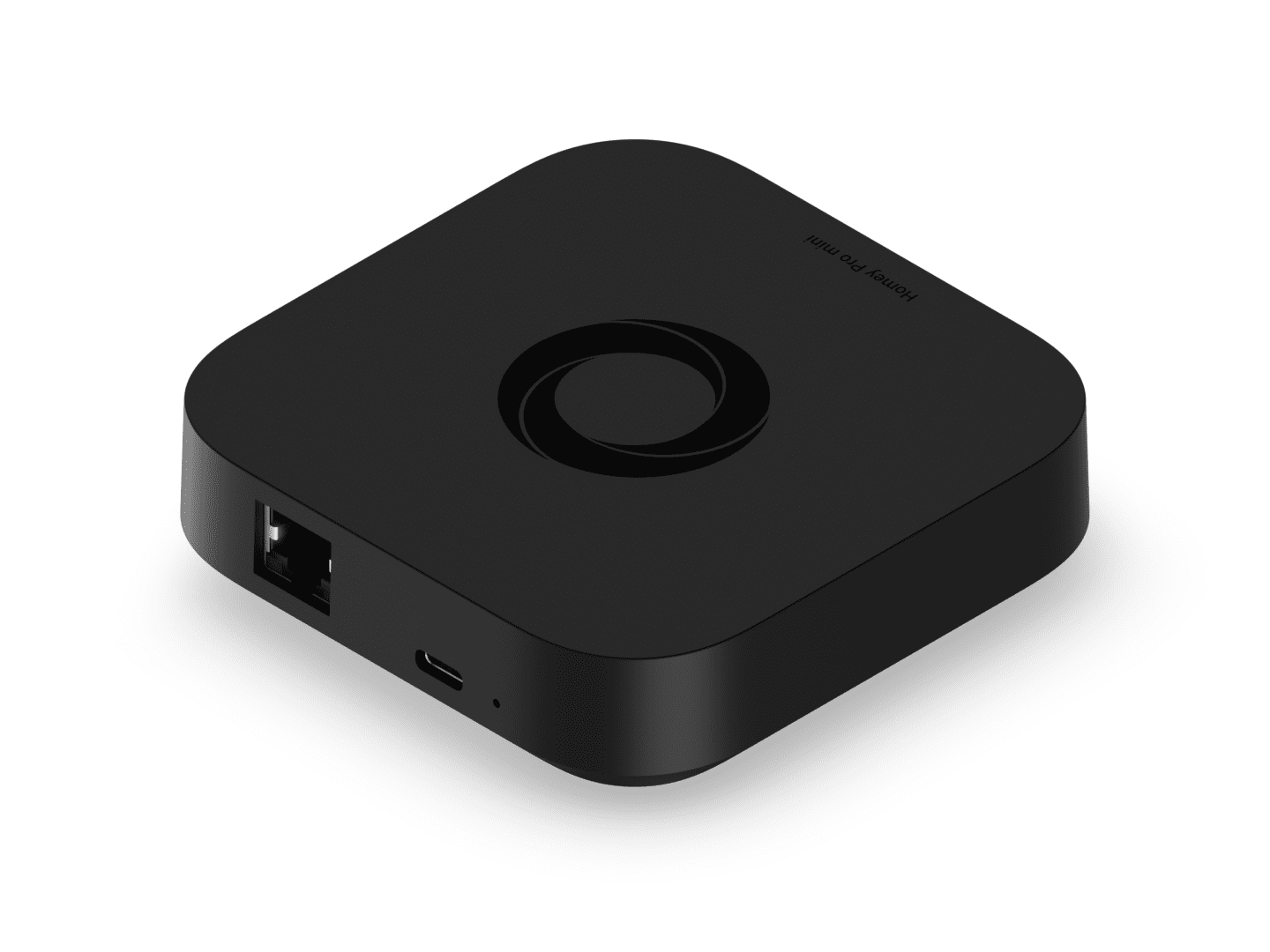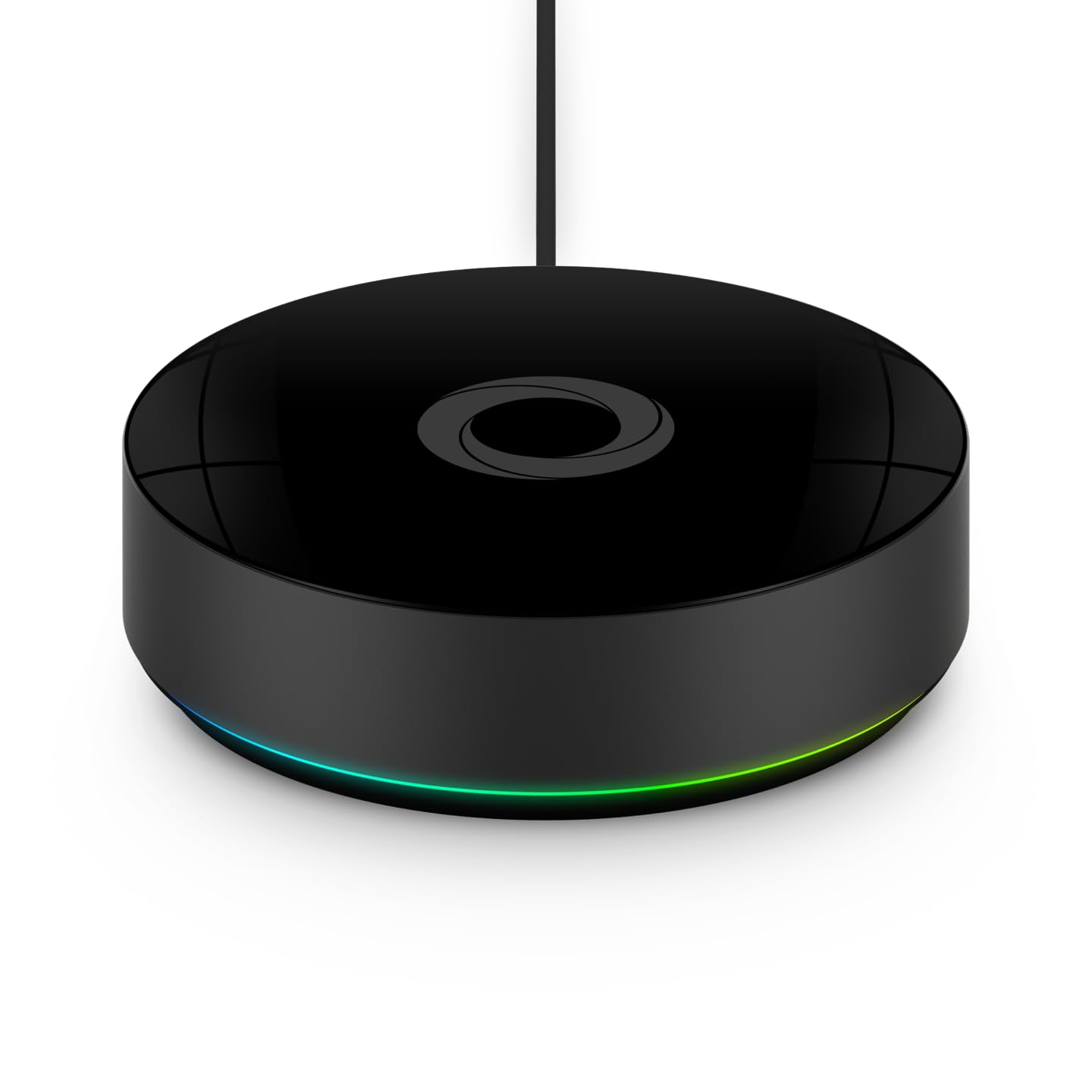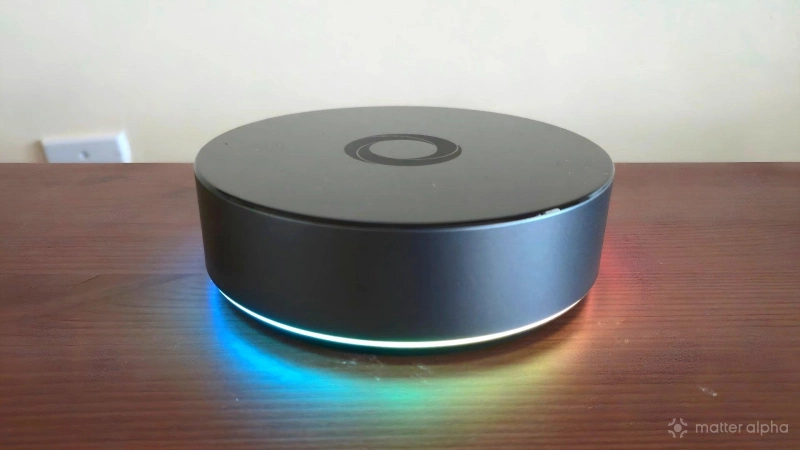
You've probably heard of Home Assistant, but have you heard of Homey? This consumer-focused smart home hub is a straightforward way to control your Matter devices using a tiny PC stored directly in your home. The privacy benefits give Homey an edge over the likes of Amazon Alexa and Google Home, while the ease-of-use are a reason to consider Homey over Home Assistant. I'm currently using Homey as the center of my smart home, and here's how I go about connecting Matter smart home devices.
How to add a Matter device in Homey
Like many smart home products, you can manage your Homey Pro or Homey Pro Mini using a companion app. The Homey app is available for Android and iOS. It's quite easy to install, and the instructions will quickly guide you through the process of creating a Homey account and selecting the rooms in your home.
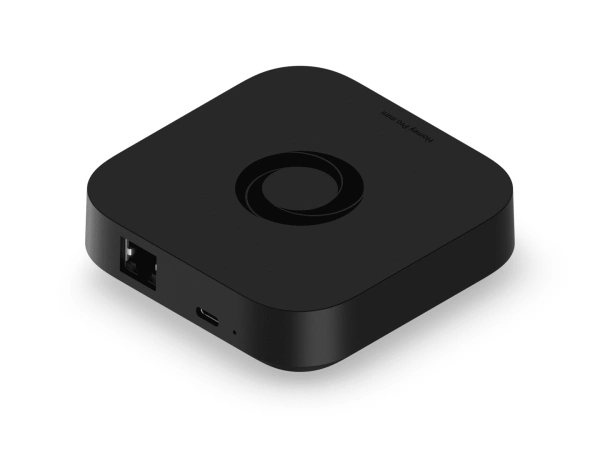
Homey Pro Mini
Smart home hub with Matter, Thread, Zigbee, and Ethernet built in, expandable via Homey Bridge, featuring Homey Flow automation, energy monitoring, alerts, voice integrations, and local or cloud backups with no subscription.
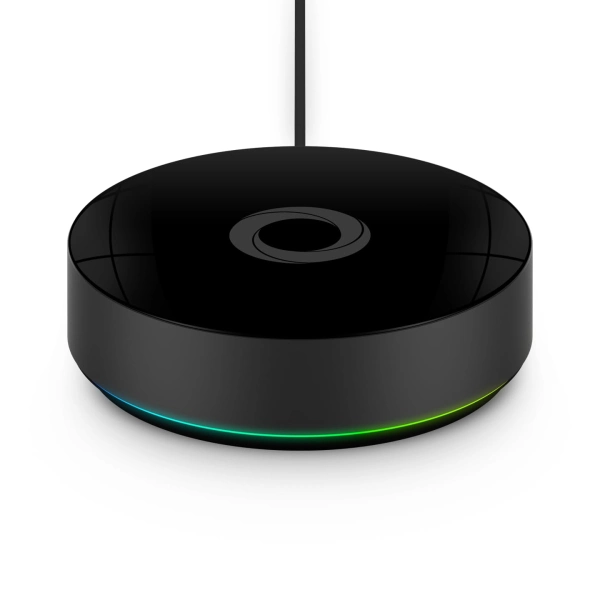
Homey Pro (2026)
Homey Pro (2026) is a local-first smart home hub that unifies seven wireless technologies into a single, powerful controller for advanced home automation.
With that out of the way, it's time to start adding devices. Here's what you do.
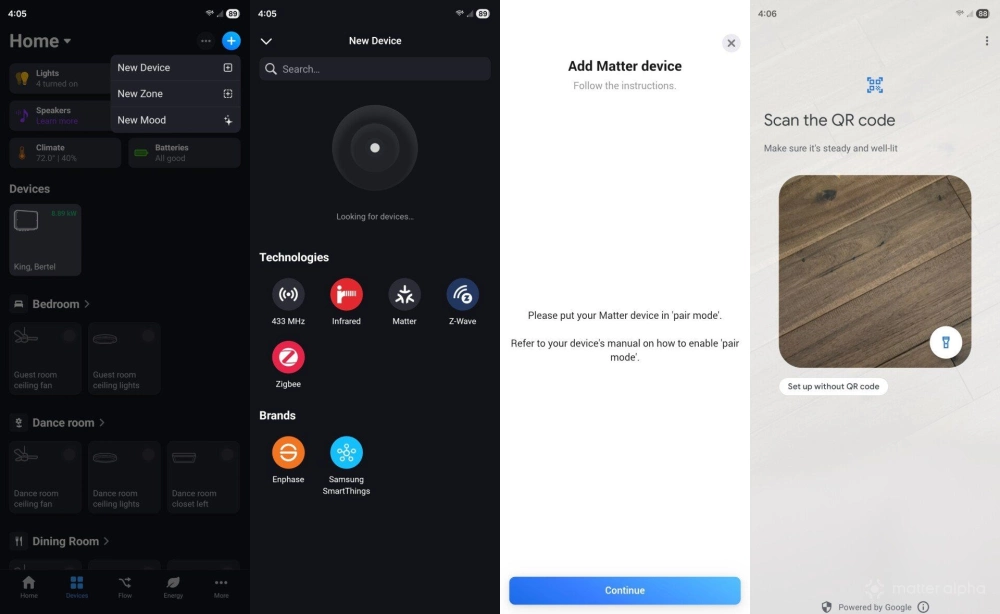
- Tap the + icon in the top right corner of the screen.
- Press New Device.
- Tap Matter under Technologies.
- If you have a Homey Pro, the app will prompt you to Connect via Homey or Connect via Android. The former attempts to connect directly from your Homey hub to your Matter device. The latter uses your phone to communicate between the two devices (only during setup—the end result is the same). If you have a Homey Pro Mini, you can only connect via Android, so the app will immediately move to the next step.
- Homey will tell you to place your Matter device in “pair mode.” Once you have, tap Continue.
At this point Homey will prompt you to scan the QR pairing code that came with your device. If your product didn't come with a QR code, but you have a Matter pairing number, then tap Set up without QR code underneath the camera view. The Matter pairing code will either be an 11- or 21-digit number.
Homey will take over from here. All you have to do is sit back and watch as your hub connects to your device, connects to your Wi-Fi network, and assigns the necessary security keys. All this happens in the backend. If all goes well, Homey will soon ask you to give your device a name, select an icon, and place it in a room. Afterward the process is complete.
Adding a device that’s already in use
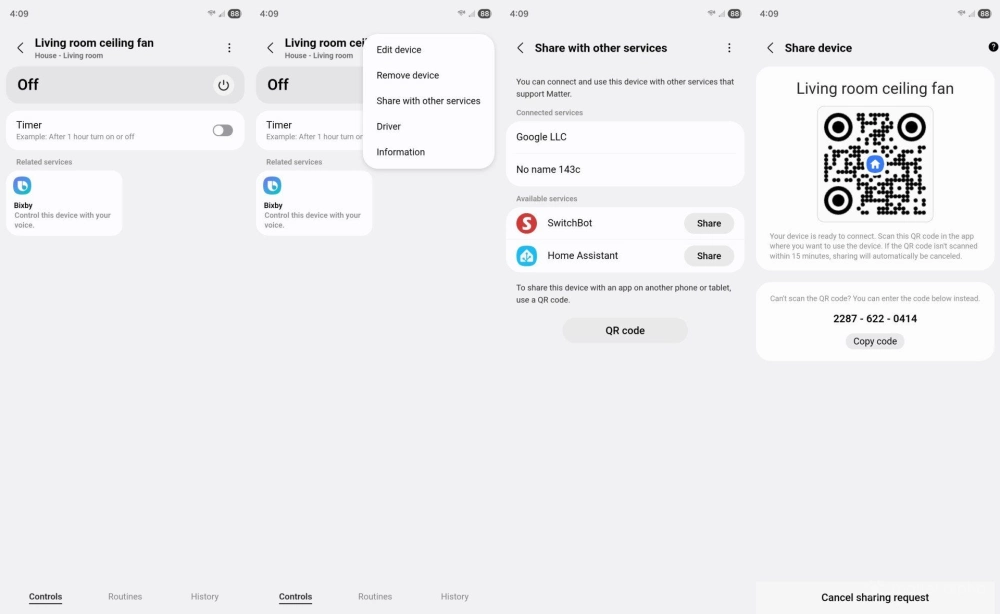
One of Matter's strengths is that you can control a single Matter device using multiple smart home platforms. If you set up a Matter device in Apple Home, someone else in your house can control that same device using Google Home instead. But once you've set up a device in one platform, you can't reuse the original pairing code in another. You will need to generate a new one inside whichever smart home platform you used first.
I began my smart home journey via Samsung SmartThings. Instead of resetting my devices, I can simply open SmartThings, navigate to the relevant device, and look for the Share with other services option, which generates a new code to use within the Homey app. I can then open Homey and follow all the same steps listed above except this time I use this newly generated code instead.
Homey is an ideal way to control a smart home
Most of the major commercial smart home platforms, which the exception of Apple Home, are based in the cloud. For those of us outside the Apple ecosystem, Home Assistant is the most well-known alternative.
Home Assistant is great, but its complexity can also be overwhelming. Homey is easier to use. Unfortunately, at $200 for the Homey Pro Mini and $400 for the Homey Pro, the price is a bit steep if you don't already know what you want. Be sure to check out our Homey review before making the commitment.