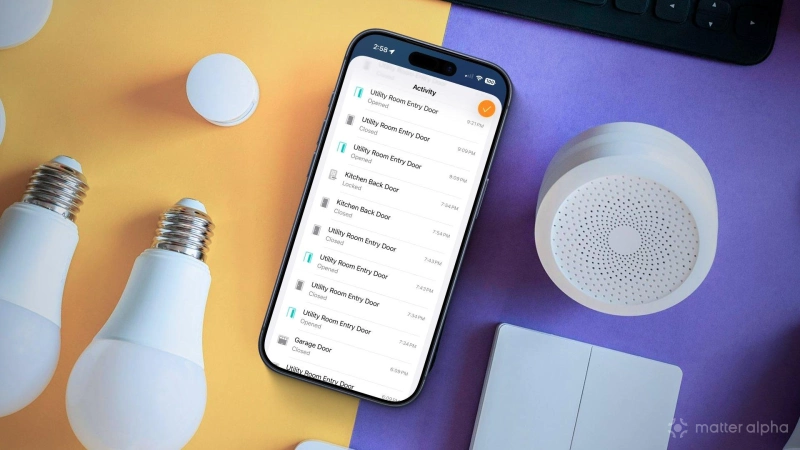
With its streamlined controls and powerful home automation capabilities, many smart home enthusiasts—myself included—choose Apple Home for managing their Matter devices. However, even with an intuitive interface that strips out most of the complexities found in other Matter ecosystems, it too has its fair share of features that are buried in places that you may not think to look.
One of which is Apple Home's activity history, an incredibly important—yet often overlooked—feature that logs status changes and events for security and climate devices. If you haven't discovered it as yet, this guide will point you in the right direction so you can begin to monitor your smart home's daily routines.
How Apple Home activity works and what you'll need
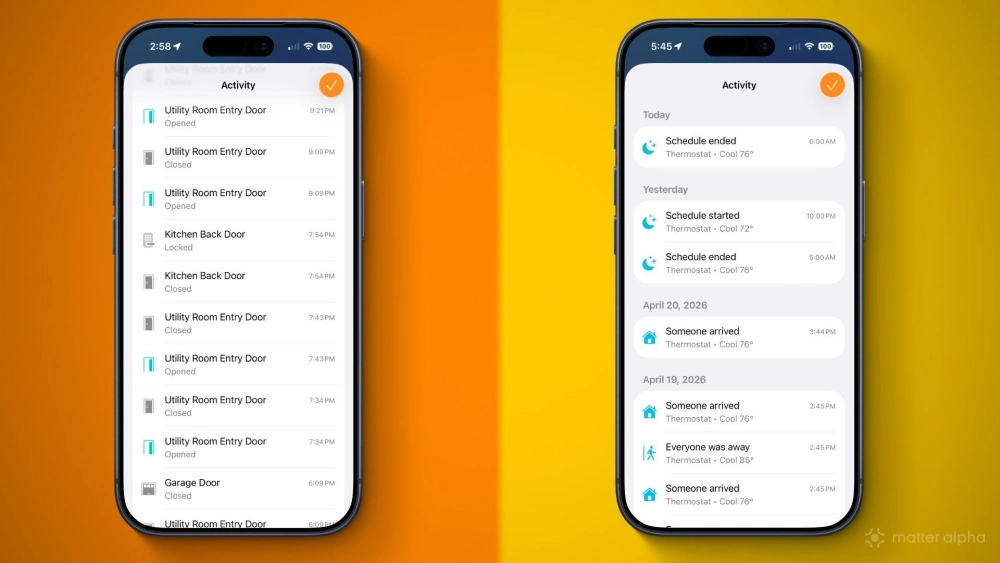
Apple Home's activity history works by monitoring smart security and climate devices and stores status changes in a rolling 30-day log. There is no limit for the number of entries logged per day, but after 30 days, the Home app will overwrite the oldest and replace them with activity from the current day—similar to how Matter cameras function.
Unlike third-party apps, Apple Home doesn't need to be active or in the foreground for logging, as it works entirely in the background. Activity history automatically syncs to all of your Apple devices through iCloud, so it's always up-to-date, and its contents are end-to-end encrypted, so only you—or people you invite to control your Home—can access them.
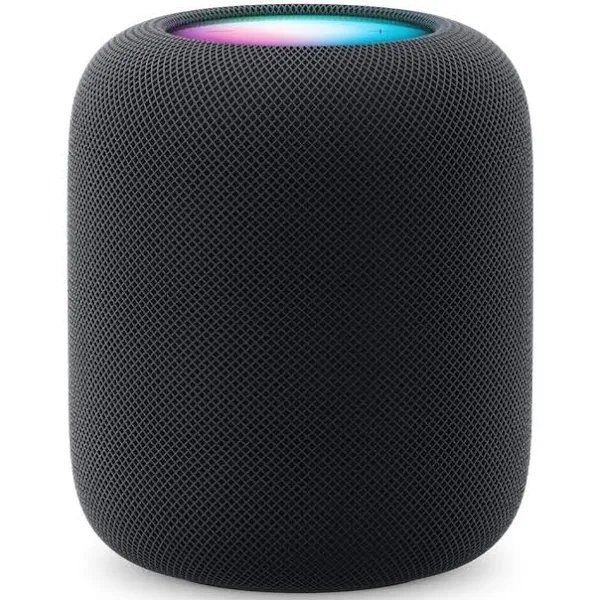
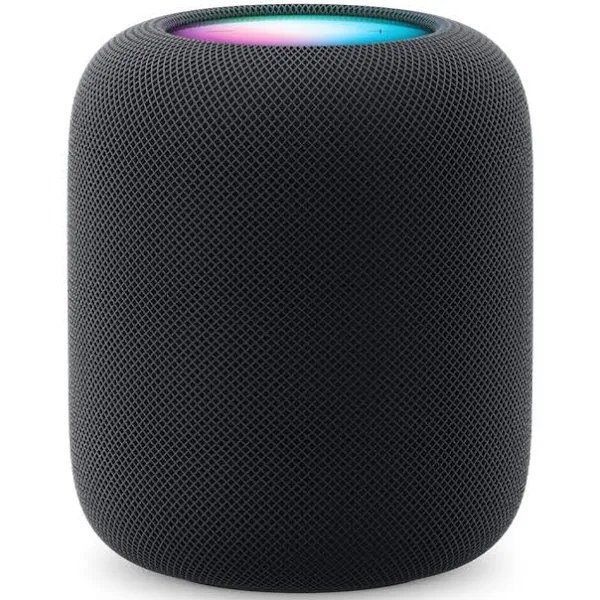
Apple HomePod (2nd Gen)
Apple Home activity is presented in a chronological, read-only list format—meaning you cannot export data, and you cannot take any direct actions from logged entries. Unfortunately, the Home app is also very limited when it comes to reviewing data, as it lacks search and filter functions.
To take advantage of the Home app's activity history feature, you'll need an Apple Home hub—either an Apple TV or HomePod—running tvOS 17 or later. You'll also need an iOS device running the latest software to ensure that you have access to recent additions to activity history, like climate logging.
Apple Home activity history: supported Matter devices

In addition to Apple's hardware requirements, you'll of course need to add a compatible Matter device to the Apple Home app before you can view activity history. Currently, activity logging is limited to select security and climate device types only; it doesn't log lights turning on or off, motion activity, smart plug power state, or camera events.
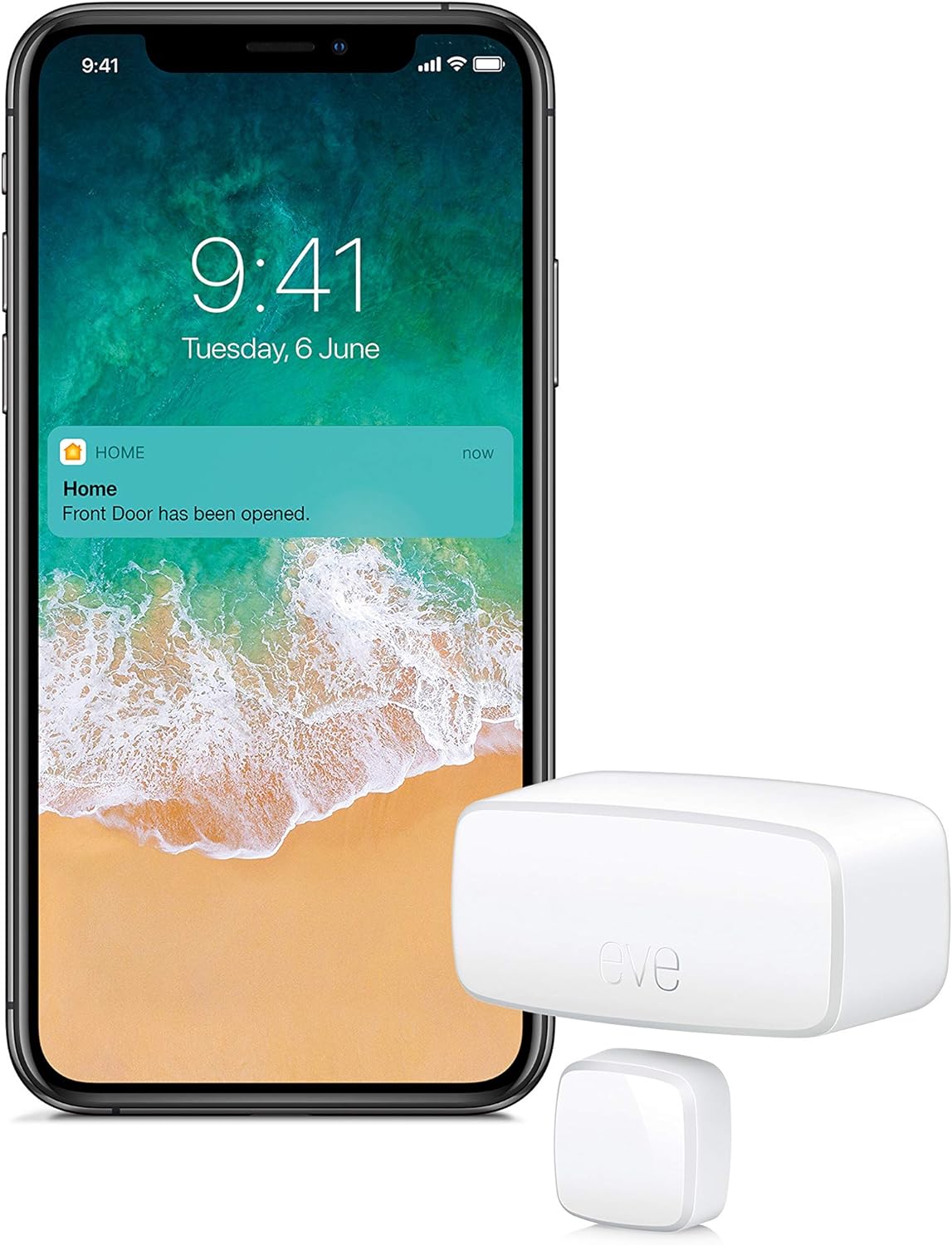
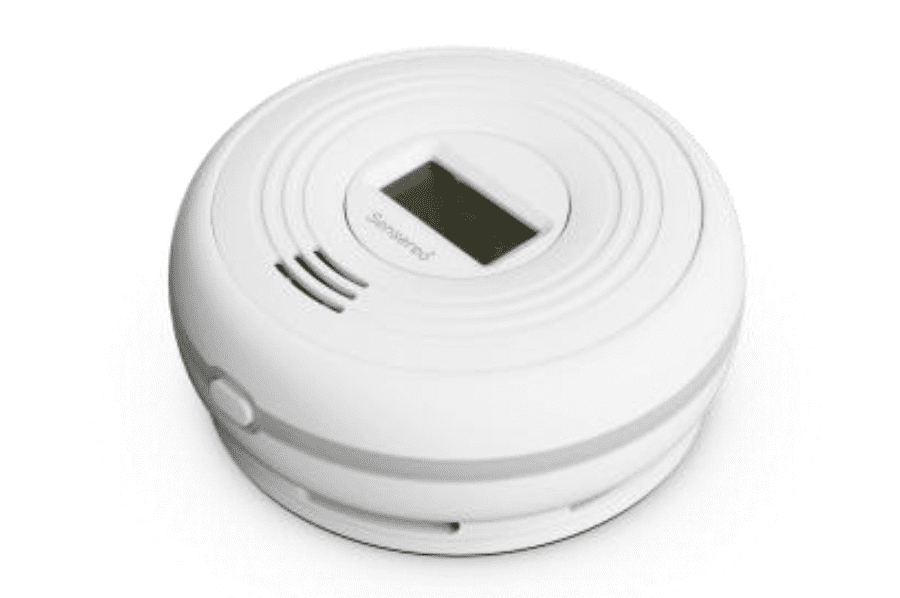
Supported security devices include contact sensors similar to the Eve Door and Window, smoke detectors like the Sensereo MSC-1, smart door locks, alarm systems, and garage door openers. Entries for these devices include the time along with notations such as open/close or locked/unlocked, and they will even report the name of the person who initiated the change if they are a resident of your Apple Home.
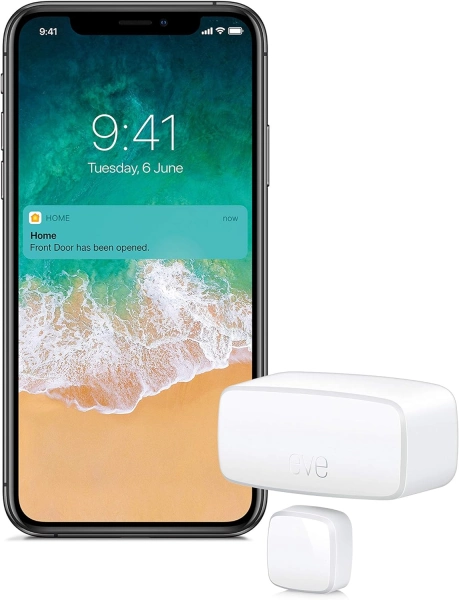
Eve Door & Window
Eve Door & Window is a security device that offers real-time status updates on your doors or windows, integrates seamlessly with Matter for cross-platform compatibility, and ensures privacy with local connectivity and no tracking, all powered by cutting-edge Thread networking technology.

Sensereo Smoke and Carbon Monoxide Alarm
Matter-over-Thread smoke and CO alarm with photoelectric smoke sensing, electrochemical CO detection with on-device ppm display, 85 dB siren.
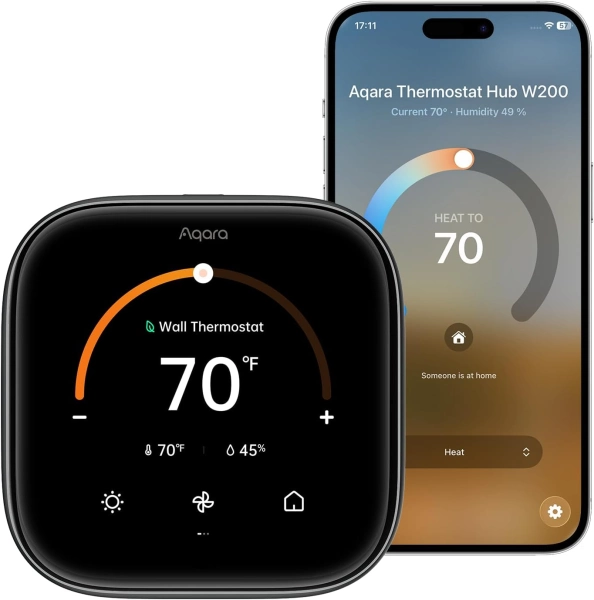
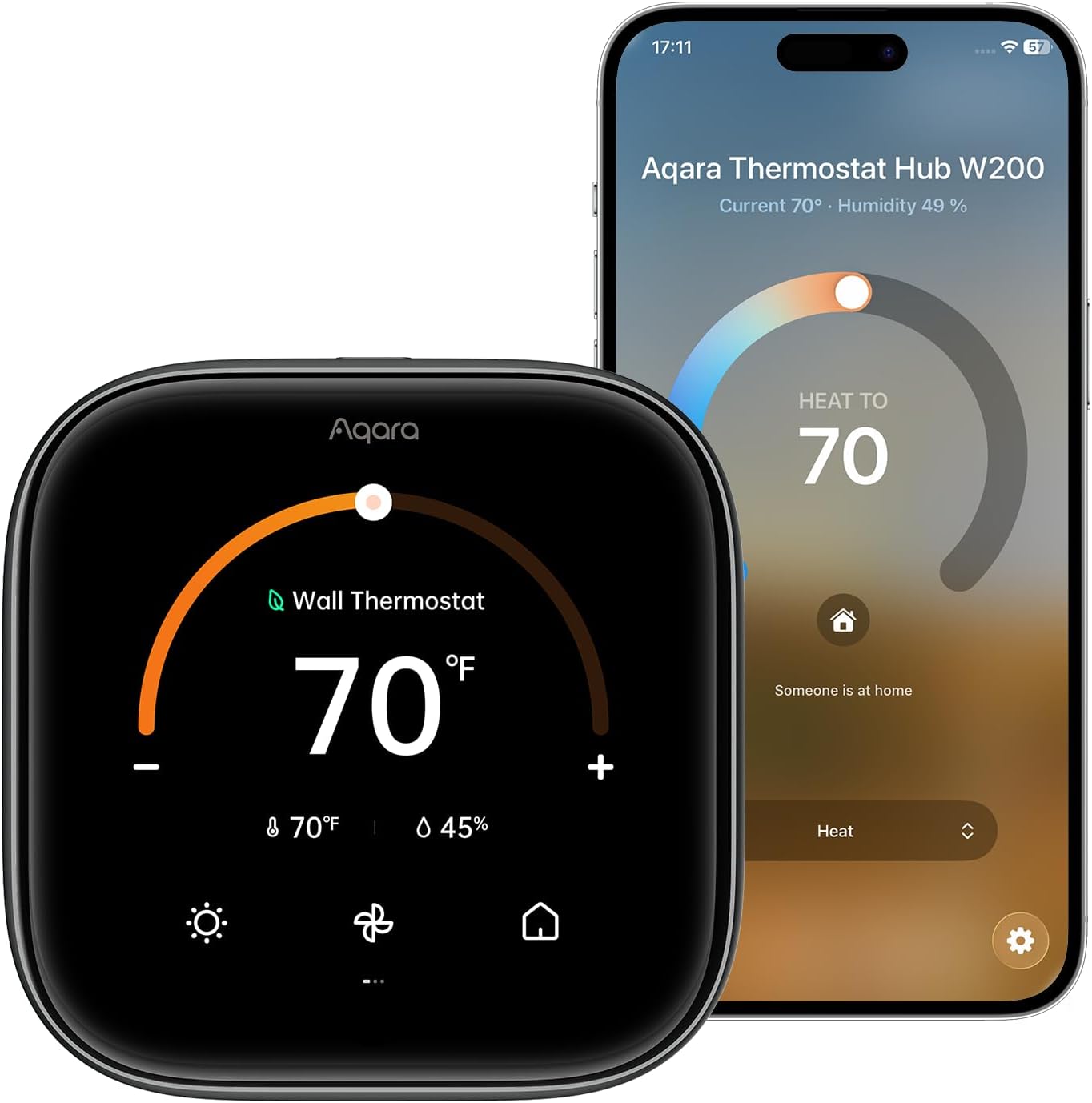
Aqara Thermostat Hub W200
Aqara Thermostat Hub W200 combines smart climate control, presence detection, and Matter hub capabilities in one compact device.
Climate device activity history resides in its own dedicated area, and only supports changes made by Matter thermostats compatible with Apple Home Adaptive Temperature. As of now, only one such device exists—the Aqara Thermostat Hub W200—but we expect to see more hit store shelves in the near future.
For climate activity, the Apple Home app logs the time and reason for each temperature change. This includes automatic schedule changes and instances where presence detection overrides the home's active heating and cooling schedule.
How to enable Apple Home activity history
Enabling Apple Home activity history is quite easy and only takes a few taps. Just launch the app and then head over to Home Settings. Here's how:
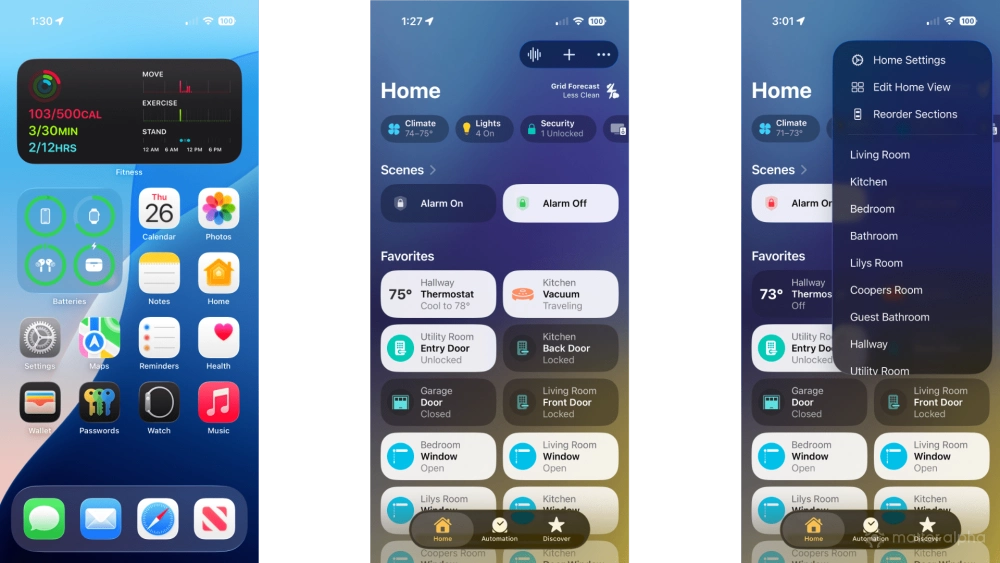
- Launch the Apple Home app.
- Tap the ... button.
- Tap Home Settings.
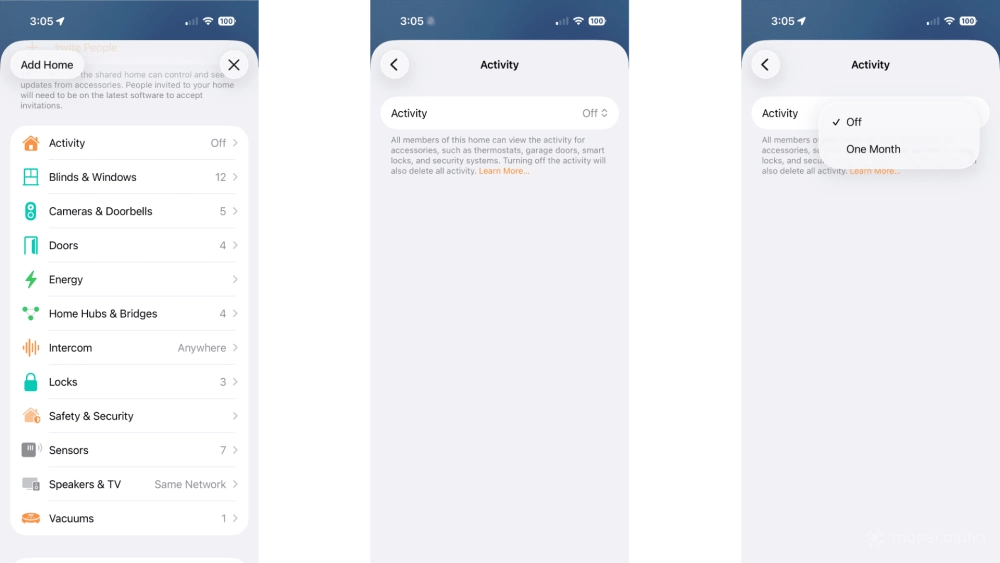
- Tap Activity.
- Tap the Activity picker.
- Tap One Month.
After activating activity history, the Apple Home app will begin to monitor your home for any changes and events in its rolling 30-day log. You can view the long at any time through your iPhone, iPad, or Mac.
How to view Matter security device activity history
The Home app's activity history log for devices like Matter smart door locks, garage doors, and door and window sensors can be found in the Security tab. You can access it through the Home view of the app, then by tapping Security in the status area near the top of your screen.
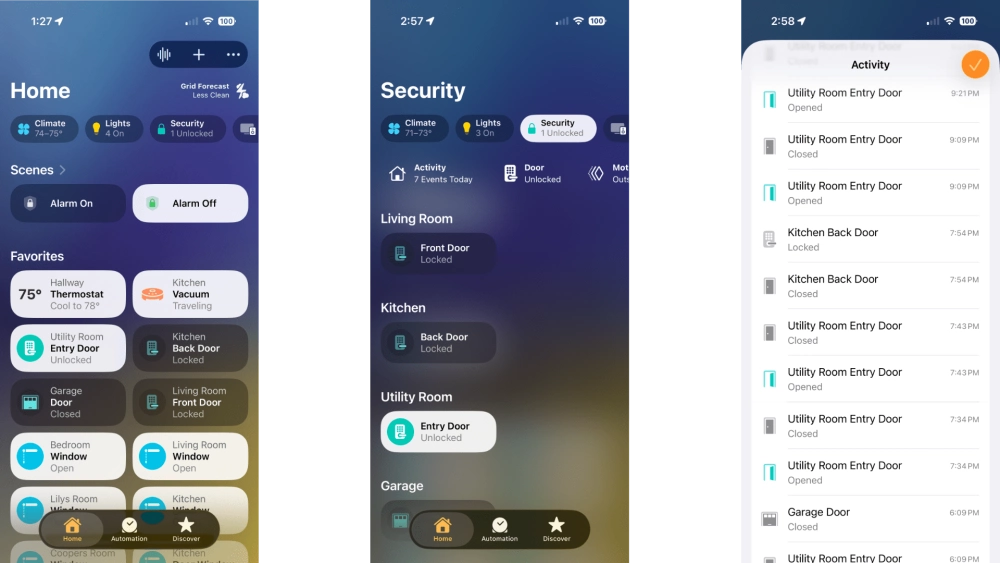
- Launch the Apple Home app.
- Tap Security in the status area at the top of your screen.
- Tap Activity.
In our example above, you can see that the Home app logs the exact moment when a security event happens. Not only does it track the time and event type—such as open or closed—but it even logs the name of the person who initiated the change for devices like garage door openers if they are a part of your Apple Home.
How to view Matter climate device activity history
As previously mentioned, climate device activity is currently restricted to Matter thermostats that support Apple's Adaptive Temperature feature. If you have a supported thermostat, you can find history through the Climate area of the Apple Home app by following the steps below.
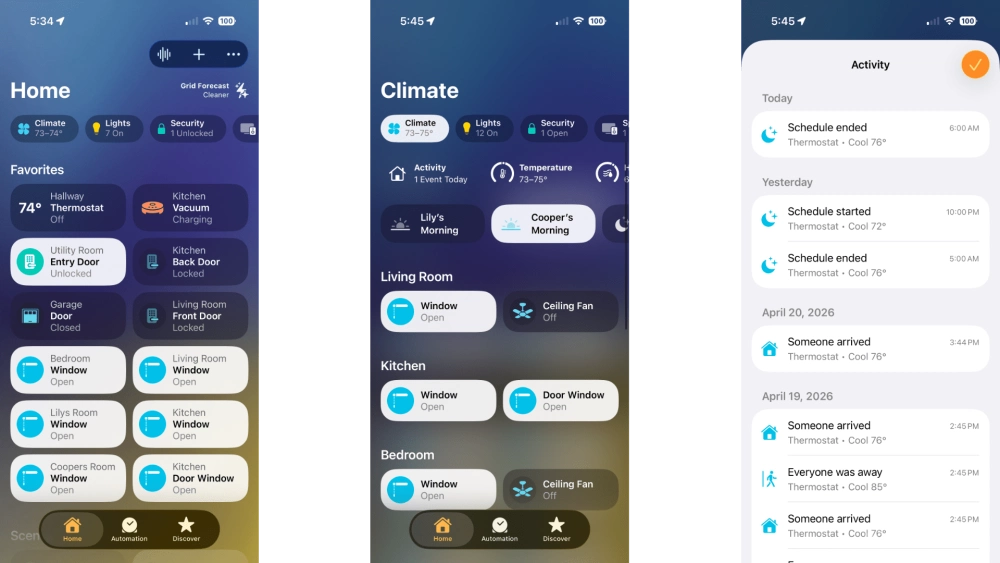
- Launch the Apple Home app.
- Tap Climate in the status area at the top of your screen.
- Tap Activity.
When climate activity is on, you'll see all scheduling and presence-based changes made to your thermostat. This is particularly useful as Apple Home Adaptive Temperature makes changes silently according to your desired setpoints.
How to disable Apple Home activity history
You can always disable activity history through the Home app at any time. The process is very similar to enabling the feature; just tap Off instead of One Month in settings.
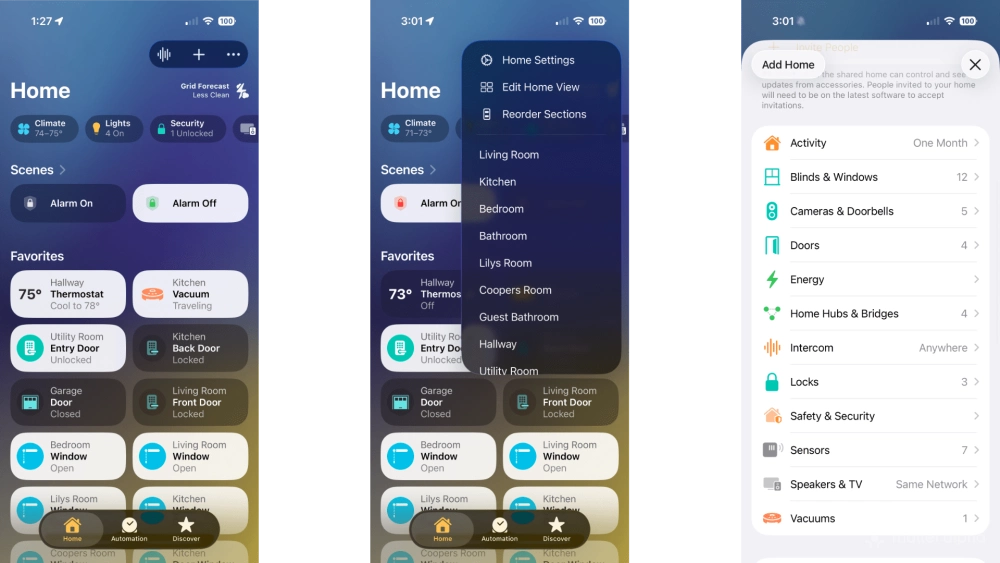
- Launch the Apple Home app.
- Tap the More... button.
- Tap Home Settings.
- Tap Activity.
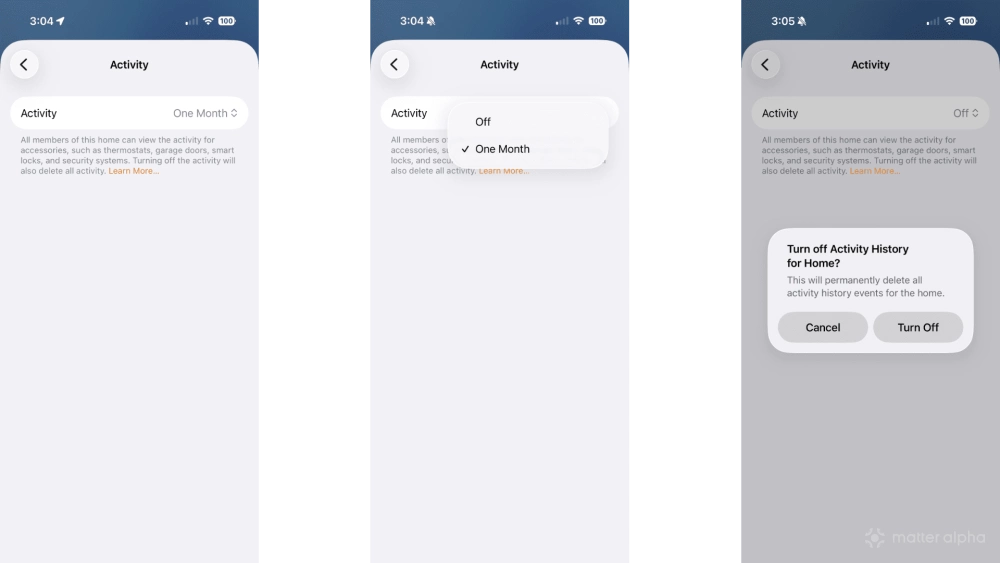
- Tap the Activity picker.
- Tap Off.
- Tap Turn Off.
Warning: tapping Off at this point in this process will permanently erase all of your home's previous activity history. We suggest taking screenshots of critical data before proceeding just in case you need to reference them later.
Keep an eye on your Matter smart home with Apple Home activity history
By enabling Apple Home activity history, you'll unlock valuable insights into the security and climate aspects of your household's daily routines. Wondering why your house is suddenly colder than usual or how long the back door has been open? Just look it up in activity history!
Activity history is just one of many ways that Apple Home can help you manage your smart home. For more, check out our guides: How to use Apple Home Adaptive Lighting with your Matter lights, and How to create and use Apple Home scenes.